
How To Smooth And Soften Skin With Photoshop
In this tutorial, I'll show you how to improve your portraits by giving your subject beautifully smooth skin with Photoshop! We'll start by learning how to remove pimples and other minor skin blemishes using Photoshop's Spot Healing Brush. Then, after the initial clean-up, we'll learn step-by-step how to smooth and soften skin without blurring important details, like the person's eyes, hair and so on, and while keeping as much good skin texture as possible.
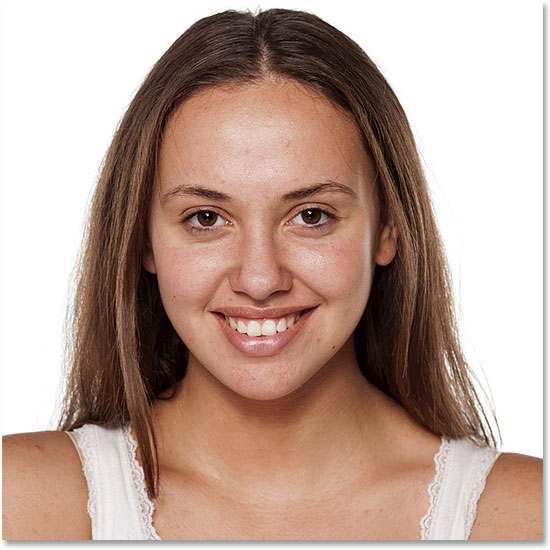
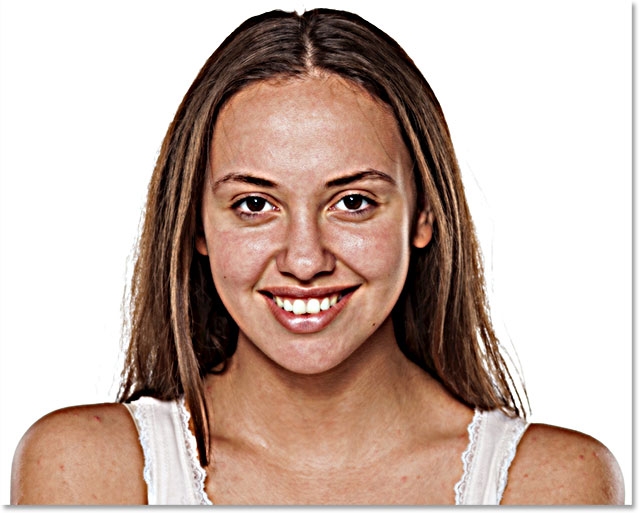
To follow along, you can use any portrait photo. I'll use this image (smiling young woman photo from Adobe Stock):
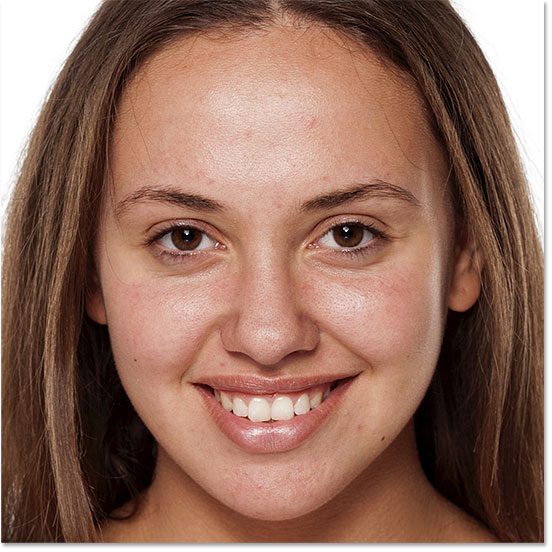
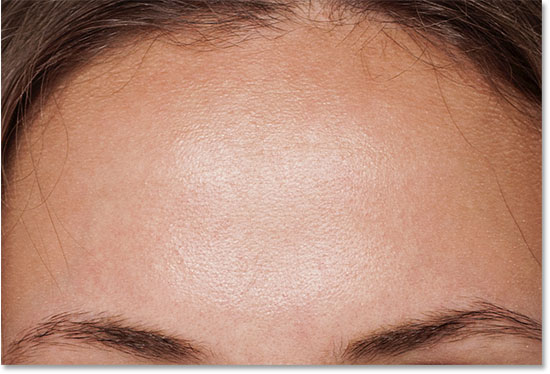
Here's a close-up of what the young woman's skin looks like initially:
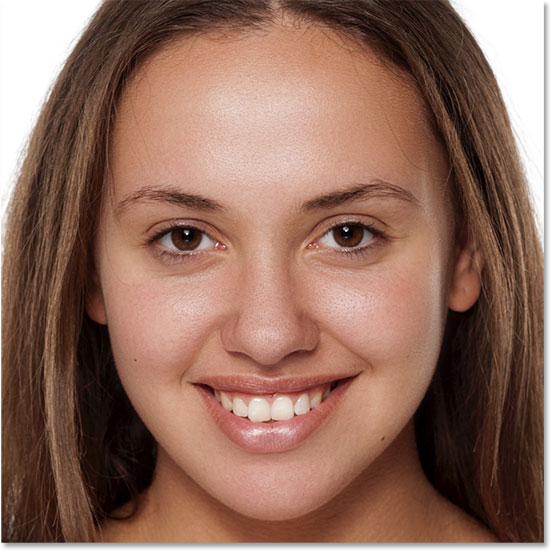
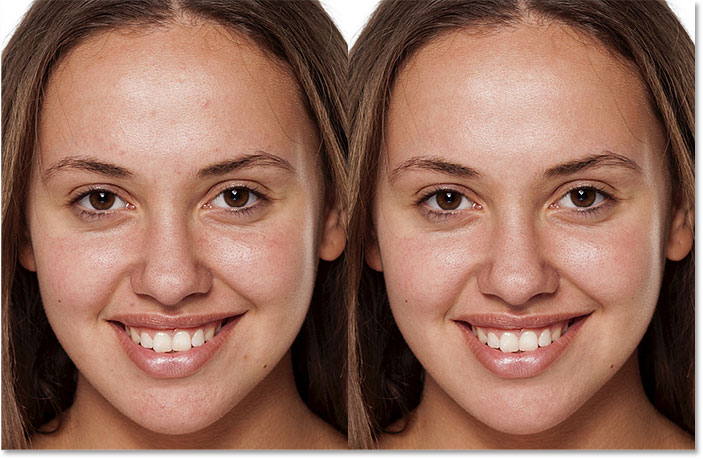
And here's what she'll look like after smoothing and softening her skin:
Let's get started!
How to Smooth Skin in Photoshop
I used Photoshop CC but this tutorial is fully compatible any recent version up to Photoshop 2023, plus older versions like Photoshop CS6. You can get the latest Photoshop version here.
Step 1: Make A Copy Of The Image
With the image newly-opened in Photoshop, the Layers panel shows the photo on the Background layer. Before smoothing the skin, start by removing any unwanted blemishes. To protect the original image, you'll want to work on a separate layer.
Make a copy of the Background layer by pressing and holding the Alt (Win) / Option (Mac) key on your keyboard, clicking on the Background layer, and dragging it down onto the New Layer icon at the bottom of the Layers panel:
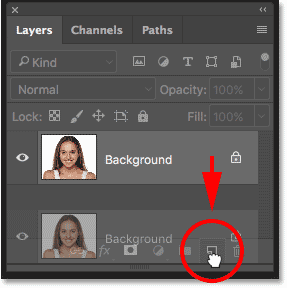
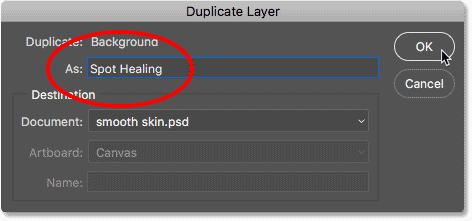
In the Duplicate Layer dialog box, name the layer "Spot Healing" and then click OK:
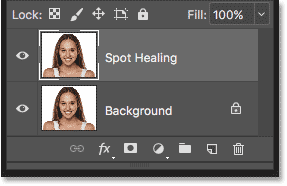
A copy of the image appears on a new layer named "Spot Healing" above the original:
Step 2: Select The Spot Healing Brush
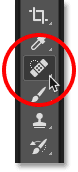
Select the Spot Healing Brush from the Toolbar:
Step 3: Set The Spot Healing Brush To "Content-Aware"
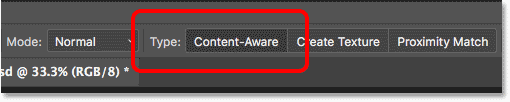
Make sure the Type option in the Options Bar is set to Content-Aware:
Step 4: Click On The Skin Blemishes To Remove Them
Click on any unwanted skin blemishes with the Spot Healing Brush to remove them. Photoshop will instantly "heal" the blemishes by replacing the problem texture with good skin texture from the surrounding area. For best results, make your brush slightly larger than the blemish. To change your brush size, press the right bracket key ( ] ) on your keyboard to make the brush larger or the left bracket key ( [ ) to make it smaller. If the blemish hasn't completely gone away on the first try, undo your click by pressing Ctrl+Z (Win) / Command+Z (Mac) on your keyboard, then resize your brush if needed and click on the same blemish to try again.
Example: Removing Skin Blemishes With The Spot Healing Brush
If we look at the woman's forehead in my image, we see what looks like a large pimple just to the right of center. I'll position the Spot Healing Brush over it, and I'll make my brush slightly larger than the pimple itself:
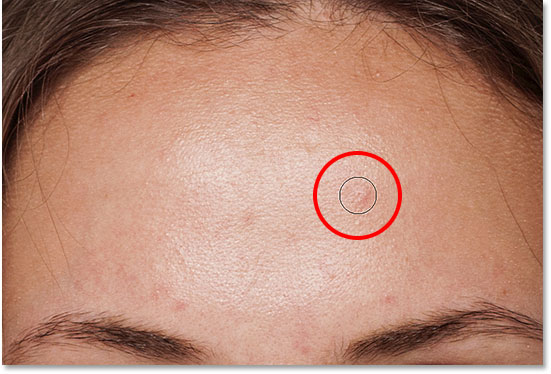
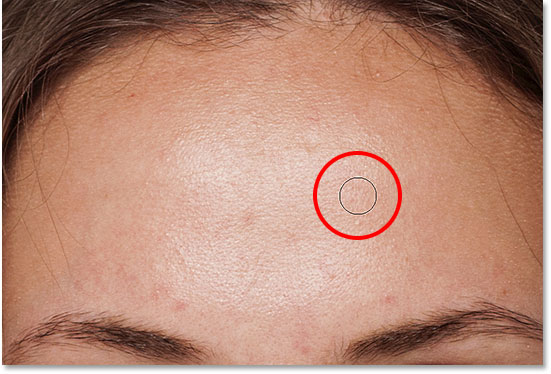
To remove the blemish, I'll click on it with the Spot Healing Brush. Photoshop analyzes the area I clicked on, finds good skin texture from the area surrounding it, and then blends the good texture in with the problem area's original tone and color. Like magic, the blemish is gone:
I'll do the same thing with another blemish on her forehead, keeping the Spot Healing Brush just a bit larger than the area I need to heal:
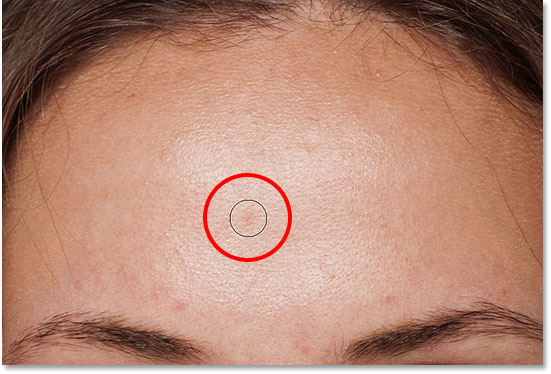
I'll click on the blemish, and once again, Photoshop instantly removes it:
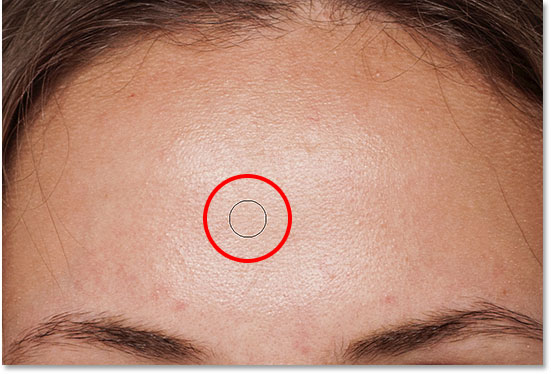
After a few more clicks with the Spot Healing Brush to clean up the remaining blemishes on her forehead, her skin is already looking much smoother:
Removing Blemishes, Not Features
As you're retouching the skin, keep in mind that while it's okay to remove temporary problems like acne or other minor skin issues, it's usually not okay to remove permanent features like moles or even certain scars, as these are part of what makes someone who they are. After all, the goal of image retouching is to help people look their best, not to make them look like someone else.
Completing The Initial Skin Cleanup
Continue working your way around the person's face to remove any remaining blemishes. Here's a side-by-side comparison of what the woman's skin looked like originally (left) and after some quick retouching with the Spot Healing Brush (right). With most photos, this initial skin cleanup should take no more than a few minutes. I covered the Spot Healing Brush quickly here, but you can learn more about it in my Removing Acne, Skin Blemishes With The Spot Healing Brush tutorial:
Step 5: Make A Copy Of The "Spot Healing" Layer
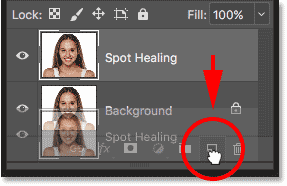
With the blemishes removed, we're ready to smooth and soften the skin, and again, it's best to work on a separate layer. Back in the Layers panel, make a copy of the "Spot Healing" layer by pressing and holding the Alt (Win) / Option (Mac) key on your keyboard, clicking on the "Spot Healing" layer, and dragging it down onto the New Layer icon:
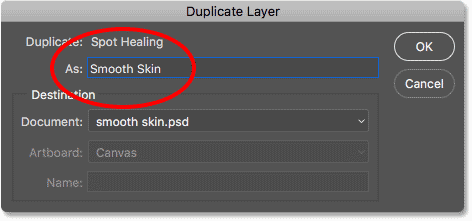
In the Duplicate Layer dialog box, name the layer "Smooth Skin" and then click OK:
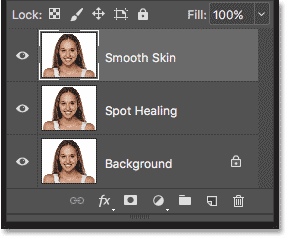
We now have the original image on the Background layer, the initial skin cleanup on the "Spot Healing" layer, and a new "Smooth Skin" layer above them:
Step 6: Apply The High Pass Filter
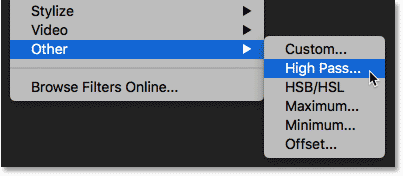
To smooth the skin, we'll use Photoshop's High Pass filter. Go up to the Filter menu in the Menu Bar, choose Other, and then choose High Pass:
Why The High Pass Filter Is Great For Smoothing Skin
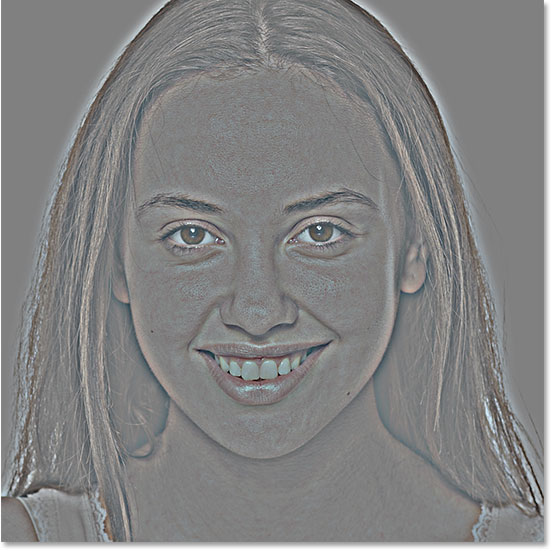
If you're familiar with the High Pass filter, it's most likely because you've used it to sharpen images in Photoshop. Even though we'll be using High Pass to smooth skin, not sharpen it, many of the steps are the same. The High Pass filter looks for edges in the image and highlights them. An edge is an area where there's a big, sudden change in brightness or color between neighboring pixels. With portrait photos, the edges are usually along the person's hair, around the eyes, the mouth, and so on. Skin texture, on the other hand, has relatively low amounts of detail with much smoother transitions. These areas are not considered an edge, so rather than highlighting them, the High Pass filter fills these areas with neutral gray.
If we were sharpening the image, the High Pass filter would allow us to sharpen the edges (the details) without affecting the skin. But for smoothing skin, we use High Pass for the opposite reason. We'll detect the edges not so we can sharpen them but so we can smooth and soften everything except the edges. Let's see how it works.
The Radius Value
The High Pass filter detects edges and highlights them, and the Radius option at the bottom of the High Pass dialog box controls the "thickness" of the edge highlighting. In other words, once Photoshop has detected an edge, the Radius value tells it how many pixels on either side of it to include as part of the edge. Low Radius values will highlight only the finest details in the image. But to make sure we don't end up softening these important details, we need to highlight the areas around them as well, which means we need a larger Radius value. For a typical portrait shot, a radius of 24 pixels works well:
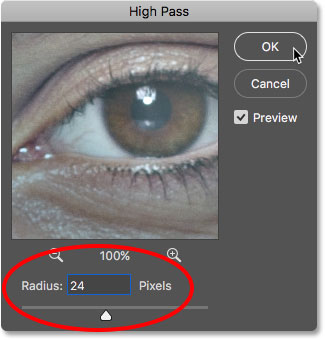
If your subject is further back in the photo, or you're working on a lower resolution image, a smaller Radius value of 18 pixels or even 12 pixels might work better. Why these specific values? It's because it's important for the next step that you choose a Radius value that's easily divisible by 3. For example, 24 divided by 3 is 8, 18 divided by 3 is 6, and 12 divided by 3 is 4. Nice, easy numbers. Again, we'll see why in the next step.
Click OK to close the High Pass dialog box. Your image will turn mostly gray. Solid areas of gray are the non-edge areas with little to no detail, like the skin, while large, high contrast halos highlight the edges:
Step 7: Apply The Gaussian Blur Filter
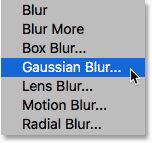
We need to blur the High Pass filter effect. It may seem counterintuitive, but the blurring will actually help to bring out more good texture in the skin. Go up to the Filter menu, choose Blur, and then choose Gaussian Blur:
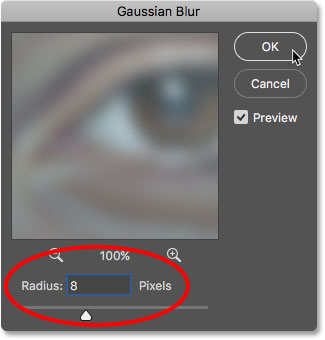
In the Gaussian Blur dialog box, set the Radius value to exactly one third of the value you used for the High Pass filter. In my case, I set the High Pass radius to 24 pixels, so I'll set the Gaussian Blur radius to one third of that, which is 8 pixels. Click OK to close the dialog box:
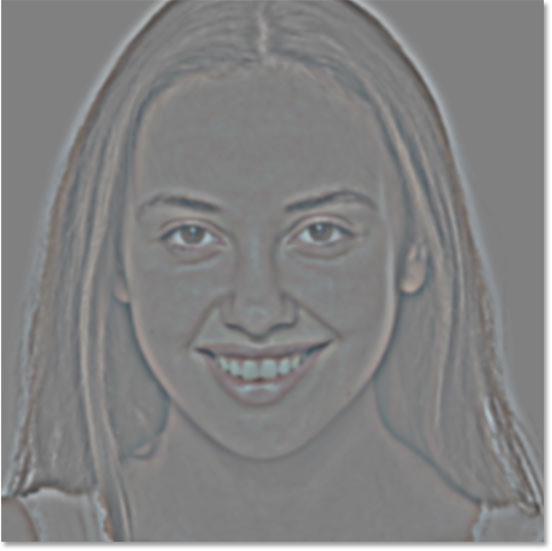
With the blurring applied, the High Pass effect now looks softer and less detailed:
Step 8: Change The Layer Blend Mode To Linear Light
In the Layers panel, change the blend mode of the "Smooth Skin" layer from Normal to Linear Light:
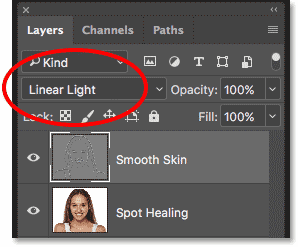
This blends the High Pass result in with the image, creating a high contrast, over-sharpened effect. It may look terrible, but don't worry. It will look even worse in a moment:
Related: Photoshop's Five Essential Blend Modes For Photo Editing
Step 9: Invert The Layer
Go up to the Image menu, choose Adjustments, and then choose Invert:
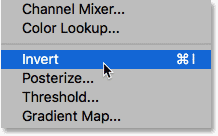
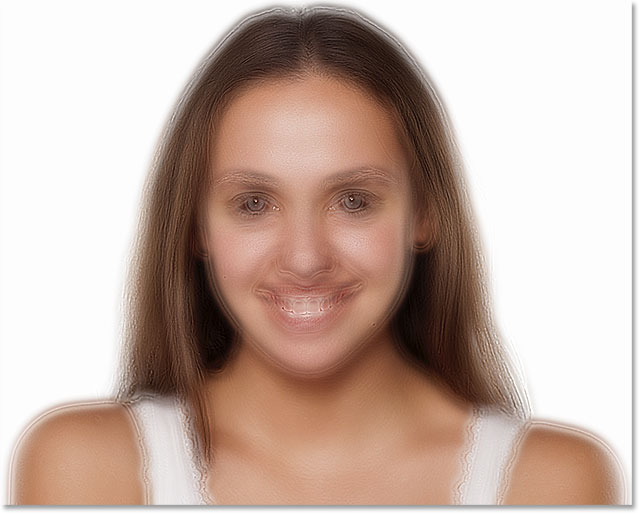
With the layer inverted, the image goes from being over-sharpened to looking like a weird, blurry mess with big ugly halos around everything:
Step 10: Open The Blending Options
To reduce the halo effect, click the Layer Styles icon at the bottom of the Layers panel:
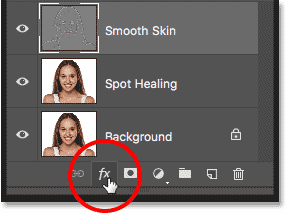
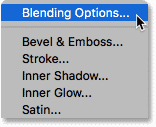
Choose Blending Options from the top of the list:
Step 11: Drag The "Blend If" Sliders
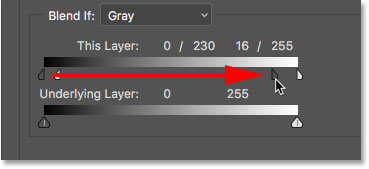
In the Layer Style dialog box, look for the Blend If sliders at the bottom. There are two sets of sliders, one labeled "This Layer" and one below it labeled "Underlying Layer". We need the top sliders (the ones labeled "This Layer"):
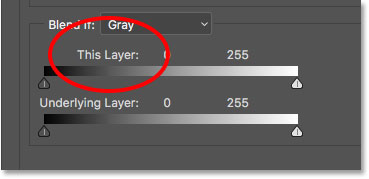
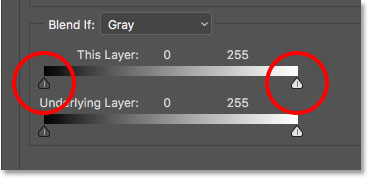
Notice the slider below each end of the gradient bar. These sliders control how the "Smooth Skin" layer blends with the image below it based on the brightness levels of the layer. The slider on the left is used to blend the darker areas of the layer and the slider on the right blends the lighter areas:
Reducing The Light Halos
Start by reducing the lighter halos. Press and hold the Alt (Win) / Option (Mac) key on your keyboard, click the slider on the right and begin dragging it towards the left. Holding the Alt (Win) / Option (Mac) key tells Photoshop to split the slider in half so that as you're dragging, only the left side of the slider moves while the right side stays in place. Watch your image as you drag the slider and you'll see the lighter halos fading away. Drag the slider almost all the way to the left to reduce them as much as possible:
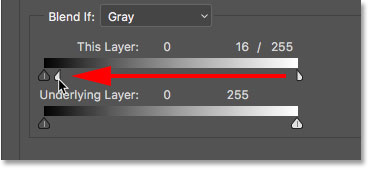
Here's the result after dragging the first slider. Most of the lighter halos are now gone, or at least, they're much less noticeable. Only the darker halos remain:
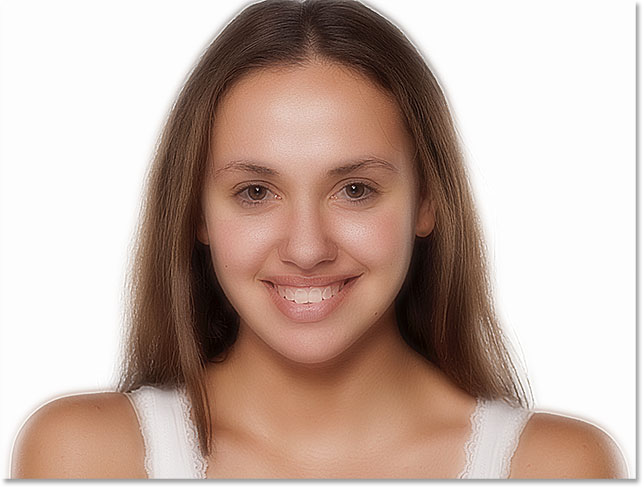
Reducing The Dark Halos
To reduce the darker halos, press and hold your Alt (Win) / Option (Mac) key, click the slider on the left and drag the right half of it towards the right. Again, you'll need to drag almost all the way to the right for most of the dark halos to disappear. Click OK when you're done to close the Layer Style dialog box:
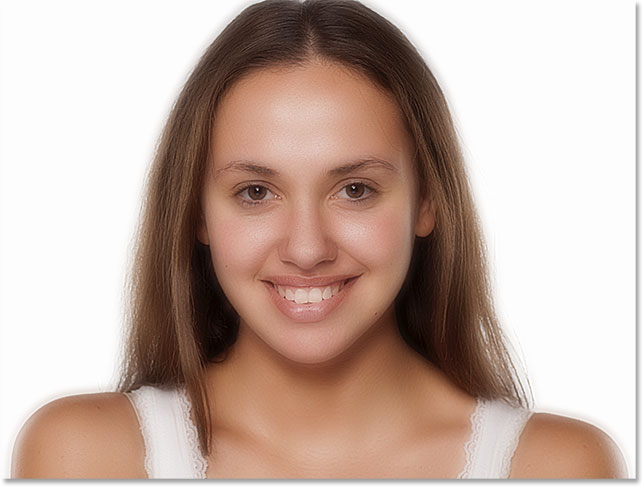
And here's my image after dragging both sliders. Her skin is looking very smooth, but so is everything else in the image. We'll fix that next:
Step 12: Add A Layer Mask
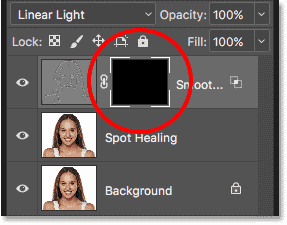
To limit the smoothing effect to just the skin, add a layer mask. Back in the Layers panel, press and hold the Alt (Win) / Option (Mac) key on your keyboard and click the Add Layer Mask icon:
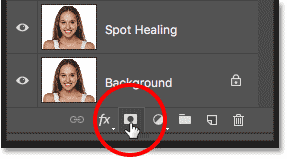
A black-filled layer mask thumbnail appears on the "Smooth Skin" layer. This hides the smoothing effect from view so we can paint it back in only where we need it:
Related: Understanding Layer Masks in Photoshop
Step 13: Select The Brush Tool
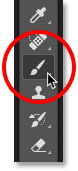
Select the Brush Tool from the Toolbar:
Step 14: Set Your Brush Color To White
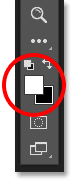
Make sure your Foreground color (the brush color) is set to white. You can see your current Foreground and Background colors in the color swatches near the bottom of the Toolbar. The swatch in the upper left is the Foreground color. If it's not set to white, press the letter D on your keyboard to quickly reset the colors to their defaults:
Step 15: Paint Over The Skin
Before you begin painting, check your brush options in the Options Bar. Make sure that Mode (short for Blend Mode) is set to Normal, Opacity is at 100% and Flow is also at 100%:

Then paint over the skin to reveal the smoothing effect. A soft-edge brush will work best. We already know that we can change the brush size from the keyboard using the left and right bracket keys. Add the Shift key to change the brush hardness. Press Shift and the left bracket key to make the brush softer, or Shift and the right bracket key to make the brush harder.
Example: Painting To Reveal The Smooth Skin
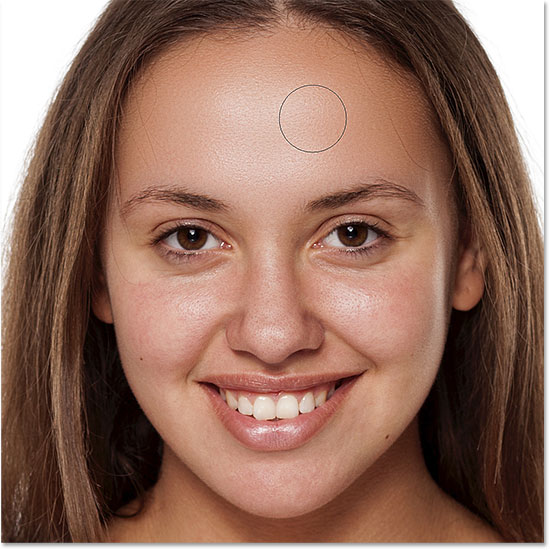
I'll start by painting over her forehead. Since we're painting on the layer mask, not on the layer itself, we don't see the brush color as we paint. Instead, we reveal the smoothing effect in the areas where we've painted:
Next, I'll paint over her nose, her cheeks, and around her eyes to reveal the skin smoothing in those areas. Adjust your brush size as you go to avoid painting over details that should remain sharp. If you do slip and paint over the wrong area, press the letter X on your keyboard to set your brush color to black, and then paint over the mistake to hide the smoothing effect. Press X again to set your brush color back to white and continue painting to smooth and soften the skin:
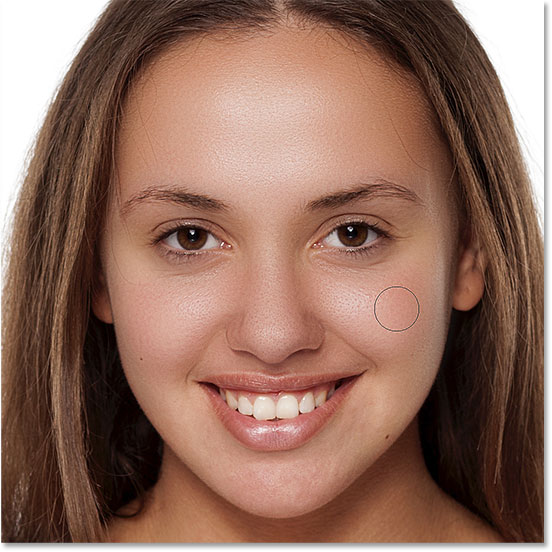
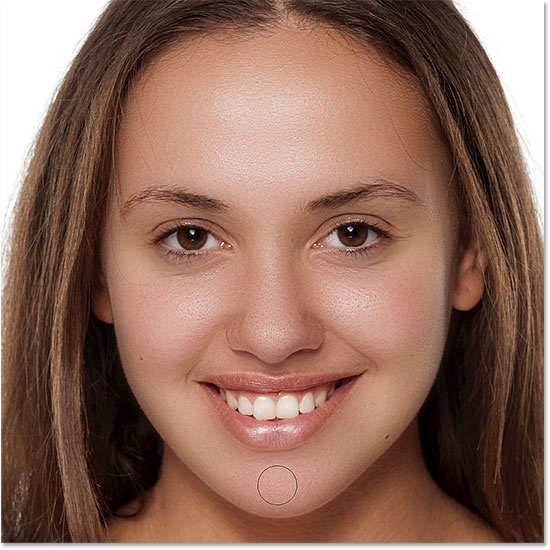
Finally, I'll paint around her mouth and over her chin to smooth and soften those areas, while at the same time being careful to avoid her lips:
Viewing The Layer Mask
To see exactly where you've painted, press and hold your Alt (Win) / Option (Mac) key and click on the layer mask thumbnail in the Layers panel:
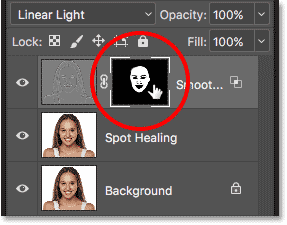
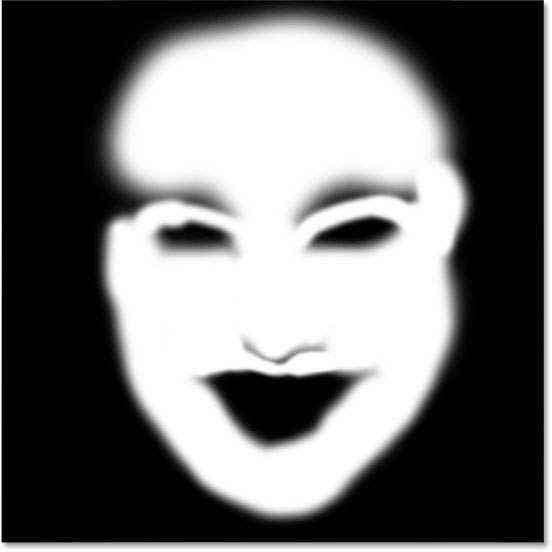
This switches your view from the image to the layer mask. The white areas in the mask are where you've painted to restore the skin smoothing. Black areas are when the smoothing effect remains hidden. It looks a bit creepy, but viewing the mask is a great way to make sure you haven't missed any spots, and you can paint directly on the mask if needed. To switch back to your image, once again press and hold Alt (Win) / Option (Mac) and click on the layer mask thumbnail:
Step 16: Lower The Layer Opacity
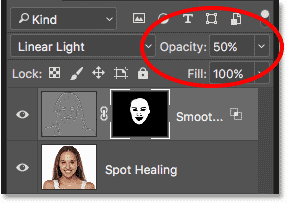
At this point, we've smoothed and softened the skin, but the effect is too intense. To reduce it, lower the opacity of the "Smooth Skin" layer. In general, an opacity value of between 40% and 60% works best, but it will depend on your image. I'll set mine to 50%:
And with that, we're done! Here, after lowering the layer opacity, is my final result with her skin now looking great:
And there we have it! For more portrait retouching tutorials, learn how to reduce wrinkles, how to change eye color or how to whiten teeth with Photoshop! Or visit our Photo Retouching section for more tutorials!