
How to Create a Halftone Dot Pattern in Photoshop 2026
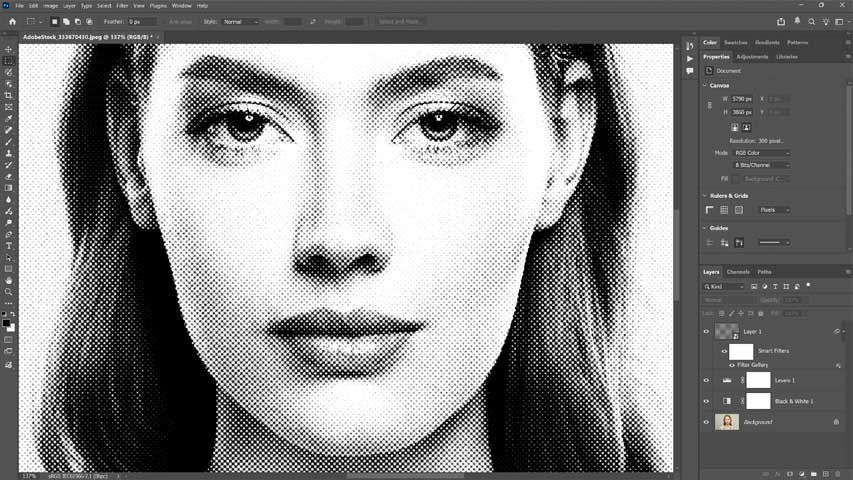
Turn any photo into a classic halftone dot pattern, including how to color the effect, with this complete step-by-step guide for Photoshop 2026!
Download the PDF: Create A Halftone Dot Pattern in Photoshop 2026
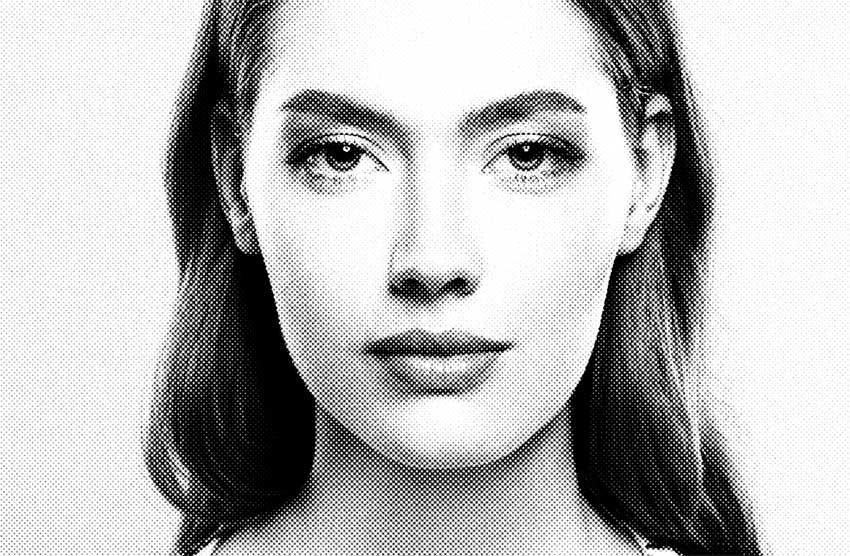
In this tutorial, you’ll learn an easy way to convert an image into a halftone dot pattern in Photoshop. We’ll start by creating a high-contrast black and white halftone pattern, and then look at a quick way to add custom colors to the effect.
Here’s an example of what the halftone pattern will look like when we’re done.
Which Photoshop version do I need?
I'm using Photoshop 2026. Get Photoshop here or use the Creative Cloud Desktop app to make sure Photoshop is up to date.
Let's get started!
The document setup
For this tutorial, I’ll use this photo from Adobe Stock.

I’ll zoom in just to make the dot pattern easier to see in the screenshots.

How to create a halftone pattern in Photoshop
Here are the steps for creating a halftone dot pattern using Photoshop 2026.
See Also:
- Get Better Color Halftone Effects in Photoshop
- Turn a Photo to a Color Dot Pattern
- Create a Pointillism Painting Effect
Step 1: Convert the image to black and white
First we need to convert our photo from color to black and white.
Click the New Fill or Adjustment Layer icon at the bottom of the Layers panel.

Choose a Black & White adjustment layer.

Photoshop instantly converts your photo to black and white.

Check your Layers panel and you’ll see the Black & White adjustment layer above your image (on the Background layer).

Step 2: Increase the image contrast
Halftone pattern effects work best on images with high contrast. Let’s use a Levels adjustment layer to boost the contrast of our black and white image.
Click the New Fill or Adjustment Layer icon again in the Layers panel.

Choose Levels from the list.

Photoshop adds a Levels adjustment layer above your Black & White layer.

In the Properties panel, use the black point (left) and white point (right) sliders below the histogram to increase the contrast.

Ideally, drag the black point slider to where the left side of the histogram begins, and the white point slider to where the right side begins. This ensures you have areas of pure black in the shadows and pure white in the highlights.
Not all images need both sliders adjusted. With my image, the histogram already extends all the way to the left, so I don’t need to adjust the black point.
But I can brighten the highlights by dragging the white point slider a bit to the left.

The contrast of the image is now stronger.

Step 3: Add a new layer filled with 50% gray
We need a new layer for our halftone effect.
Click the Add New Layer icon at the bottom of the Layers panel.

Photoshop adds a new blank layer above your Levels adjustment layer.

Go to Edit > Fill (or press Shift + F5) to fill the new layer with gray.

In the Fill dialog box, change the Contents to 50% Gray and click OK.

Your image is temporarily hidden by the solid gray layer.

Step 4: Convert the layer to a smart object
The biggest challenge when creating a halftone pattern is knowing exactly how big the dots need to be. By converting this layer to a smart object, we give ourselves room to experiment and change the dot size later.
In the Layers panel, right-click on your gray layer.

Choose Convert to Smart Object from the menu.

A smart object icon appears in the lower right corner of the layer’s thumbnail.

Step 5: Reset your Foreground and Background colors
Press D on your keyboard to reset your Foreground and Background colors to their defaults (black and white). The filters we are about to use rely on these specific colors to generate the pattern.
You can see your current Foreground and Background colors in the color swatches near the bottom of the toolbar.

Step 6: Open Photoshop’s Filter Gallery
To create our halftone pattern, we need to combine two filters found in Photoshop’s Filter Gallery.
Go to Filter > Filter Gallery.

Step 7: Add the Halftone Pattern filter
The Filter Gallery has a large preview area on the left and two columns on the right. The middle column is where you choose your filters (which are grouped into folders), and the right column is where you adjust their settings.
Open the Sketch group and click the Halftone Pattern filter to select it.

The filter options appear in the upper right.
Set the Pattern Type to Dot and the Contrast to 0.
Use the Size slider to set an initial size for your dots. I’ll set mine to 6.
Note: Because our layer is filled with solid gray, we can’t see our image in the preview area to know exactly how this size will look. But since we are using a smart object, we can easily come back and change the size later.

Step 8: Use the Torn Edges filter to roughen the dots
Notice in the preview area that our dots
are actually just blurry squares. We’ll use the Torn Edges filter to roughen them up and make them look rounder.
In the bottom right of the Filter Gallery, click the New Effect Layer icon (the plus sign) to add a new filter above the Halftone Pattern filter.

Still in the Sketch folder, select the Torn Edges filter.

In the filter options on the right, leave Image Balance at its default (25) and lower the Contrast to 1.
Drag the Smoothness slider until the blurry squares begin to look rougher and rounder. The exact setting you need depends on the dot size you chose in the previous step.
Since my dot size is 6, a Smoothness value of 10 works well. (Remember: Because we are using a smart object, you can always come back and change this Smoothness value later.)

The dots should now look something like this.

Step 9: Apply the filters
Click OK to close the Filter Gallery and apply your filters.
Photoshop fills your document with the halftone dots. We’ll blend these dots into the image in the next step.

Look at the Layers panel. Because we converted our layer to a smart object earlier, Photoshop applied the Filter Gallery as a smart filter.
The huge benefit of a smart filter is that the effect remains completely editable. We can go back and change our settings at any time, which we’ll do in a moment.

Step 10: Change the blend mode to Hard Mix
To blend the dots with your image, change the layer’s blend mode from Normal to Hard Mix.

Your black and white image now shows through the dots, but the effect is much too intense.
We’ll dial that back next.

Step 11: Lower the Fill value
Lower the Fill value of the layer (not the Opacity) until you are happy with the result. I’ll drop mine to 70%.

Why Fill and not Opacity? Hard Mix is one of 8 special blend modes in Photoshop that reacts differently to Fill than to Opacity.
Lowering the Fill fades the dots in the highlights and pushes the effect into the shadows, creating a much more realistic halftone pattern.

Step 12: Adjust the dot size (Optional)
If you are not happy with the size of your dots, it is easy to change them.
In the Layers panel, double-click the words Filter Gallery under your smart object.

In the right column of the Filter Gallery, your two filters are stacked on top of each other (just like the Layers panel).
Click the Halftone Pattern filter to select it.

Drag the Size slider to choose a different size.
I’ll make my dots smaller by lowering the size from 6 to 4. (Note: The exact value you need will depend on your image size).

After changing the dot size, you usually need to adjust your Smoothness value to match.
Click the Torn Edges filter to select it.

Because I lowered my dot size, I’ll compensate by increasing the Smoothness from 10 to 11.

Click OK to close the Filter Gallery. Photoshop instantly updates your halftone pattern with the new settings. I like these smaller dots much better.
At this point, you have a perfect black and white halftone pattern. You can stop right here, or keep going to add some color (which we’ll do next).
Step 13: Add a Solid Color adjustment layer
To add color to the halftone pattern, we’ll use a Solid Color fill layer.
First, make sure your halftone pattern layer (the top layer) is active in the Layers panel.
Go to Layer > New Fill Layer > Solid Color.

Step 14: Set the blend mode to Color
In the New Layer dialog box, change the Mode (the blend mode) from Normal to Color. Click OK.

Step 15: Choose a color from the Color Picker
Choose a color from the Color Picker.
Because we set the blend mode to Color in the previous step, Photoshop gives you a live preview of how the color looks applied to your halftone effect.
Click OK to close the Color Picker when you’re done.

Step 16: Try the Screen blend mode (Optional)
For a totally different look, change the blend mode of your color fill layer from Color to Screen.

The Screen blend mode uses your chosen color to lighten the image.
This creates a stylish, lower-contrast effect, especially if you picked a bright color.

If your effect looks too faded or flat, double-click the layer’s color swatch in the Layers panel.

Choose a darker version of your color from the Color Picker, or pick a completely new color like I’m doing here.
(Darker colors work much better with the Screen blend mode).

Click OK to close the Color Picker.
Here is my final halftone pattern effect.
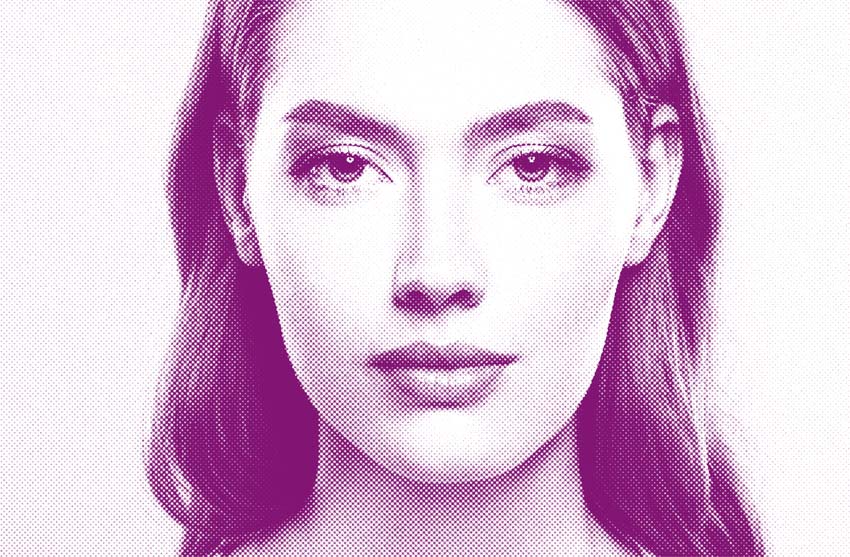
And there we have it! That is an easy way to create a fully editable halftone dot pattern in Photoshop.
Don't forget, all of my Photoshop tutorials are available to download as PDFs!
Related tutorials:
- Turn a Photo to a Color Dot Pattern
- Create a Pointillism Painting Effect
- Convert a Photo to a Pencil Sketch