
Clipping Masks in Photoshop
In this tutorial, I show you how to use clipping masks in Photoshop to show and hide different parts of a layer and fit images into shapes! We'll learn the basics of how to create a clipping mask, and we'll explore the idea behind them in more detail so that by the end of this lesson, you'll have a solid grasp on how clipping masks work.
I'm using Photoshop CC but clipping masks work the same way in all recent versions. You can get the latest Photoshop version here.
What Are Clipping Masks?
Clipping masks in Photoshop are a powerful way to control the visibility of a layer. In that sense, clipping masks are similar to layer masks. But while the end result may look the same, clipping masks and layer masks are very different. A layer mask uses black and white to show and hide different parts of the layer. But a clipping mask uses the content and transparency of one layer to control the visibility of another.
To create a clipping mask, we need two layers. The layer on the bottom controls the visibility of the layer above it. In other words, the bottom layer is the mask, and the layer above it is the layer that's clipped to the mask.
Where the bottom layer contains actual content (pixels, shapes, or type), the content on the layer above it is visible. But if any part of the layer on the bottom is transparent, then that same area on the layer above it will be hidden. That may sound more confusing than how a layer mask works, but clipping masks are just as easy to use. Let's create a clipping mask ourselves so we can better understand how they work.
How A Clipping Mask Works
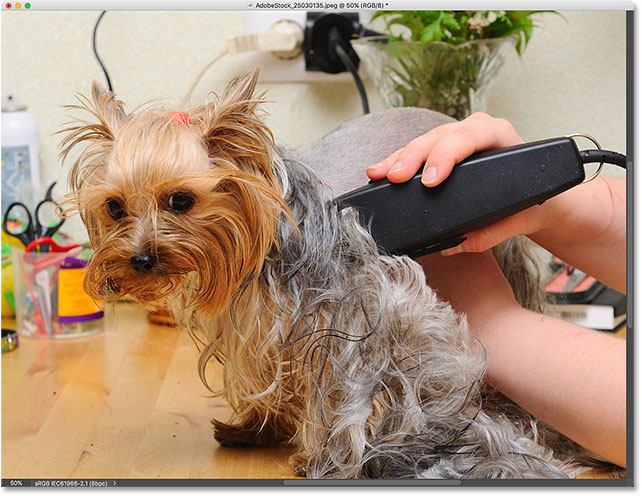
To really make sense of clipping masks, we first need to understand the difference between content and transparency on a layer. To follow along with me, you can open any image. I'll use this photo of my little friend here who's also trying to understand, in her own way, what this clipping stuff is all about (photo from Adobe Stock):
A Mask Layer And A Clipped Layer
If we look in the Layers panel, we see the photo on the Background layer, which is currently the only layer in the document:
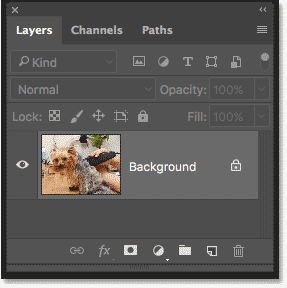
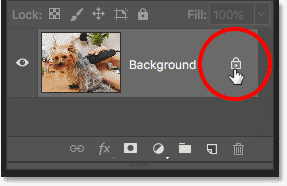
We need two layers to create a clipping mask, one to serve as the mask and one that will be clipped to the mask, so let's add a second layer. We'll add the new layer below the image. First, unlock the Background layer. In Photoshop CC, click the lock icon to unlock it. In Photoshop CS6 or earlier, press and hold the Alt (Win) / Option (Mac) key on your keyboard and double-click on the Background layer:
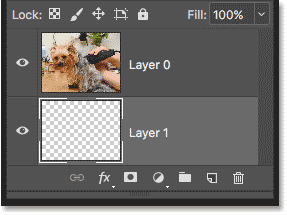
This unlocks the Background layer and renames it "Layer 0":
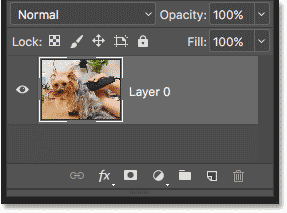
Then, to add a new layer below the image, press and hold the Ctrl (Win) / Command (Mac) key on your keyboard and click the Add New Layer icon:
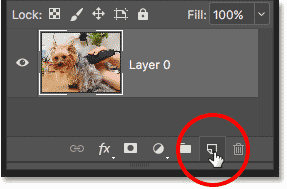
A new layer named "Layer 1" appears below the photo, and we now have two layers in the document. We'll turn the bottom layer into the mask, and the image above it will be clipped to the mask:
Understanding Clipping Masks: Content vs Transparency
Hide the original image for the moment by clicking the top layer's visibility icon:
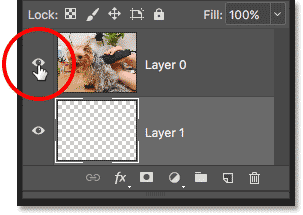
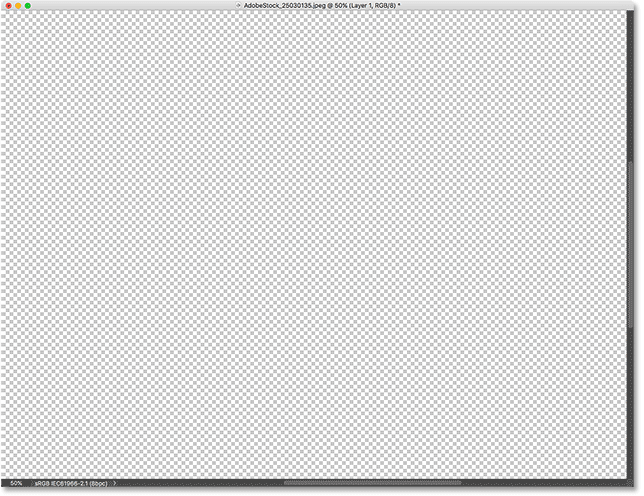
With the top layer turned off, we see the layer we just added. By default, new layers in Photoshop are blank, meaning they have no content at all. A layer with no content is transparent and we see right through it. When there are no other layers below a transparent layer, Photoshop displays the transparency as a checkerboard pattern, as we see here:
Turn the top layer back on by clicking again on it visibility icon:
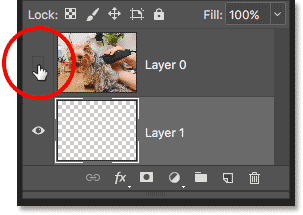
The top layer contains actual content. In this case, it's pixel-based content because we're looking at a digital photo, but in Photoshop, content could also be a vector shape or even text. Really, anything that isn't transparency is considered content:
How To Create A Clipping Mask In Photoshop
Clipping masks use the content and transparency of the layer below to control the visibility of the layer above. Let's create a clipping mask using our two layers and see what happens.
Step 1: Select The Layer That Will Be Clipped
When creating a clipping mask, we first need to select the layer that's going to be clipped to the layer below it. In this case, the top layer ("Layer 0") will be clipped to the bottom layer ("Layer 1"), so make sure the top layer is selected:
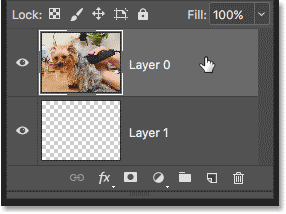
Step 2: Choose "Create Clipping Mask"
To create the clipping mask, go up to the Layer menu in the Menu Bar and choose Create Clipping Mask:
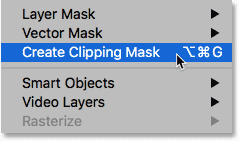
And that's all there is to it! With the layer mask created, the Layers panel now shows the top layer ("Layer 0" ) indented to the right, with a small arrow pointing down at "Layer 1" below it. This is how Photoshop tells us that the top layer is now clipped to the layer below:
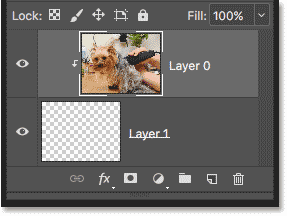
But the problem is, all we've accomplished so far by creating a clipping mask is that we've hidden the image from view, and that's because our mask layer ("Layer 1") contains no content. It's completely transparent. With a clipping mask, any areas on the top layer that are sitting directly above transparent areas on the bottom layer are hidden. Since the bottom layer contains nothing but transparency, no part of the image above it is visible:
How To Release A Clipping Mask
That wasn't very interesting, so release the clipping mask by going up to the Layer menu and choosing Release Clipping Mask:
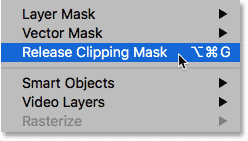
In the Layers panel, the top layer is no longer indented to the right, which means it's no longer clipped to the layer below:
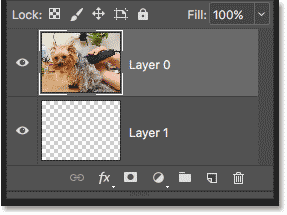
And in the document, we're back to seeing our image:
Adding Content To The Clipping Mask
Let's add some content to the bottom layer. Click the top layer's visibility icon to hide the image so we can see what we're doing:
Then click on the bottom layer to make it active:
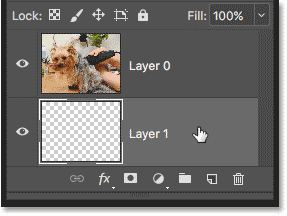
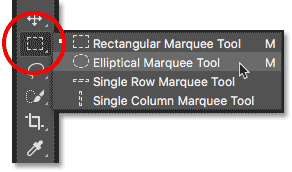
To add content, we'll draw a simple shape. Select the Elliptical Marquee Tool from the Toolbar by right-clicking (Win) / Control-clicking (Mac) on the Rectangular Marquee Tool and choosing the Elliptical Marquee Tool from the fly-out menu:
Click and drag out an elliptical selection outline in the center of the document:
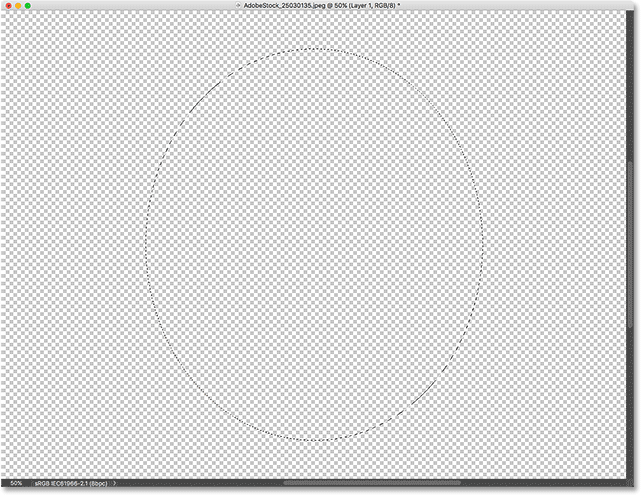
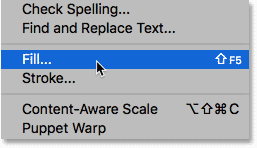
Go up to the Edit menu in the Menu Bar and choose Fill:
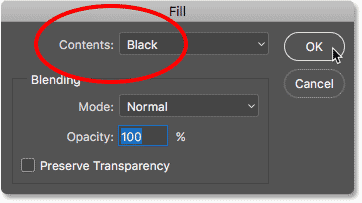
In the Fill dialog box, set the Contents option to black, and then click OK:
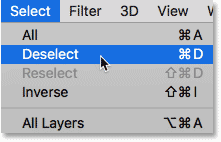
Photoshop fills the selection with black. To remove the selection outline from around the shape, go up to the Select menu and choose Deselect:
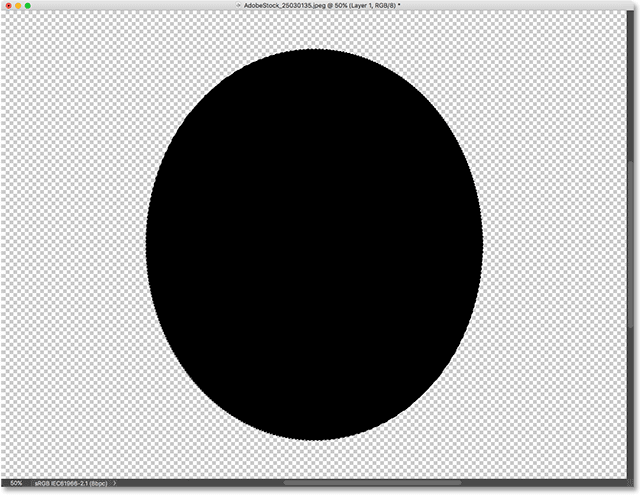
And now, instead of a completely transparent layer, we have an area with some content in the center. Notice, though, that the area surrounding the content remains transparent:
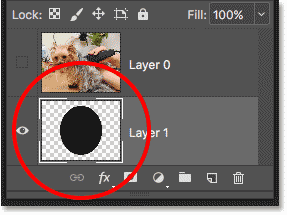
Back in the Layers panel, the preview thumbnail for the bottom layer now shows the black shape. What's important to note here is that if you compare the preview thumbnails for both layers, you'll see that some of the image on the top layer is sitting directly above the content (the shape) on the bottom layer. And, some of the photo is sitting above the transparent areas on the bottom layer:
Creating Another Clipping Mask
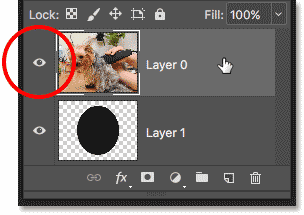
Now that we've added some content to the bottom layer, let's create another clipping mask. Again, we first need to select the layer that will be clipped to the layer below, so click on the top layer to select it. Then, click the top layer's visibility icon to make the image on the layer visible:
Go back up to the Layer menu and once again choose Create Clipping Mask:
In the Layers panel, we see the top layer clipped to the layer below it, just like we saw last time:
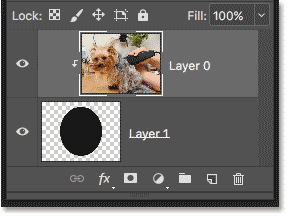
But in the document, we now see a very different result. This time, the section of the photo that's sitting directly above the shape on the layer below it remains visible! The only parts of the photo that are hidden are the areas surrounding the shape, since those areas are still sitting above transparency:
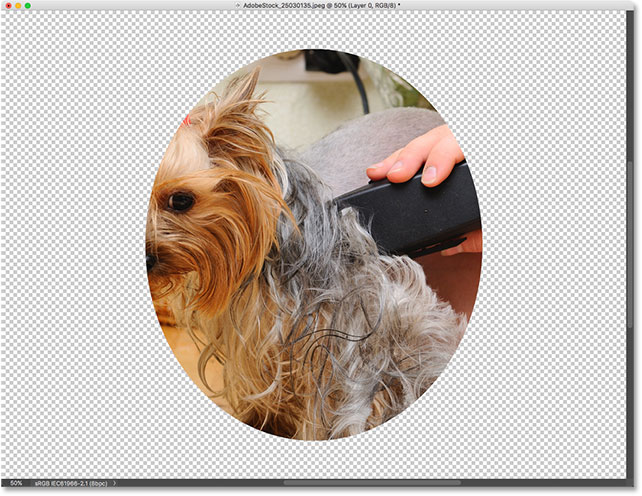
Moving Content Within A Clipping Mask
Of course, the result might look better if our subject was centered inside the shape. With clipping masks, it's easy to move and reposition content within them. Just select the Move Tool from the Toolbar:
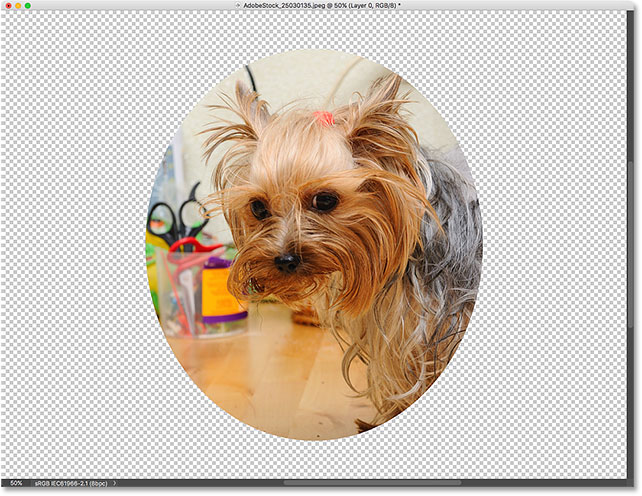
Then click on the photo and drag it into position. As you move the image, only the area that moves over the shape on the layer below it remains visible. And that's the basics of how clipping masks work:
When To Use A Clipping Mask
While layer masks are best for blending layers with seamless transitions, clipping masks in Photoshop are perfect when your image needs to fit within a clearly-defined shape. The shape may be one you've drawn with a selection tool as we've seen. But a clipping mask can also be used to fill a vector shape with an image, or to place an image inside text. As another example of what we can do with clipping masks, let's quickly look at how a clipping mask can be used to place a photo inside a frame.
Placing A Photo In A Frame With Clipping Masks
Here I have a document containing two images, each on a separate layer. The photo on the bottom layer contains the frame:
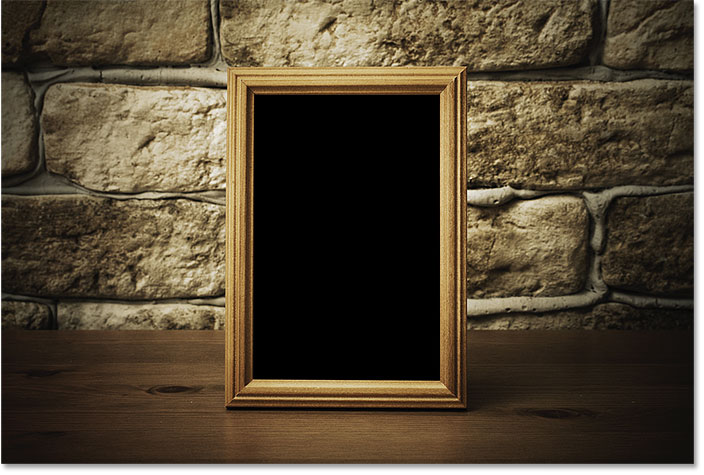
And if I turn the top layer on by clicking its visibility icon:
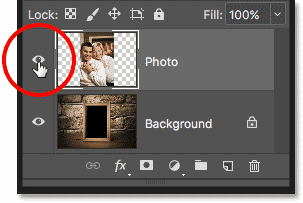
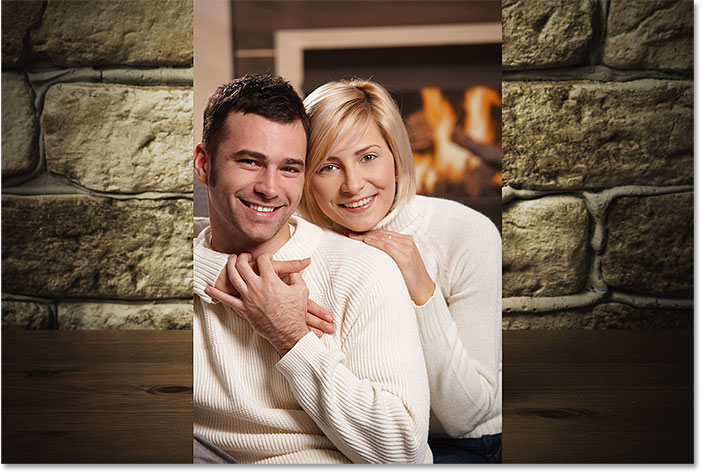
We see the photo I want to place inside the frame:
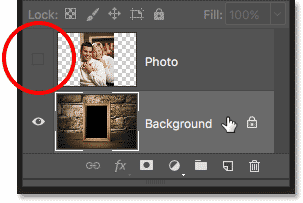
I'll hide the top layer for the moment by once again clicking its visibility icon, and then I'll click on the Background layer to select it:
Drawing Or Selecting The Shape
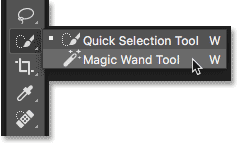
I mentioned that clipping masks work best when your image needs to fit within a shape. In this case, the shape is the area inside the frame. Since the area is filled with solid black, I'll select it using Photoshop's Magic Wand Tool:
I'll click with the Magic Wand Tool inside the frame, and now the area is selected:
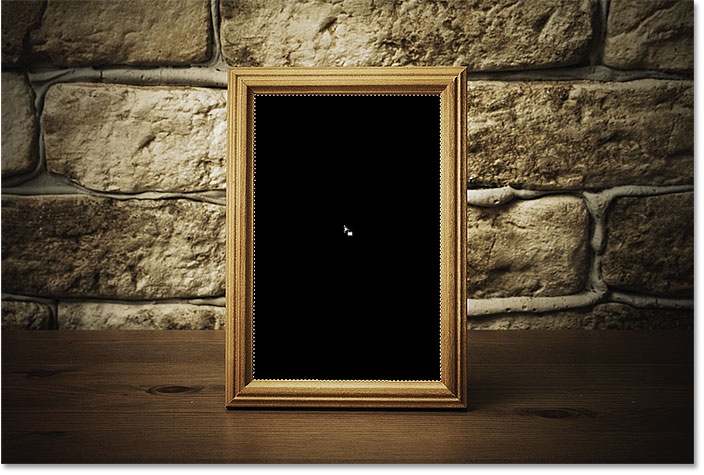
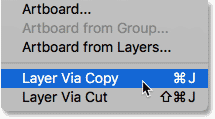
Then, I'll copy the selected area to a new layer by going up to the Layer menu in the Menu Bar, choosing New, and then choosing Layer via Copy:
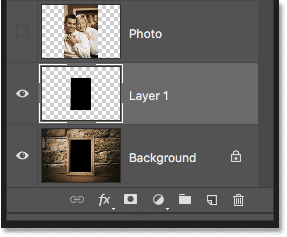
Photoshop copies my selection to a new layer between the Background layer and the photo I'll be placing inside the frame. I now have the shape I need to create my clipping mask:
A Faster Way To Create A Clipping Mask
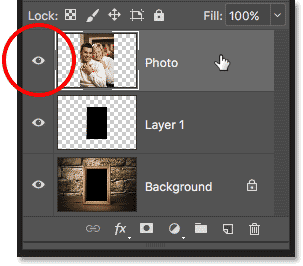
To create the clipping mask, I'll select the top layer, and I'll turn the layer back on by clicking its visibility icon:
We've seen that we can create a clipping mask by choosing Create Clipping Mask from the Layer menu. But a faster way is to press and hold the Alt (Win) / Option (Mac) key on your keyboard as you hover your mouse cursor between the two layers. Your cursor will change into a clipping mask icon:
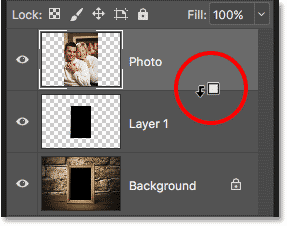
Click on the dividing line between the two layers to create the clipping mask:
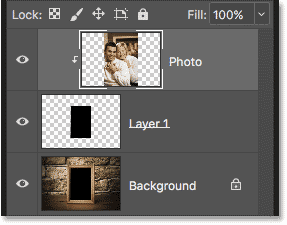
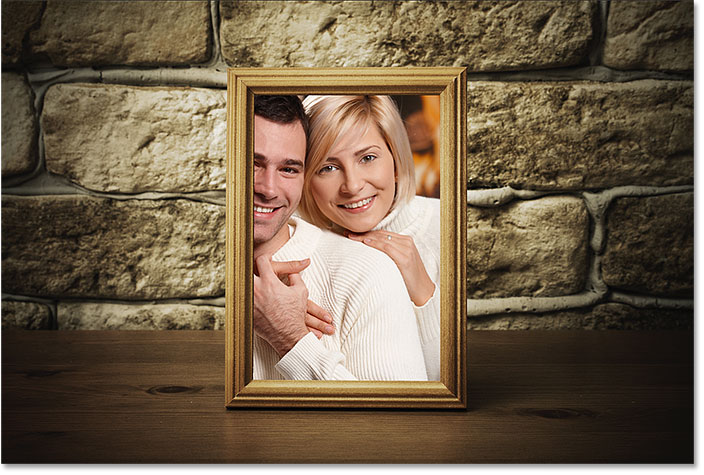
With the clipping mask created, the photo now appears only inside the frame, since that's the only part of the image that's sitting above actual content on the layer below it. The rest of the photo is hidden because it's sitting above transparency:
Resizing Content Within A Clipping Mask
Finally, we've seen that we can move content around inside a clipping mask using the Move Tool. But we can also resize content within a clipping mask just as easily using Photoshop's Free Transform command. At the moment, my photo is too big for the frame, so I'll resize it by going up to the Edit menu and choosing Free Transform:
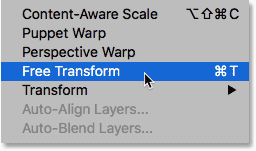
Photoshop places the Free Transform box and handles around the image, including the area outside the frame that's currently hidden by the clipping mask:
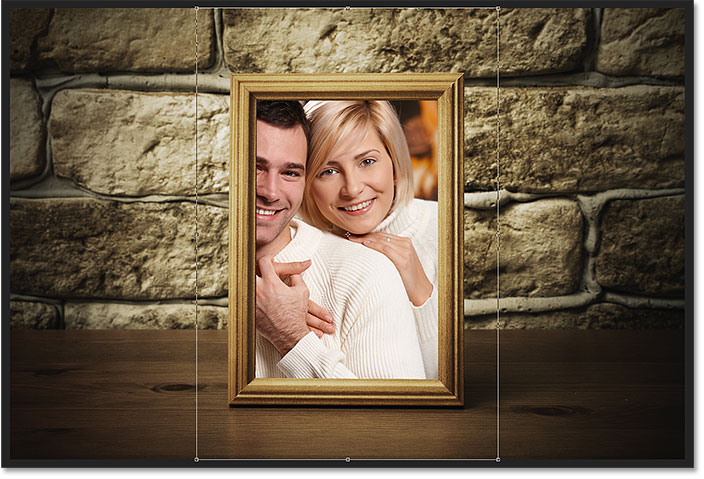
To resize it, I'll press and hold my Shift key as I click on the corner handles and drag them inward. Holding the Shift key locks the aspect ratio of the image so I don't distort it:
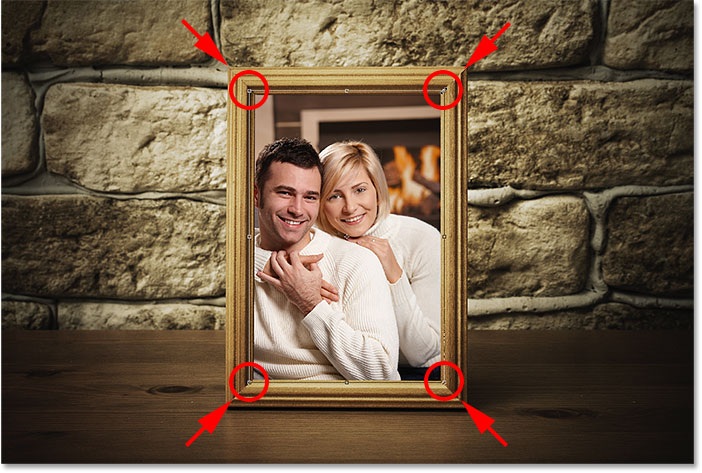
To accept it, I'll press Enter (Win) / Return (Mac) on my keyboard to close out of Free Transform. And now, thanks to the power of clipping masks, the photo fits nicely within the frame:
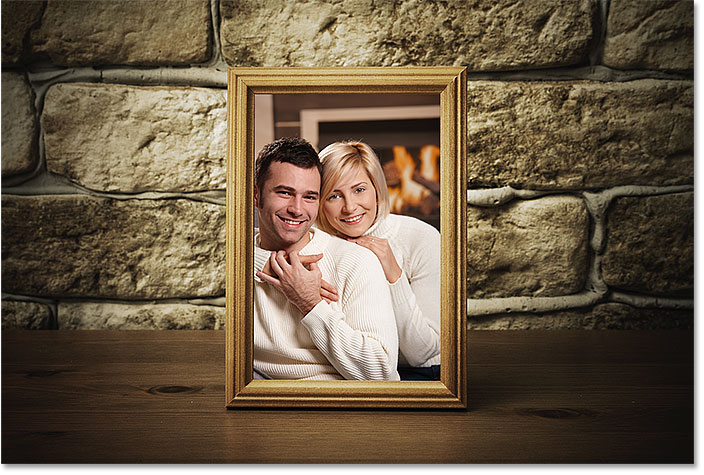
And there we have it! That's how clipping masks work in Photoshop and how to use a clipping mask to show and hide different parts of a layer!
Visit our Photoshop Basics section for more Photoshop tutorials!