
How to Flip and Rotate Letters in Photoshop
Photoshop makes it easy to flip or rotate an entire word, but not a single letter in the word. Here is the simple, hidden trick to unlock your text so you can flip, rotate, and transform individual letters exactly how you want. (For Photoshop 2026 or earlier).
Download PDF: How To Flip And Rotate Letters
Photoshop makes it easy to flip or rotate an entire word, but not the individual letters. So in this tutorial, I show you the simple trick that lets you flip or rotate any letter you like.
I'm using Photoshop 2026. You can get Photoshop here or use the Creative Cloud Desktop app to make sure Photoshop is up to date..
The document setup
Start with a document containing some text. (The font I'm using is Degular from Adobe Fonts.)
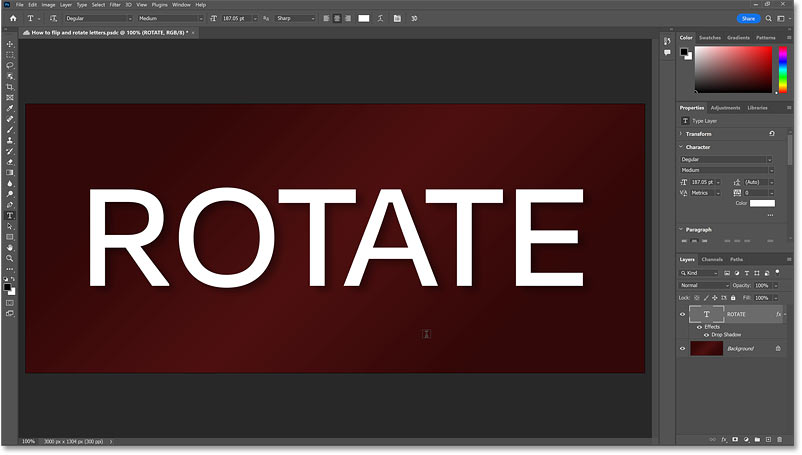
In the Layers panel, notice that your text is sitting on a standard Type layer (indicated by the capital T in the thumbnail). I’ve also added a Drop Shadow effect just to help the text stand out.

Let's get started!
The problem: We can't flip or rotate individual letters
While your text is still an active Type layer, you can easily highlight a single letter with the Type Tool to change its color or size. But what happens if you want to flip it?
Select the Type Tool from the toolbar.

Drag across a letter to highlight it.

Go to Edit > Transform > Flip Horizontal (or Flip Vertical).
Photoshop flips the entire word, completely ignoring that you only highlighted one letter.

The exact same thing happens if you try to rotate a single letter.
Go to Edit > Transform > Rotate.
Photoshop places a transform box around the whole word. If you click and drag outside the box, the entire word rotates.
As long as your text remains a Type layer, individual letters are locked in place.

The solution: Convert the type into a shape
The trick to unlocking your letters is to convert your text from type into a shape.
Warning: Before you do this, make sure your words are spelled correctly and you are happy with the font. Once we convert it to a shape, the text is no longer editable.
How to convert the text into a shape
Select your Type layer in the Layers panel.

Go to Type > Convert to Shape.

Photoshop surrounds your letters with a path outline and blue anchor points.

Over in the Layers panel, the Type layer is now a Shape layer (indicated by the path icon in the thumbnail).
This means each letter in the word is now a completely independent shape.

How to select a single letter
Select the Path Selection Tool from the toolbar. (Make sure you grab the black arrow, not the white Direct Selection Tool).

Right now, all of your letters are selected (indicated by the visible anchor points). Click anywhere outside the letters to deselect them.
Then click directly on the letter you want to transform. The anchor points reappear around just that single letter (I've clicked the letter A).

How to flip the selected letter
Press Ctrl+T (Win) or Command+T (Mac) to bring up the Free Transform box around your letter. (You can also right-click / Control-click and choose Free Transform Path).

Right-click (Win) or Control-click (Mac) inside the transform box and choose Flip Horizontal or Flip Vertical.

Photoshop flips just that one letter!

Click the checkmark in the Options Bar to accept the change.
Then click anywhere outside the letter to deselect it.

How to rotate the selected letter
Let's try rotating a different letter. Click on a new letter with the Path Selection Tool (I've clicked the E on the end).

Press Ctrl+T (Win) or Command+T (Mac) to bring up the transform box.

Click and drag anywhere outside the transform box to rotate the letter.
Tip: Hold Shift on your keyboard while dragging to snap your rotation to perfect 15-degree increments.

Click the checkmark in the Options Bar to accept it, or press Enter (Win) / Return (Mac).
Press Enter or Return again to deselect the letter.
We now have one letter flipped and one letter rotated. Next I'll show you one more trick for rotating letters.

How to change the rotation point of a letter
By default, your selected letter rotates around its exact center. But you can move this rotation point to pivot the letter from anywhere you like!
Select another letter and press Ctrl+T (Win) or Command+T (Mac).

Look in the center of your transform box for the Reference Point icon (it looks like a small target).
If you don't see it, go up to the Options Bar and check the box for Show Reference Point.

The reference point icon will appear in the center of the transform box.

Drag the reference point to a different spot. I'll drag it onto the bottom-right handle of the transform box.

Now, click and drag outside the box to rotate the letter. Notice how the letter swings around that new spot!

Resetting the reference point
To reset the pivot point, simply drag the target icon back to the center of the transform box.

Finish rotating your letter to your liking.

Press Enter (Win) or Return (Mac) to accept the rotation, then press Enter / Return one more time to deselect the letter.

And there we have it! That’s how to easily flip and rotate individual letters in Photoshop!
Don't forget, all of my Photoshop tutorials are available to download as PDFs!
Check out these related tutorials:
- How to slice text in Photoshop
- Create colorful overlapping letters
- Place a different image in each letter of a word