
Placing Multiple Images In Text With Photoshop
Version Note: Using Photoshop CC 2020 or later? Check out the all new version of this tutorial.
In a previous Photoshop tutorial, we looked at how to place a single image inside text. This time, we're going to take things further and learn how to place multiple images in text. This is a popular effect that's often used in advertising and promotional material but is also lots of fun just to play around with on your own. We're going to take a word and place a different image inside each individual letter. It's very easy to do, and a lot of it is just simple repetition.
I'll be using some images made freely available by the good folks at NASA, along with a font that's also freely available online, but as always, the end result I come up with here is not what's important. The point is learning how it's done so you can use the same techniques to bring your own ideas to life. Having said that, he's the result I'll be working towards in this tutorial:

Let's get started!
Step 1: Open The Image You Want To Use As Your Background Image
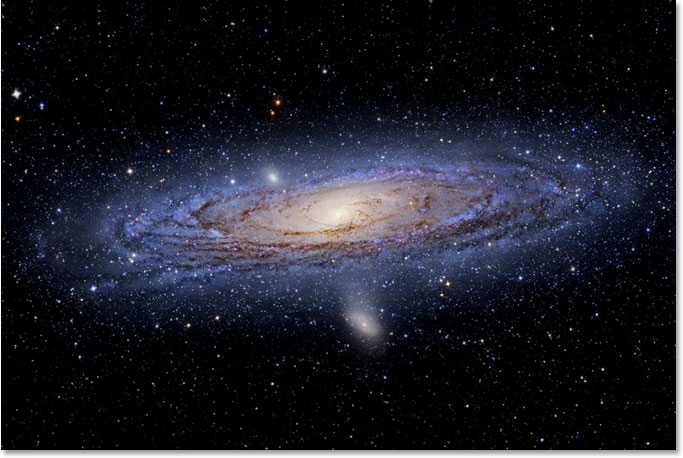
The first thing we need to do is open our initial image, the one we'll be using as the background. Of course, you don't necessarily need to use an image. You could have a solid color background, a gradient, a pattern - whatever you like. I just happen to be using an image, and here's the one I'll be using:
Step 2: Select Photoshop's Type Tool
Select the Type Tool from the Tools palette, or simply press the letter T on your keyboard to select it:
Step 3: Select Your Font In The Options Bar
With the Type Tool selected, go up to the Options Bar at the top of the screen and choose your font. You'll want to use a font that will give you thick letters for this effect, otherwise it will be tough to see the images inside them. Don't worry about the font size for now, since we can easily resize it as needed later. I'm going to use a font called "Mathmos Original", a sci-fi font which I downloaded for free from 1001 Free Fonts:

Step 4: Set Your Text Color To Something You'll Be Able To See In Front Of Your Image
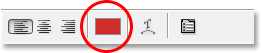
Before we begin typing, let's make sure our text color is something we'll be able to see. My image is mostly black, and by default, my text color is also set to black, which will make seeing it a bit difficult, so I'm going to change it to a different color. To do that, I'll click on the color swatch in the Options Bar:
Then I'll choose a different color from Photoshop's Color Picker. It doesn't matter which color you choose since you won't see it once we fill the text with images, so don't spend too much time on your decision. I'll choose a shade of red:
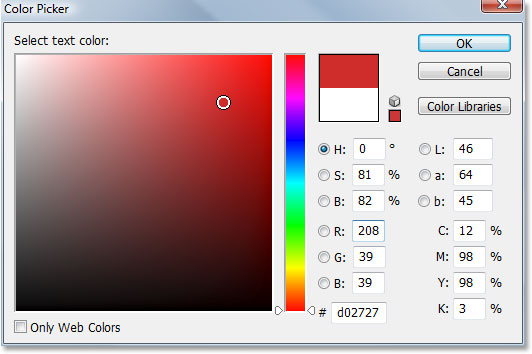
Click OK to accept the new color and exit out of the Color Picker. The color swatch in the Options Bar now changes to show the color you selected. In my case, it's showing red:
Step 5: Type The First Letter Of Your Word
In order to add a different image inside each letter of a word, we'll need to work with each letter individually, so let's create our word one letter a time. This way, each letter will appear on its own layer in the Layers palette. Click approximately where you want your first letter to appear inside your document and type the letter. I'm going to be using the word "SPACE", and since the first letter of the word is "S", I'll type "S" (I know, it's all very complicated stuff):

When you're done, click on the checkmark in the Options Bar to commit the text.

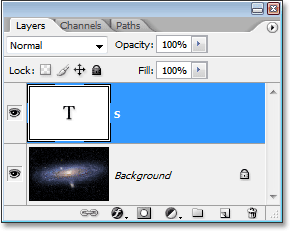
If we look at our Layers palette, we can see that we now have two layers - the Background layer on the bottom which contains whatever you happen to be using as your background, and the first letter of our word on its own layer above it:
Step 6: Resize And Reposition The Letter If Needed With Free Transform
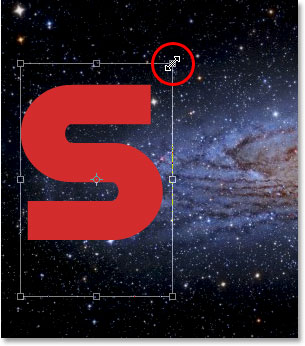
If, like me, you need to resize the letter and move it into a better position, press Ctrl+T (Win) / Command+T (Mac) to bring up Photoshop's Free Transform box and handles around the letter. Hold down your Shift key and drag any of the corner handles to resize it. Holding down Shift prevents you from accidentally distorting the look of the letter as you drag. You can also hold down Alt (Win) / Option (Mac) to tell Photoshop to resize the letter from its center, which is often helpful.
To move the letter, click anywhere inside the Free Transform box and drag the letter where you need it. Just don't click on the small target symbol in the very center, otherwise you'll move the target symbol, not the letter. As you're resizing the letter, keep in mind how many other letters you'll need to add so you don't end up making the letter too big:
Press Enter (Win) / Return (Mac) when you're done to accept the transformation and exit out of the Free Transform command.
Step 7: Add A Stroke Around The Letter (Optional)
Depending on the images you'll be placing inside your letters, as well as the background you're using, it may be difficult to make out the shapes of the letters when you're done. To help keep things readable, I'm going to add a white stroke around my letters. I could wait until the end to add the stroke around all the letters, but since I already know what I want to do, I'm going to save myself some time by adding it to this first letter. That way, when I go to create the rest of my letters by making copies of this first one, the stroke will be copied along with it.
To add a stroke, click on the Layer Styles icon at the bottom of the Layers palette:
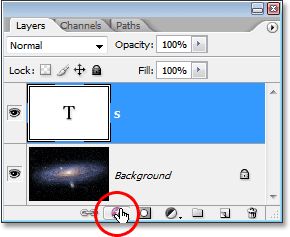
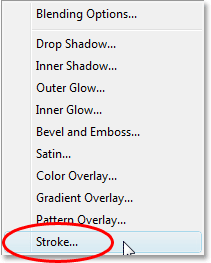
Then select Stroke from the bottom of the list of Layer Styles that appears:
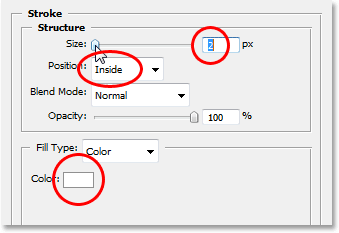
This brings up Photoshop's Layer Style dialog box set to the Stroke options in the middle column. The first thing I'm going to do is lower the Size of the stroke down to 2 px. If you're working in high resolution, you'll probably want to set your stroke size higher. I'm also going to change the Position of the stroke to Inside. Finally, by default, Photoshop sets the color of strokes to red, which makes no sense. I want my stroke color to be white, so I'll click on the color swatch to the right of the Color option, which again brings up Photoshop's Color Picker, and I'll change the stroke color to white:
Click OK when you're done to apply the stroke to the letter and exit out of the dialog box. Here we can see my white stroke applied to the letter "S":

Step 8: Copy The Type Layer
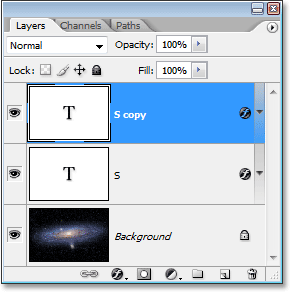
Before I place an image inside my letter, I'm going to finish adding the rest of my letters to create my complete word. To create my second letter, I'm simply going to press Ctrl+J (Win) / Command+J (Mac) to duplicate my Type layer. Nothing seems to have happened in my document window, but if I look at the Layers palette, I can see that I now have my original Type layer containing the letter "S", as well as a copy of it, also currently containing the letter "S", above it:
Step 9: Move The Second Letter Into Position
By making a copy of our initial letter, we've created our second letter. Of course, there's a couple of problems at the moment. For one thing, both letters are sitting directly on top of each other, and they're also set to the exact same letter. Let's take care of the first problem by moving the second letter into position. To do that, we'll need the Move Tool. Now, you could select the Move Tool from the Tools palette, but that's the "getting paid by the hour" way. Here's a handy trick. To temporarily switch to the Move Tool from any other tool (except the Hand Tool), just hold down your Ctrl (Win) / Command (Mac) key. This gives you quick access to the Move Tool without having to select it. Then, while still holding down "Alt/Option", hold down your Shift key to constrain your movements in a horizontal line and drag the second letter to the right until it's in position:

Step 10: Change The Letter
Now we need to change the letter itself. To do that, double-click directly on the Type layer's thumbnail in the Layers palette:
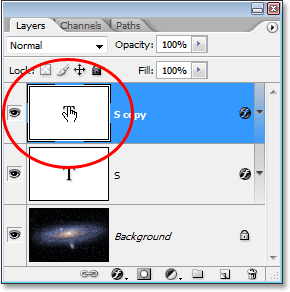
This will highlight the letter in the document window:
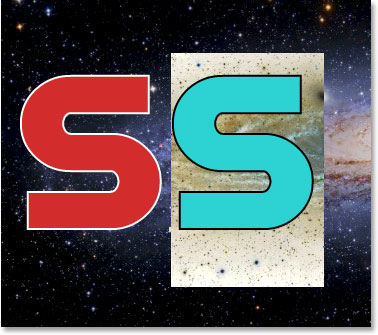
Change the letter to the second letter of your word. Since my word is "SPACE", I'll enter "P" on my keyboard:

When you're done, click once again on the checkmark in the Options Bar to accept the change and exit out of text editing mode:
Step 11: Add The Remaining Letters
Repeat steps 8-10 to add the rest of your letters and complete the word. Use the Move Tool to make any adjustments to the spacing between the letters until you have everything looking the way you want it. Here's my completed word:

Notice that the white stroke I added to my initial letter has been automatically added to every letter in the word, since each letter is essentially a copy of the first one. And if I look in my Layers palette now, I can see that each letter in the word is on its own separate layer, which is going to make it very easy to place an image inside each one individually:
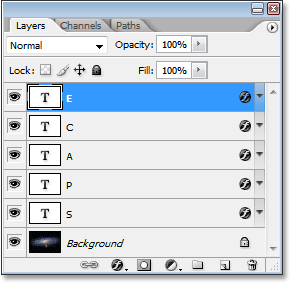
Step 12: Select The First Letter In The Layers Palette
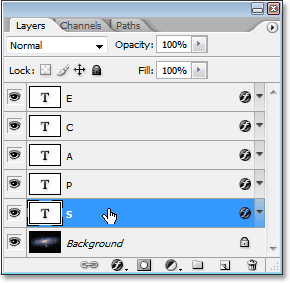
Now that we have our word with each letter on its own separate layer, we can begin placing images inside the letters. We'll start with the first letter, which in my case is "S". Click on the letter's layer in the Layers palette to select it. You'll know it's selected because it will be highlighted in blue:
Step 13: Open The Image You Want To Place Inside The Letter
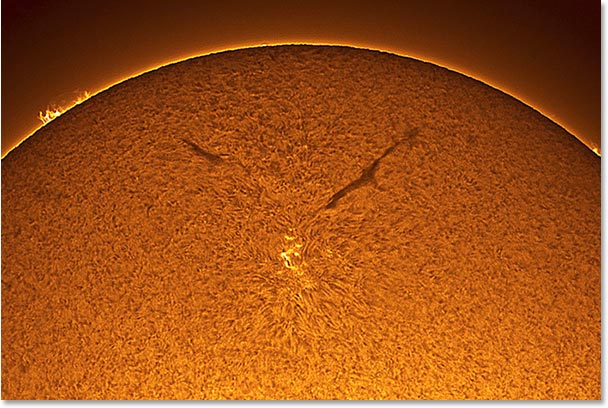
With the layer selected, open the image you want to place inside the first letter. If, when you open the image, it appears in one of Photoshop's full screen modes, press the letter F on your keyboard until the image appears in a document window. Here's the image I'll be using (sun photo from sungazer.net):
Step 14: Drag The Image Into The Main Document
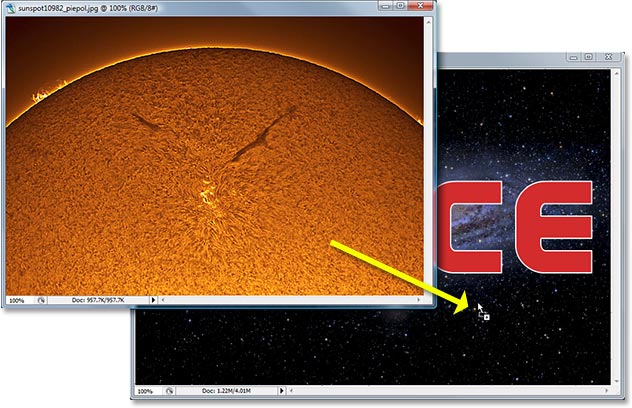
With the image open in its own document window, simply click anywhere inside the image and drag it into the main document:
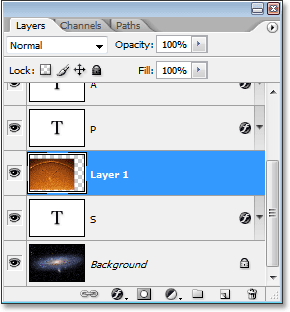
If we look in the Layers palette now, we can see that Photoshop has placed the image on its own layer directly above the first letter of the word:
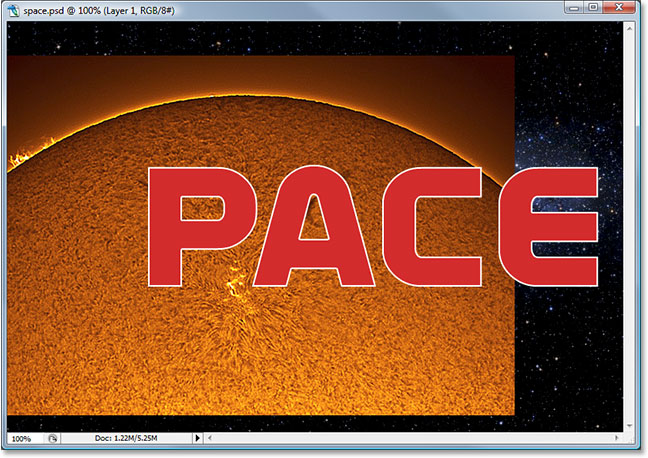
And if we look in our main document, we can see the image blocking the first letter, as well as much of the background, from view:
Step 15: Create A Clipping Mask
To place the image directly inside the letter, or at least make it appear as if that's what we've done, we're going to use a clipping mask. The letter is going to become a mask for the image above it, which means that the only part of the image that will remain visible is the area directly over top of the letter. The rest of the image will be hidden, creating the illusion that the image is actually inside the letter!
To create the clipping mask, make sure that you have the image's layer ("Layer 1") selected in the Layers palette, then go up to the Layer menu at the top of the screen
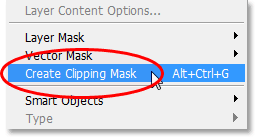
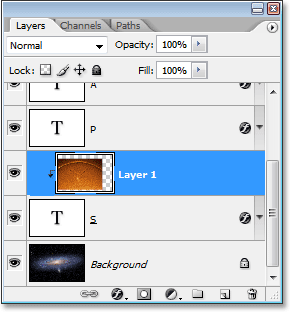
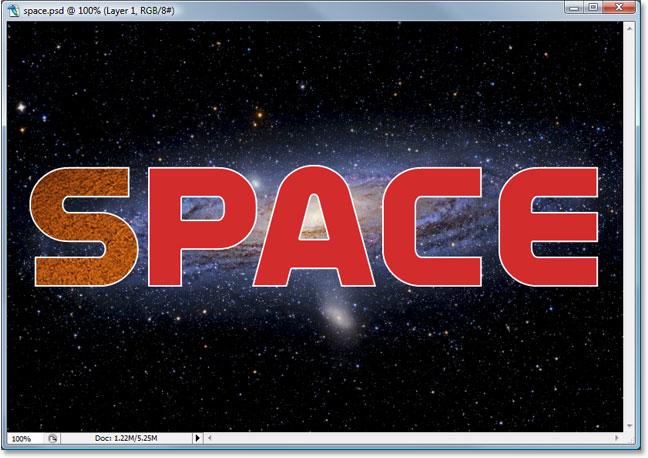
You can also use the keyboard shortcut Alt+Ctrl+G (Win) / Option+Command+G (Mac). Either way "clips" the image to the shape of the letter. If we look again in the Layers palette, we can see that "Layer 1" now appears indented to the right with a small arrow pointing down at the Type layer below it, telling us that we've successfully created our clipping mask:
And if we look in our main document, we can see that sure enough, the image now appears as if it's inside the letter:
Step 16: Resize And Reposition The Image Inside The Letter
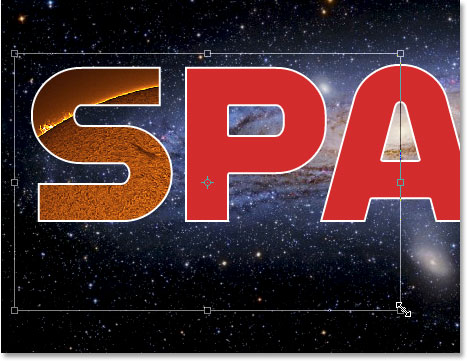
We have our first image inside our first letter. All we need to do now is resize and reposition it so it looks the way we want it. To do that, with "Layer 1" still selected, press Ctrl+T (Win) / Command+T (Mac) to bring up Photoshop's Free Transform box and handles around the image. The Free Transform box and handles will appear around the entire image, even though the only part of the image you can see is whatever's showing inside the letter.
If you can't see some of the Free Transform handles because they extend outside the viewable area in the document window, press Ctrl+0 (Win) / Command+0 (Mac) to fit everything on the screen. Then simply drag any of the corner handles to resize the image. Hold down your Shift key as you drag to constrain the proportions of the image, and hold down Alt (Win) / Option (Mac) to resize the image from its center if that makes it easier. Move the image around inside the letter by clicking and dragging anywhere inside the Free Transform box:
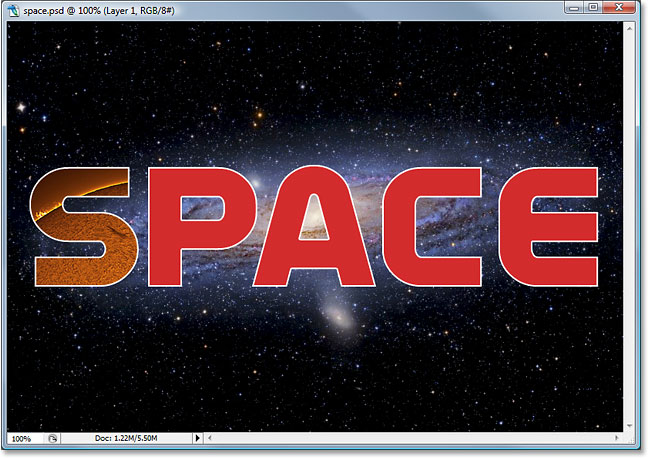
When you're done, press Enter (Win) / Return (Mac) to accept the changes and exit out of the Free Transform command. Here's my image with the work on my first letter now complete:
Step 17: Repeat The Same Steps With The Other Letters
To place images inside the remaining letters, simply repeat the same steps we used with our initial letter. First, select the letter in the Layers palette. Then open the image you want to place inside the letter, pressing F on your keyboard a few times if needed until the image appears in its own document window. Click anywhere inside the image and drag it into the main document. The image will appear on its own layer above the letter you had selected. Create a clipping mask to place the image directly inside the letter, then finish things off by using Free Transform to resize and reposition the image inside the letter as needed. It's all just a matter of repeating the same steps, using different images for each letter, until you're done!
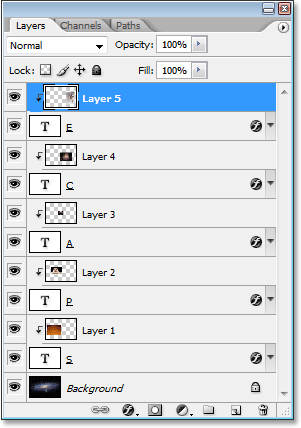
I'll go ahead and place images inside my remaining letters using the steps I just outlined. We can see in my Layers palette now that each letter has a separate image on a layer directly above it, and that each image is being "clipped" to the shape of the letter:
After viewing my final effect, it seemed like the white stroke around the letters looked a little boring by itself, especially for an outer space design. So to help give my letters more of a sci-fi look to them, I've added an Outer Glow layer style around them, using a light blue/purple color similar to the galaxy swirling around in the background. I won't bother outlining the steps for adding the Outer Glow layer style, since it's not the subject of this tutorial and you may not need or want to use it with your design. I've also cropped the image around the word to give the effect more focus. Here's my final result:
Where to go next...
And there we have it! Check out our Text Effects or Photo Effects sections for more Photoshop effects tutorials!