
Photoshop CS5 New Features – Content Aware Fill Tutorial
Version note: This tutorial on using Content-Aware Fill is for Photoshop CS5 and CS6. Photoshop CC users will want to check out the updated and improved Content-Aware Fill in Photoshop CC 2019.
In a previous tutorial, we looked at Photoshop CS5's upgraded Spot Healing Brush with its brand new Content-Aware Healing option that lets Photoshop examine the actual contents of your image as it tries to figure out the best way to remove or repair the damaged or unwanted area you've clicked on.
This time, we look at another new feature in Photoshop CS5 - Content-Aware Fill. It's no coincidence that both of these new features share similar names, since they do pretty much the same thing. The main difference is in how we use them.
Both features let Photoshop analyze the contents of the image to figure out what the photo would have looked like if the unwanted object or area had never been there. But even with its new Content-Aware abilities, the Spot Healing Brush is still best suited for smaller areas that we can easily click on or paint over. Content-Aware Fill, on the other hand, lets us repair or replace larger, more complex areas, and even multiple areas at once, simply by drawing selections around them and letting Photoshop do the rest!
Here's a photo that suffers from a couple of distracting elements, especially the large wooden post blocking the view of the mountains above the Visitor Center sign:
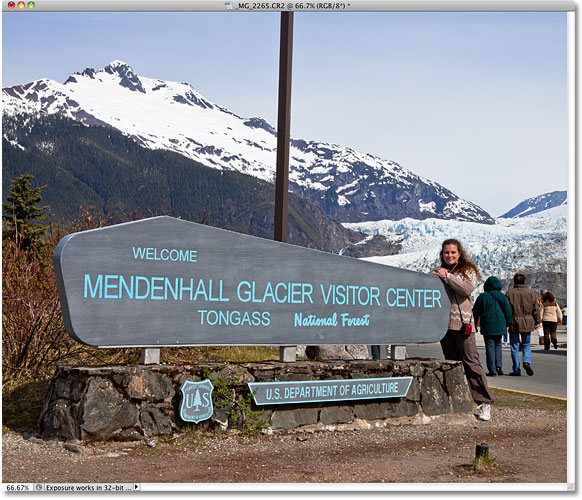
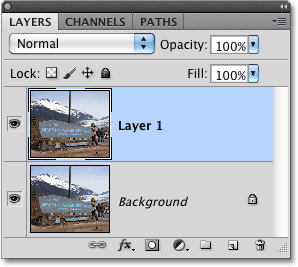
The traditional way to remove the post would be with the Clone Stamp Tool, but let's see if the new Content-Aware Fill option in Photoshop CS5 can make the job easier for us. As always, I'll first press Ctrl+J (Win) / Command+J (Mac) on my keyboard to create a copy of my image so I'm not making any changes to the original. If we look in the Layers panel, we see that I now have two layers, each containing the same image. The original photo will remain safe on the Background layer, and all of the editing work I'm about to do will be done to the copy of the image on Layer 1 above it:
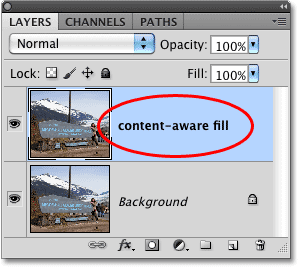
Since "Layer 1" isn't very descriptive, I'll double-click directly on the layer's name in the Layers panel and change it to "content-aware fill", pressing Enter (Win) / Return (Mac) when I'm done to accept the name change:
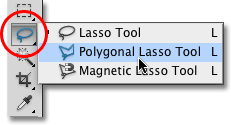
To use Content-Aware Fill, we first need to draw a selection around the object or area we want to remove or replace. Since the post is a simple, straight-sided shape, I'll use the Polygonal Lasso Tool, which is hiding behind the standard Lasso Tool in the Tools panel. To access it, I'll click and hold on the Lasso Tool until the fly-out menu appears, then I'll select the Polygonal Lasso Tool from the list:
With the Polygonal Lasso Tool selected, I'll press the letter F on my keyboard to switch out of the document window and into full screen mode, which will make it easier to select the top of the post. Then I'll just click my way around the post to select it. You'll want to stay close to the edges of the object you're selecting for Content-Aware Fill to work best, but there's no need to be surgically precise:
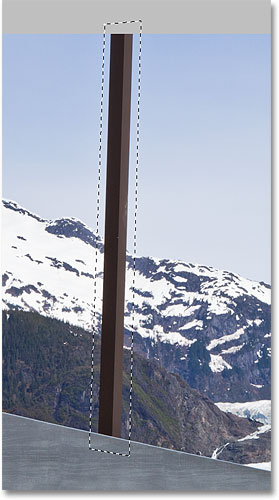
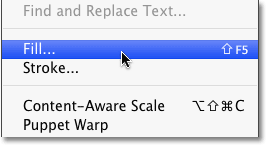
With the selection in place, I'll go up to the Edit menu at the top of the screen and choose the Fill command:
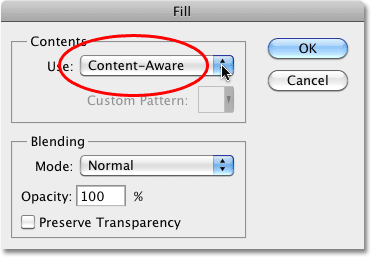
Just as Content-Aware Healing is a new option for the Spot Healing Brush in Photoshop CS5, Content-Aware Fill is a new option in the Fill dialog box. We select it by choosing Content-Aware in the Contents section at the top:
In Photoshop CS4 or earlier, all we could fill a selection with was a solid color or pattern, but with Content-Aware selected in CS5, Photoshop can now examine the contents of the image and try to fill in the selected area with actual image detail, as if the object we're removing never existed! At least, that's the idea of it. Let's see what happens when I click OK to exit out of the Fill dialog box:
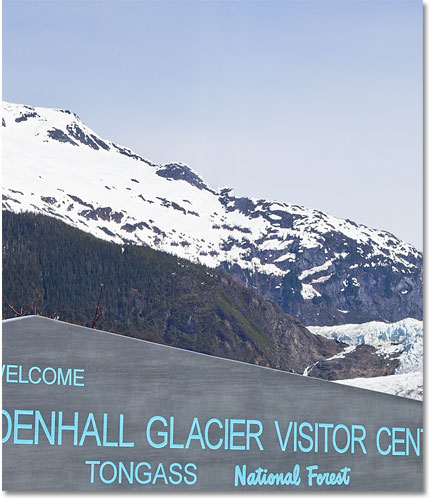
Just like that, the post is gone! Photoshop CS5 did an outstanding job of removing it and filling the area with image detail as if the post had never been there, and all I had to do was draw a selection around it and choose Content-Aware from the Fill dialog box. Is it 100% perfect? Not quite. The top of the mountain looks a little strange, and a couple of areas look like a repeating pattern, but what we're left with now is nothing more than a quick clean up with the standard Healing Brush or the Clone Stamp Tool rather than having to put in a lot more time and effort by doing it all ourselves.
There's another distracting object of some sort in the bottom right corner of the photo that I'd like to remove, so I'll use the standard Lasso Tool this time to draw a quick selection around it:
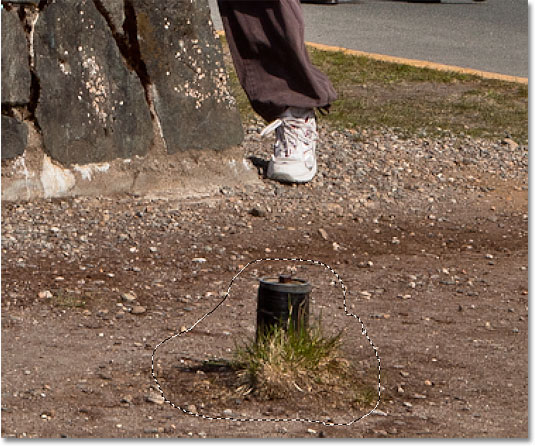
With the object selected, I'll go back up to the Edit menu and once again choose the Fill command. When the Fill dialog box appears, I'll again choose the new Content-Aware option. Finally, I'll click OK to exit out of the dialog box, and Photoshop CS5 does another great job at removing the object from the photo, filling the area with new image data:
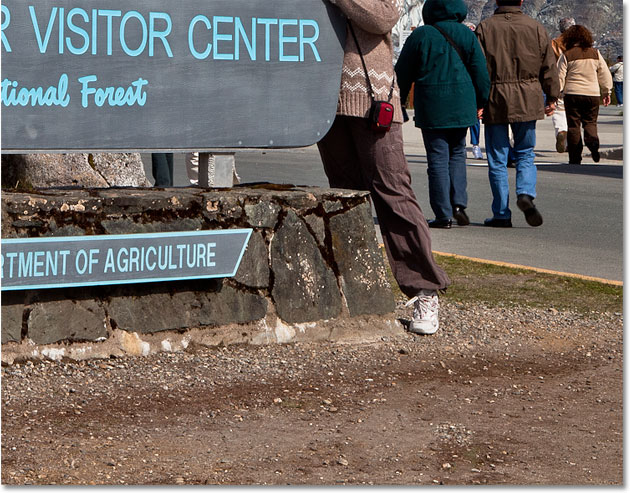
If you don't like the results after running Content-Aware Fill, simply undo it by pressing Ctrl+Z (Win) / Command+Z (Mac), then running it again. You'll get a different result each time.
Back in a previous tutorial, we looked at how to stitch multiple photos together to create a panoramic image using the Photomerge command in Photoshop CS4. We won't get into details here on how to create panoramic images since we covered it in the other tutorial, but if you've used Photomerge before, you'll be familiar with the problem seen in the image below.
This is the panorama I created in the tutorial as it appeared right after running the Photomerge command, which left me with lots of empty blank space around the image:
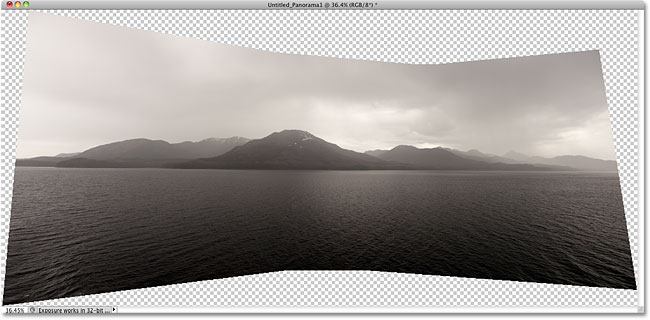
Normally (as in prior to Photoshop CS5), we'd get rid of all that blank space by simply cropping it away with the Crop Tool, but let's see what happens when we let Photoshop try to replace the blank areas with actual image detail using Content-Aware Fill.
I've gone ahead and merged all of the layers onto a single layer, and I'll quickly select the image by holding down my Ctrl (Win) / Command (Mac) key and clicking directly on the preview thumbnail in the Layers panel:
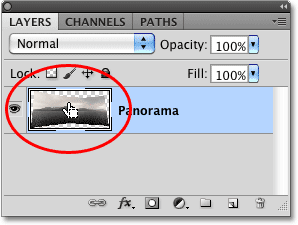
As soon as I click on the thumbnail, a selection outline appears around the image:
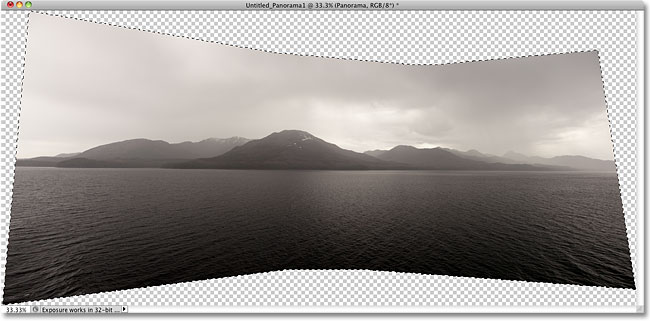
At the moment, the image is selected, but I don't want to fill the image with anything. I want to fill the blank space around it, so I need to invert my selection, which will select the blank areas and deselect the image. To do that, I could go up to the Select menu at the top of the screen and choose Inverse, but I'll use the faster keyboard shortcut Shift+Ctrl+I (Win) / Shift+Command+I (Mac):
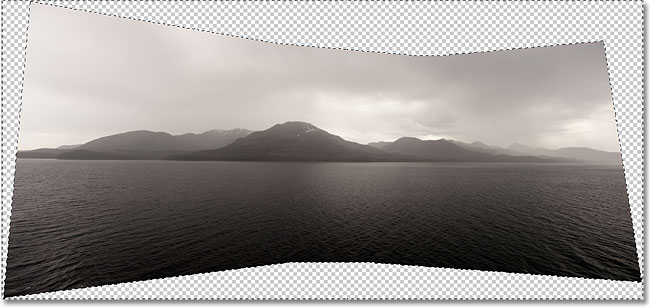
With the blank area now selected, I'll go up to the Edit menu and choose Fill, just as I did before, and I'll select the new Content-Aware option at the top:
I'll click OK to exit out of the dialog box, and after waiting a few moments for Photoshop to analyze the image, we get the results. I'll press Ctrl+D (Win) / Command+D (Mac) to remove the selection outline so we can see the image better:
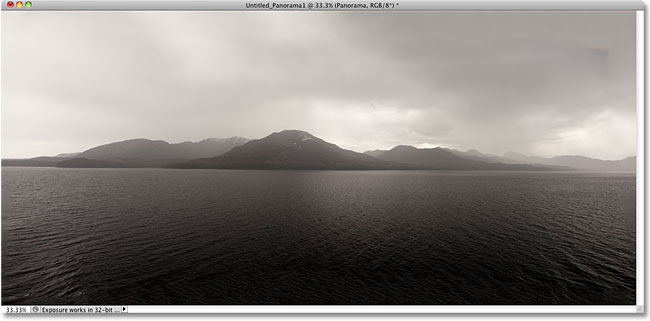
Does Photoshop CS5 have some serious wow factor going on? I would say so. Again, the results aren't perfect. There's an obvious dark blotch in the clouds in the top right corner of the image and some of the water along the far left and right edges appears blurry, but Content-Aware Fill was able to do 80-90% of the work for me in a matter of seconds, leaving me with nothing more than a quick clean up with one of the other retouching tools. I'd call that impressive!
And there we have it! That's our look at the new Content-Aware Fill feature in Photoshop CS5! Check out our Photo Retouching section for more Photoshop image editing tutorials!