
Apply Multiple Strokes To Text In Photoshop
Version Note: Using Photoshop CC 2020 or later? Check out my all new Add Multiple Strokes to Text with Layer Effects tutorial.
In this Photoshop text effects tutorial, we're going to have some fun with strokes. We'll learn how easy it is to add as many strokes to our text as we want, rather than settling for just one, which is normally all Photoshop allows us to add.
Here's an example of the sort of result we'll be working towards. In this case, three separate strokes have been added around the letters, but you can use the steps in this tutorial to add as many strokes as you like:

Let's get started!
Step 1: Create A New Document
Start by creating a new blank Photoshop document. Go up to the File menu at the top of the screen and choose New, or simply press the keyboard shortcut Ctrl+N (Win) / Command+N (Mac). Either way brings up Photoshop's New Document dialog box. Choose whatever size you need for your document. I'll set my document to a Width of 6 inches, a Height of 4 inches, and a Resolution of 300 pixels/inch. Click OK when you're done to exit out of the dialog box and your new blank document will appear on the screen.
Step 2: Select The Type Tool
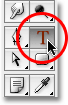
To add type to our document, we'll need Photoshop's Type Tool. Select it from the Tools palette, or press the letter T on your keyboard to select it with the shortcut:
Step 3: Choose A Font From The Options Bar
With the Type Tool selected, go up to the Options Bar at the top of the screen and choose the font and font size you want to use for the effect. I'll use Arial Black for my text, and I'll choose a font size of 60 pt. You may need to select a different size depending on the size and resolution of the document you're working with. Of course, you can also use a different font from the one I'm using:

Step 4: Add Your Text
Click inside your document window and add your text. I'll type the word "STROKES". Once you've added your text, click on the checkmark in the Options Bar to accept it and exit out of text editing mode:

Step 5: Add A "Stroke" Layer Style
With your text now added, click on the Layer Styles icon at the bottom of the Layers palette and select Stroke from the bottom of the list of layer styles that appears:

As soon as you select Stroke from the list, two things will happen. Photoshop will pop open the large Layer Style dialog box set to the Stroke options in the middle column, and a red stroke (red is the default color for the stroke) will appear around your text in the document window:

Step 6: Adjust The Size And Position Of The Stroke
The default size for the stroke is 3 px, which means the stroke has a thickness of 3 pixels, and the default position is "Outside", which means the entire thickness of the stroke will appear outside of the letters rather than inside of them. I'm going to increase the size of my stroke to 6 px by dragging the Size slider bar at the top of the dialog box towards the right, and I'm going to set the Position for this first stroke to Inside, which will place the entire thickness of the stroke inside the letters:

Click OK when you're done to exit out of the Layer Style dialog box. Here's what my text looks after making the changes to the default stroke settings:

Step 7: Set The 'Fill' Of The Text To 0%
Now that I have my first stroke outline around my text, I don't want to see my actual text anymore. All I want to see is the stroke outlining it. Since the background color for my document is white, I could just change the color of my text to white, but what if I change the background color later? I'd have to change the text color as well to match the new background. A better solution is to simply hide the text from view while still keeping the layer styles visible. Photoshop makes it very easy to do just that.
With the text layer selected, go up to the top of the Layers palette. You'll see two options, "Opacity" and "Fill". You can hide the text by lowering the Opacity value to 0%, but the Opacity option affects everything on the layer, including layer styles, which means we'd be hiding the stroke as well. "Fill", on the other hand, has no effect on layer styles. It will hide all the contents of a layer except any layer styles we've applied to it, which means that if we set the Fill value to 0%, we'll be hiding the text without hiding the stroke! Let's do that. Again, make sure the text layer is selected (selected layers are highlighted in blue) and lower the Fill value to 0%:

Here's what you should see. The text is now hidden from view, yet the stroke around it remains visible:

Step 8: Duplicate The Text Layer
So far, so good. We've added a single stroke around the text. Here's where we start adding multiple strokes to the text. Normally, Photoshop doesn't allow us to add more than one stroke to a text layer (or any type of layer), but nothing says we can't make copies of our text layer and add a different stroke to each copy! To make each stroke visible, we'll simply change the position and/or size of each stroke!
With the text layer selected in the Layers palette, press Ctrl+J (Win) / Command+J (Mac) to quickly duplicate the layer. The duplicate will appear directly above the original text layer. Once you've duplicated the layer, click back on the original text layer to select it. We're going to change the stroke options for the original text layer:

Step 9: Change The Stroke Color And Position Of The Original Text Layer
See the "fx" icon on the far right of the text layer in the Layers palette (earlier versions of Photoshop show a round icon with an "f" inside of it)? When that icon is visible, it's telling us that one or more layer styles are currently attached to the layer. Double-click on the icon to bring back the Layer Style dialog box, then select Stroke from the bottom of the list of layer styles on the left of the dialog box. You'll see the options for the Stroke appear in the middle column.
First, change the color of the stroke by clicking on the color swatch in the middle of the dialog box, which will bring up Photoshop's Color Picker. Choose a different color from the Color Picker. I'll choose an orange color. Click OK when you're done to exit out of the Color Picker. You'll see the color swatch change to the color you've chosen:

Once you've chosen a new color for your stroke, change the Position of the stroke to Outside to move the stroke outside of the letters. You can leave the size of the stroke the same.

Click OK when you're done to exit out of the Layer Style dialog box, and you'll see that you now have two strokes around your letters. The original stroke (the red one) is on the inside of the letters, and the new one (the orange one) that we just added is on the outside. By changing the position of the two strokes, we've prevented them from overlapping each other, allowing us to see both of them at once:

There's no need to stop with just two strokes, especially since adding more of them is just as easy!
Step 10: Duplicate The Original Text Layer Once Again
With the original text layer still selected in the Layers palette, press Ctrl+J (Win) / Command+J (Mac) to once again duplicate the layer, placing a new copy of it directly above the original. When you're done, click back on the original text layer to select it. We're going to again change the color of the stroke, and this time we're also going to increase the size of it.
You should now have three text layers in the Layers palette (the original plus two copies above it), and the original text layer should be selected. Double-click on the layer effects icon on the right of the original text layer in the Layers palette to bring back the Layer Style dialog box, just as we did a moment ago, and select Stroke from the bottom of the list on the left to access the Stroke options:

Step 11: Choose Another New Color For The Stroke And Increase The Stroke Size
When the Layer Style dialog box appears, change the color of the stroke by once again clicking on the color swatch and selecting a new color from the Color Picker. I'm going to select red again, the same color that was used for my original stroke. Click OK to exit out of the Color Picker when you're done. The color swatch will change to the color you've chosen:
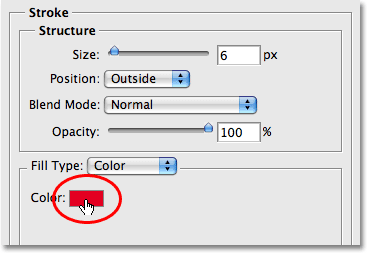
Once you've chosen a new color, go up to the top of the Stroke options and increase the Size of the stroke. My stroke is currently set to a size of 6 px, which is the same thickness as the previous stroke. The position of the stroke is set to Outside, also the same as the previous stroke. And since the previous stroke is sitting on a layer above the layer I'm currently working on, this means that the previous stroke is completely blocking my new stroke from view in the document. To make my new stroke visible, I'll need to increase it's size. I'm going to increase it to 16 px:

The new stroke now appears as a thick red stroke around the outside of the previous two strokes:
We now have not one, not two, but three separate strokes around our text, and we can keep adding more if we want by continuing to duplicate the original text layer, selecting it again in the Layers palette, going back to the Stroke options, choosing a new color for the stroke, then increasing the size of the stroke until it's visible around the outside of the previous strokes.
The nice thing about this effect is that you can always go back and change the look of it any time you want simply by clicking on the layer effects icon on the right of the layer in the Layers palette to bring back the Layer Style dialog box, selecting Stroke from the list on the left of the dialog box, then changing the stroke options. Select new colors, sizes and/or positions for the strokes for different results! Here, I've made a simple black and white stroke pattern by changing the red strokes to black and the orange one in the middle to white:

Where to go next...
And there we have it! Check out our Text Effects or Photo Effects sections for more Photoshop effects tutorials!