
Colorful Light Burst Text In Photoshop
In this Photoshop Text Effects tutorial, we'll learn how to engulf text in an explosion of light and color. There's quite a few steps involved in this text effect, and we'll be using a couple of filters that are not used very often in everyday Photoshop work, but creating the effect is quite simple and the end result is definitely worth the effort.
Using Photoshop CS6? You'll want to follow our fully updated Photoshop CS6 version of the tutorial.
Here's the result we're going for:

Let's get started!
Step 1: Open A New Photoshop Document
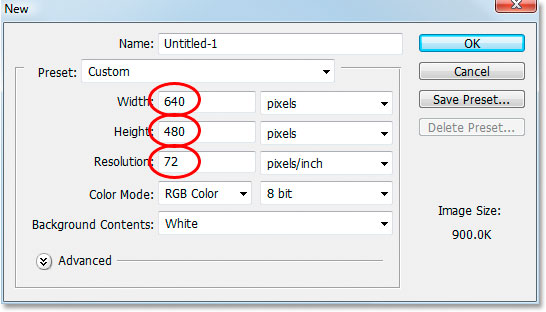
Open a new document in Photoshop by going up to the File menu and choosing New..., or by using the keyboard shortcut, Ctrl+N (Win) / Command+N (Mac). You can choose your own width and height for your document, but if you want to follow along, I chose the 640x480 size from the list of available presets to keep things simple. I've also left my Resolution value set to its default of 72 pixels/inch. Since I'm creating this text effect for the web, it makes no difference what I set the resolution value to, so the default value is fine:
Step 2: Add Your Text
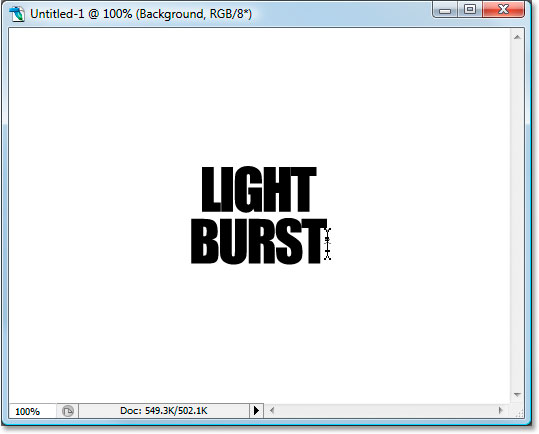
With your new blank document open, grab the Type tool from the Tools palette or by pressing T on your keyboard. Make sure black is selected as your foreground color. If it isn't, just press D on your keyboard to reset it to black. Choose your font in the Options Bar at the top of the screen. Thick, heavy fonts work best for this effect. Then, go ahead and enter your text. I'm going to use "Impact", and I'll type the words "LIGHT BURST":
Step 3: Resize Your Text With Free Transform
With your text layer selected in the Layers palette, use the keyboard shortcut Ctrl+T (Win) / Command+T (Mac) to bring up the Free Transform box and handles around your text. Hold down Shift+Alt (Win) / Shift+Option (Mac) and drag out any of the corner handles to make your text larger and fill up more of the document area. Holding Shift constrains the text proportions, and holding Alt/Option resizes the text from the center:
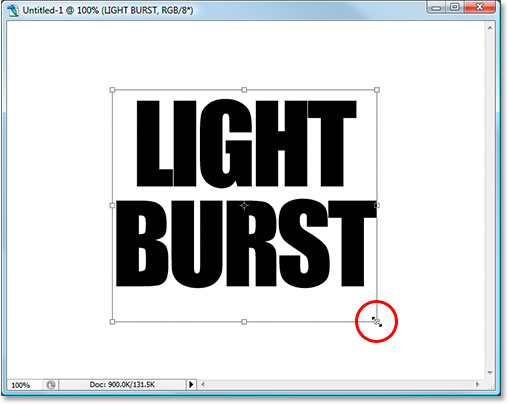
Make sure to still leave plenty of room around the text for our light burst effect. Press Enter (Win) / Return (Mac) when you're done to accept the transformation.
Step 4: Rasterize Your Text
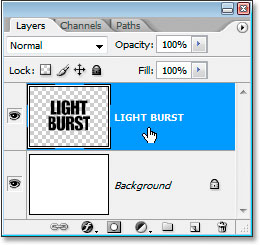
We're going to be applying several filters to our text, but Photoshop doesn't allow us to do that without first rasterizing it, which simply means to convert it into pixels. So again with the text layer selected, go up to the Layer menu at the top of the screen, choose Rasterize, and then choose Type. This will convert our text into pixels. It will still look the same in the document window, but in the Layers palette, the Type layer will now be a regular layer:
Step 5: Add A Selection Around Your Text And Save It
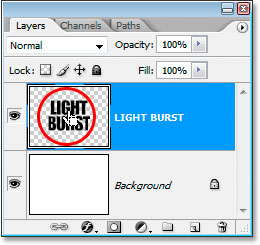
Ctrl-click (Win) / Command-click (Mac) directly on the thumbnail preview area of the text layer in the Layers palette to quickly load a selection around your text:
Your text will now have a selection around it:
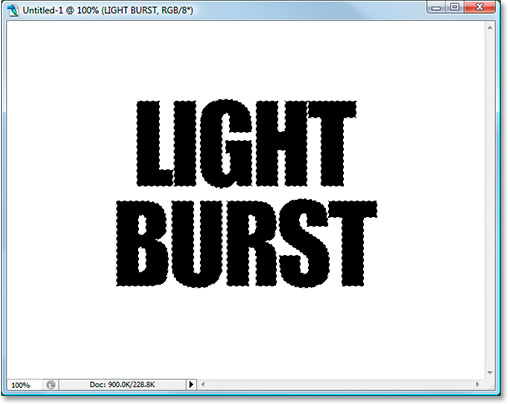
With the text selected, go up to the Select menu at the top of the screen and choose Save Selection. When the Save Selection dialog box appears, just click OK. There's no need to name it or make any changes to the options.
Once you've saved your selection, press Ctrl+D (Win) / Command+D (Mac) to deselect your text.
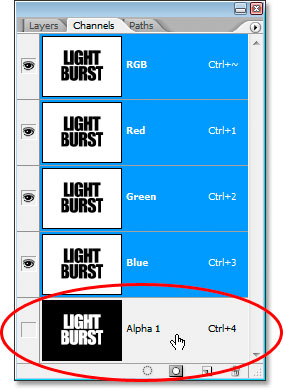
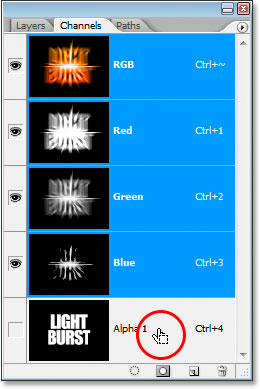
Switch over to your Channels palette for a moment (it's grouped in beside the Layers palette) and you'll see your selection saved as a new channel named "Alpha 1" at the very bottom. We'll be coming back here a bit later to load our selection again:
Step 6: Use "Fill" To Fill Your Text Layer With White And Set The Blend Mode To "Multiply"
Switch back to your Layers palette once again, and with the text layer selected, go up to the Edit menu at the top of the screen and choose Fill, or press Shift+F5 on your keyboard to quickly bring up Photoshop's Fill dialog box. When the dialog box appears, set the Contents to White and change the Blending Mode to Multiply:
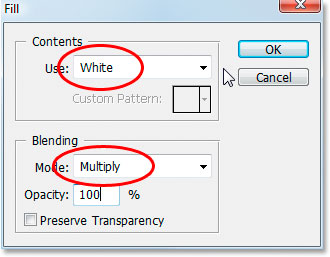
Click OK when you're done. Nothing will seem to have happened in your document window, but if you look at your text layer's thumbnail in the Layers palette, you'll see that all of the empty space around the text has now been filled with white, while leaving the text black thanks to that "Multiply" mode.
Step 7: Apply The Gaussian Blur Filter To The Text
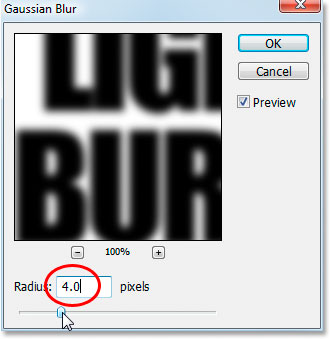
Go up to the Filter menu at the top of the screen, choose Blur, and then choose Gaussian Blur. When the Gaussian Blur dialog box appears, enter a Radius value of about 4 pixels and click OK to apply a slight blurring to the text:
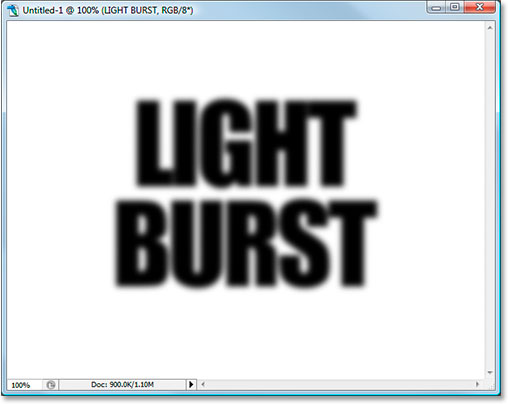
Here's the text after applying Gaussian Blur:
Step 8: Apply The "Solarize" Filter To The Text
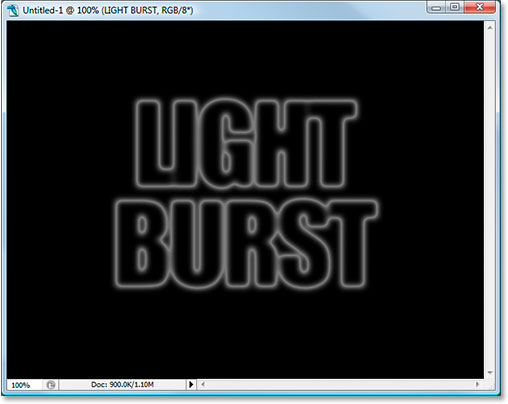
With the text layer still selected, go back up to the Filter menu and this time choose Stylize, and then choose Solarize. This will turn the document black, and your text will appear as a white stroke:
Step 9: Lighten The Text With Levels
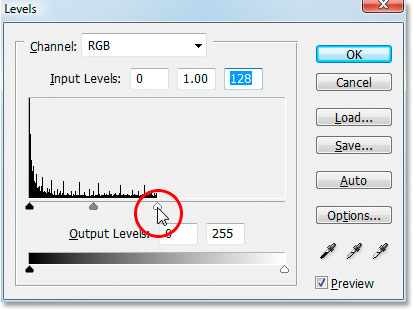
The text is looking a little dark, so let's lighten it. Use the keyboard shortcut Ctrl+L (Win) / Command+L (Mac) to bring up Photoshop's Levels command, and drag the white point slider on the right in towards the left until you reach the right edge of the histogram:
Click OK. The text will now appear much brighter:
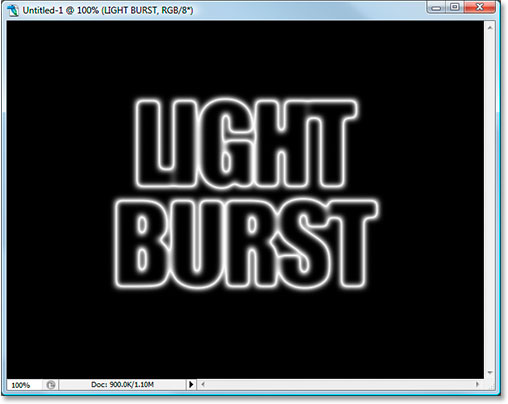
Step 10: Make A Copy Of The Text Layer
We need to make a copy of the text layer at this point, so to do that, with the text layer selected, use the keyboard shortcut Ctrl+J (Win) / Command+J (Mac), which will add a copy of the layer above it in the Layers palette:
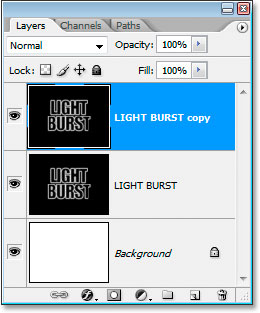
Make sure the copy of the text layer is selected because all of these next steps are to be done on the copy. We won't be touching the original again until near the end.
Step 11: Apply The "Polar Coordinates" Filter To The Text
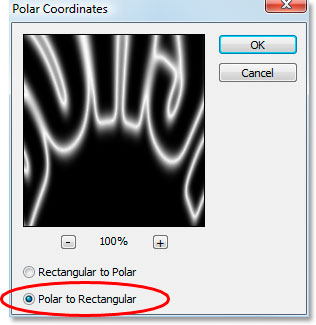
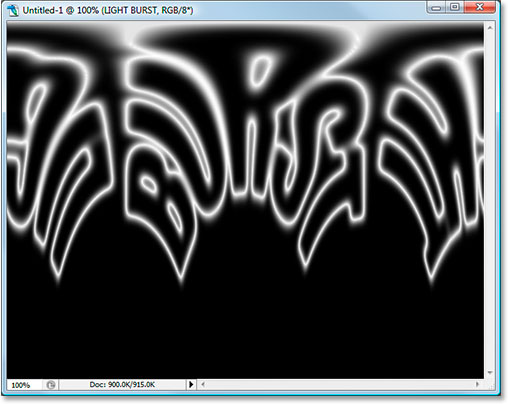
Go back up to the Filter menu, and this time choose Distort, and then Polar Coordinates. We're going to send our text to the North Pole. Alright, no we're not. What we are going to do is make it look very strange. When the Polar Coordinates dialog box appears, select the Polar To Rectangular option at the very bottom and then click OK:
Your text will now look very strange indeed:
Step 12: Rotate The Canvas 90 Degrees Clockwise
Go up to the Image menu at the top of the screen, select Rotate Canvas, and then choose 90° CW to rotate the canvas 90 degrees clockwise:
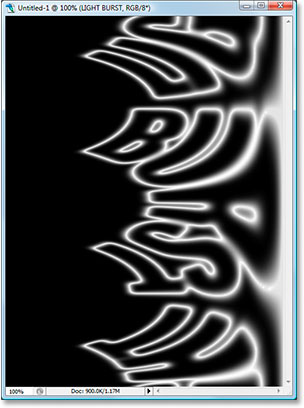
Step 13: Invert The Image
Use the keyboard shortcut Ctrl+I (Win) / Command+I (Mac) to invert the image, so black becomes white and white becomes black:
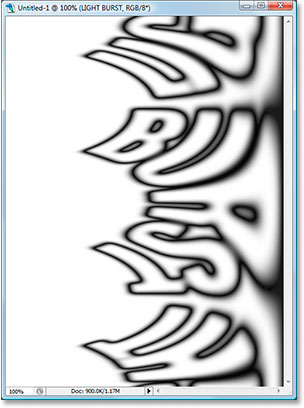
Step 14: Apply The "Wind" Filter Three Times
Go back up to the Filter menu once again, choose Stylize, and then choose Wind. When the Wind filter's dialog box appears, make sure Method is set to Wind and Direction is set to From the Right:
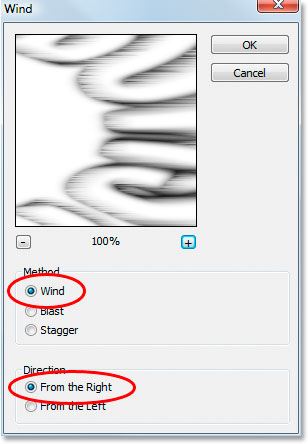
Click OK to apply the Wind filter once. Then press the keyboard shortcut Ctrl+F (Win) / Command+F (Mac) twice to apply the same filter two more times.
Step 15: Invert The Image Again
Press Ctrl+I (Win) / Command+I (Mac) to invert the image once again:
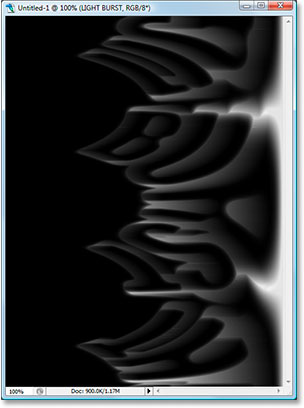
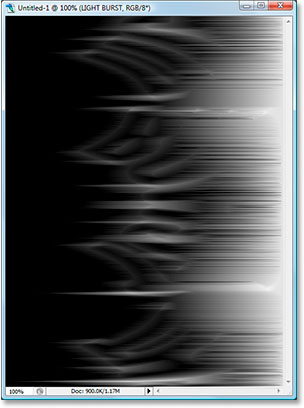
Step 16: Apply The "Wind" Filter Three More Times
With the image inverted, press the keyboard shortcut Ctrl+F (Win) / Command+F (Mac) three more times to apply the filter to the image three more times:
Step 17: Brighten The Image Again With Levels
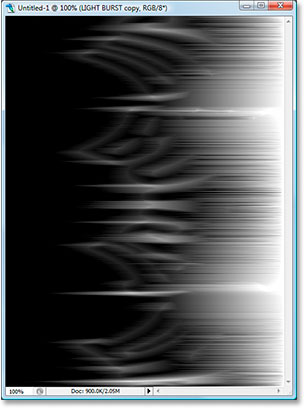
We need to brighten the image again using Levels, but this time, we'll let Photoshop do the work for us by using Auto Levels. To do that, press Shift+Ctrl+L (Win) / Shift+Command+L (Mac) to apply the Auto Levels command to the image, which will brighten it up:
Step 18: Rotate The Canvas 90 Degrees Counterclockwise
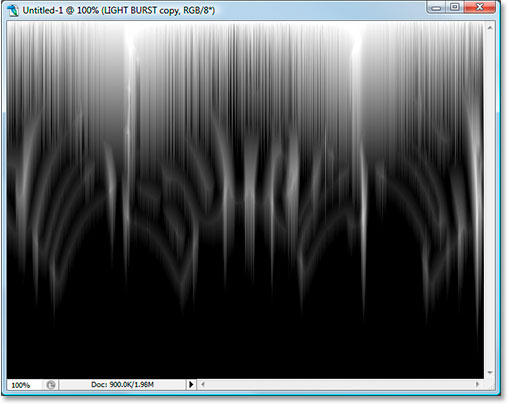
Go back up to the Image menu at this point, choose Rotate Canvas once again, and this time choose 90° CCW to rotate the canvas back to the way it was originally:
Step 19: Apply The "Polar Coordinates" Filter Again
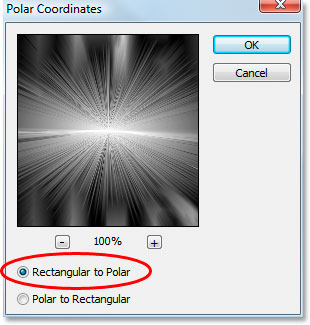
Go back up to the Filter menu again, choose Distort, and then choose Polar Coordinates. This time choose the Rectangular to Polar option and click OK:
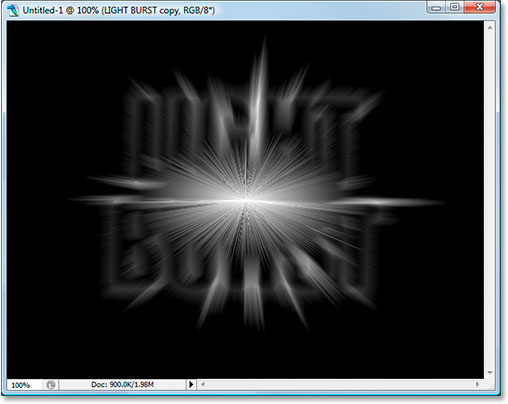
Your image should now look something like this:
Step 20: Set The Layer Blend Mode To "Screen"
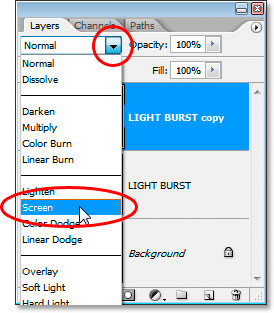
Go up to the blend mode options in the top left of the Layers palette and change the blend mode of the text copy layer from "Normal" to Screen by clicking on the down-pointing arrow and selecting "Screen" from the list:
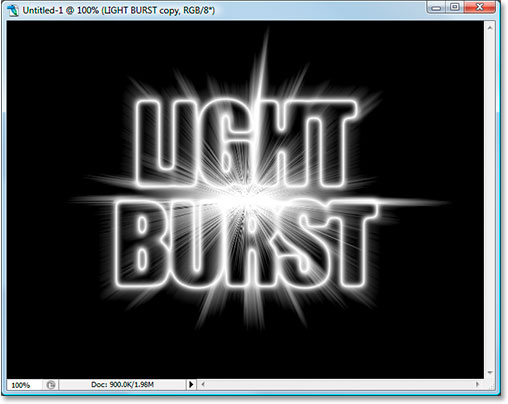
This reveals the original text layer beneath it:
Step 21: Apply A Gradient Fill Layer To Add Color
Click on the New Fill Or Adjustment Layer icon at the bottom of the Layers palette:
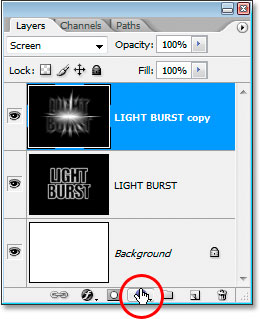
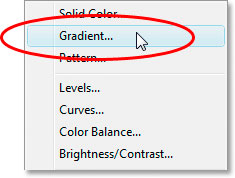
And select "Gradient" from the list:
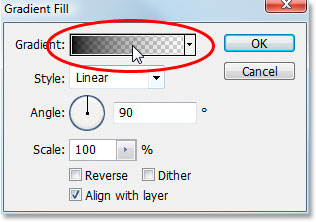
When the Gradient Fill dialog box pops up, click inside the gradient preview area at the top:
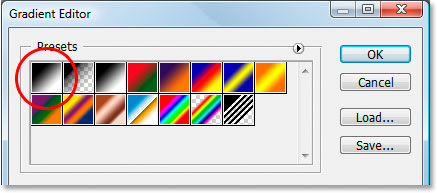
This will bring up the Gradient Editor dialog box. Click on the gradient swatch in the top left, the black to white gradient first, and this will make sure that both colors on either side of the gradient have their opacity set to 100%:
Then set your gradient colors to whatever you like. I've set the color on the left to a reddish-orange, and the color on the right to a yellowish-orange:
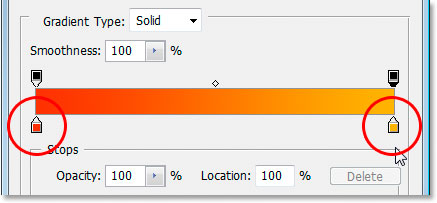
Exit out of the gradient dialog boxes once you've chosen your colors.
Step 22: Change The Blend Mode Of The Gradient Fill Layer To "Color"
With the Gradient fill layer selected, go back to the blend mode options in the top left of the Layers palette and change the layer's blend mode to Color:
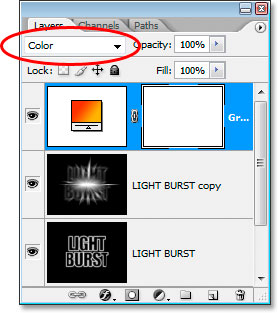
The image is now colorized with the colors from the gradient:
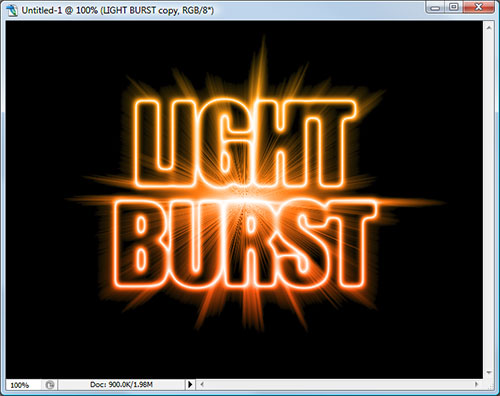
Step 23: Apply A Radial Blur To The Original Text Layer
We're done with the text copy layer at this point. We're going to finish off the last few steps by working on the original text layer, so click on it in the Layers palette to select it. Then go up to the Filter menu, choose Blur, and then choose Radial Blur:
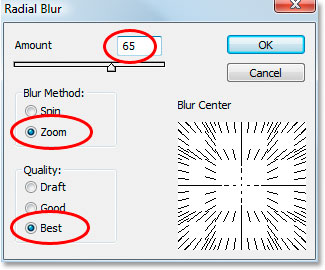
Set the Amount to about 65 pixels, the Blur Method to Zoom, and the Quality to Best, as circled above, and then click OK to apply the filter to the original text:
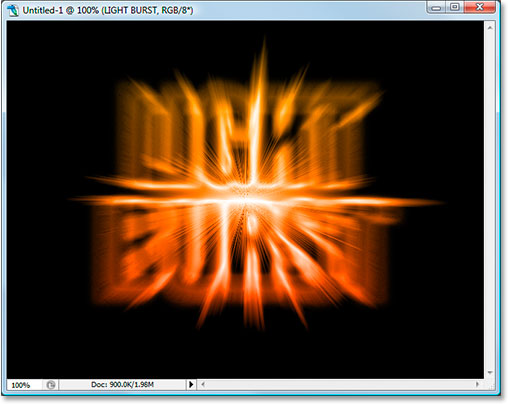
Step 24: Load The Saved Text Selection
Only a couple of things left to do. First, switch over to your Channels palette again like we did earlier. We're going to reload that selection we saved. To do that, simply right-click (Win) / Control-click (Mac) anywhere on the Alpha 1 channel at the very bottom, which will load the selection back into the document window:
Switch back to the Layers palette when you're done. The selection is now loaded in the image:
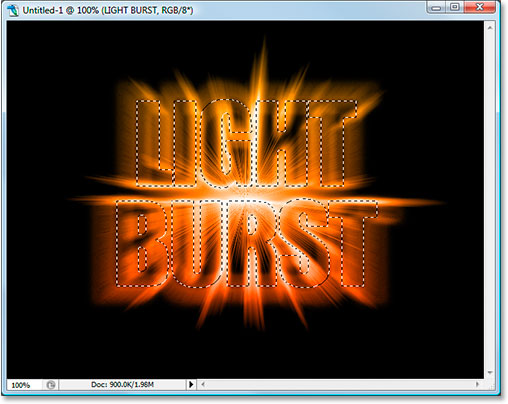
One thing left to do...
Step 25: Fill The Selection With Black
With the original text layer selected in the Layers palette and black still as your foreground color, press Alt+Backspace (Win) / Option-Delete (Mac) to fill the selection with black and finish the effect. Press Ctrl+D (Win) / Command+D (Mac) to remove the selection, and you're done! After all that, here's the final "light burst" text effect:
Where to go next...
And there we have it! That's how to create a colorful light burst effect with text in Photoshop! Check out our Text Effects or Photo Effects sections for more Photoshop effects tutorials!