
Create Type On A Path In Photoshop
In this tutorial, we'll learn how to add type along a path in Photoshop! I'll be using Photoshop CS6 here but this tutorial is also fully compatible with Photoshop CC. If you're using Photoshop CS5 or earlier, you'll want to check out the previous version of this tutorial.
To add type to a path, we first need a path, and Photoshop gives us several ways to draw one.
We can use a basic shape tool like the Rectangle Tool or the Ellipse Tool, we can create a path from custom shapes, and we can draw a freeform path using the Pen Tool.
How you draw your path makes no difference as far as how we go about adding text to it because a path is a path no matter how it was created, and the steps for adding type to a path are always the same. Let's see how it works!
Here's the image I'll be using for this tutorial which was downloaded from Adobe Stock. I'm going to use a path to add some text around the golf ball:

Let's get started!
How To Add Type On A Path In Photoshop
Step 1: Select The Ellipse Tool
As I mentioned, the steps for adding type along a path are the same no matter which tool you used to create the path. So for this tutorial, we'll keep things simple. To draw a path around the golf ball, I'll use the Ellipse Tool, one of Photoshop's basic shape tools. You can learn more about drawing shapes in our How To Draw Vector Shapes in Photoshop tutorial.
By default, the Ellipse Tool is nested behind the Rectangle Tool in the Tools panel. To select it, I'll right-click (Win) / Control-click (Mac) on the Rectangle Tool, then I'll choose the Ellipse Tool from the fly-out menu:

Step 2: Change The Tool Mode To "Path"
With the Ellipse Tool selected, the Options Bar along the top of the screen changes to show us various options for working with the tool. Near the far left of the Options Bar is the Tool Mode option. By default, it's set to Shape. Photoshop actually gives us three different types of shapes that we can draw—vector shapes, paths, and pixel-based shapes. We want to draw a path, so I'll change the Tool Mode option from Shape to Path:

Learn more: Drawing Vector Shapes vs Pixel Shapes in Photoshop
Step 3: Draw Your Path
To draw the path, I'll click and hold my mouse button down in the center of the golf ball. Then, I'll press and hold Shift+Alt (Win) / Shift+Option (Mac) on my keyboard and begin dragging outward from the center. Holding the Shift key down as I drag with the Ellipse Tool forces the shape of the path into a perfect circle, while the Alt (Win) / Option (Mac) key lets me draw the path outward from the spot where I clicked.
I'll continue dragging outward from the center until the path is large enough to surround the ball. If you need to reposition a path as you're drawing it, press and hold the spacebar on your keyboard, drag with your mouse to move the path into position, and then release your spacebar and continue drawing.
When I'm happy with how the path looks, I'll release my Shift key and the Alt (Win) / Option (Mac) key, then I'll release my mouse button (it's important to release the keys first, then the mouse button, or you'll get unexpected results). Here, we see the path appearing as a thin outline around the ball:

Step 4: Select The Type Tool
With our path drawn, we're ready to add our text. Select the Type Tool from the Tools panel:

Step 5: Choose Your Font
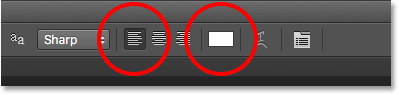
Choose your font settings from the Options Bar. For my image, I'll use Futura Condensed Medium set to 30 pt, but you can use whatever works best for you:

I also have my Text Alignment option set to Left and my type color set to white:
Step 6: Move The Cursor Over The Path
Move the Type Tool directly over the path. The cursor will change to an I-beam with a dotted wavy line through it. This tells us we're about to add text directly to the path itself:

Step 7: Click On The Path And Add Your Type
Click anywhere along the path and begin adding your text. The spot you click on is where the text will begin, and as you continue typing, the text follows the direction of the path. Don't worry if you've clicked on the wrong spot. As we'll see in a moment, we can easily move the text around on the path when we're done:

When you're done adding your text, click the checkmark in the Options Bar to accept it:
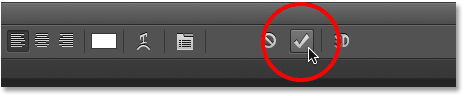
The text is now added to the path, although in my case it's on a bit of a weird angle, but we'll fix that next. If your path disappeared on you when you clicked the checkmark and all you're seeing now is the text itself, don't worry. The path will re-appear when we move on to the next step:

Step 8: Select The Path Selection Tool
To reposition your text along the path, choose the Path Selection Tool from the Tools panel:

Step 9: Reposition The Text
Move the Path Selection Tool's cursor anywhere over top of your text. You'll see the cursor change from a black arrow into an I-beam with a small arrow on the side of it pointing left or right. Simply click on your text and drag it back and forth along the path with your mouse. Here, I'm dragging my text clockwise around the circle:
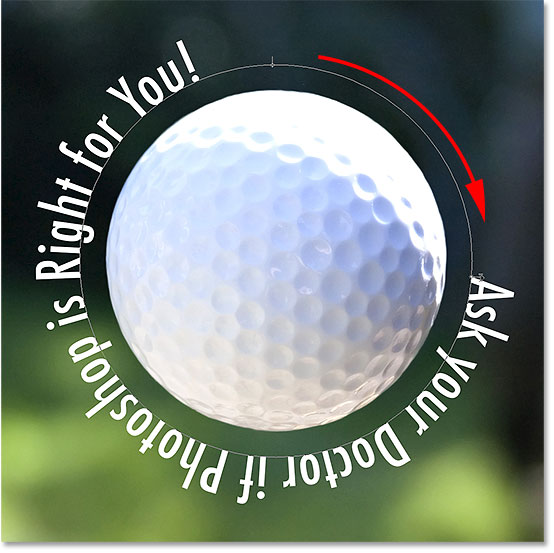
Watch what happens, though, if I drag my text too far. Some of it gets cut off at the end:
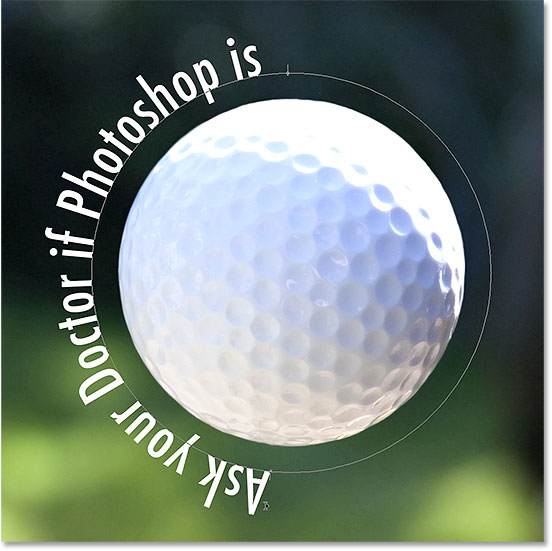
The end was cut off because I moved the text beyond the visible text area on the path. To fix the problem, look for a small circle on the path at the spot where the text is being cut off. The circle marks the end of the visible area:
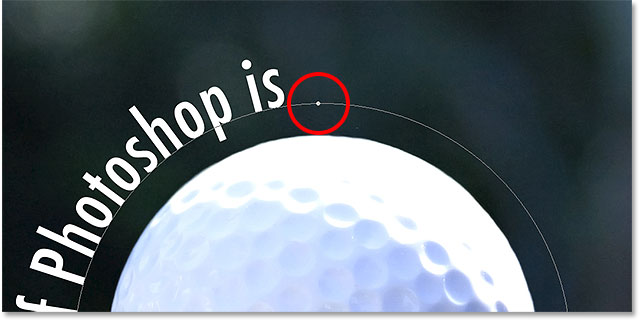
Simply click on the circle with the Path Selection Tool and drag it further down the path until the rest of your text re-appears:

Flipping The Text Over The Path
As you're dragging your text along the path, be careful not to accidentally drag across the path. If you do, the text will flip to the other side and reverse direction:

Depending on the effect you're going for, flipping and reversing the text like this may be what you wanted to do (it's actually a feature, not a glitch). But if you didn't do it on purpose, simply drag back across the path with the Path Selection Tool. Your text will flip back over to the original side, and it will revert back to its original direction.
Hiding The Path
When you're done positioning your text and you're happy with the results, hide the path in the document by selecting any layer other than your Type layer in the Layers panel. In my case, my document only has two layers—the Type layer and the Background layer that holds my image—so I'll click on the Background layer to select it:

With my path now hidden and the text flipped back over to its original side, here's my final result:
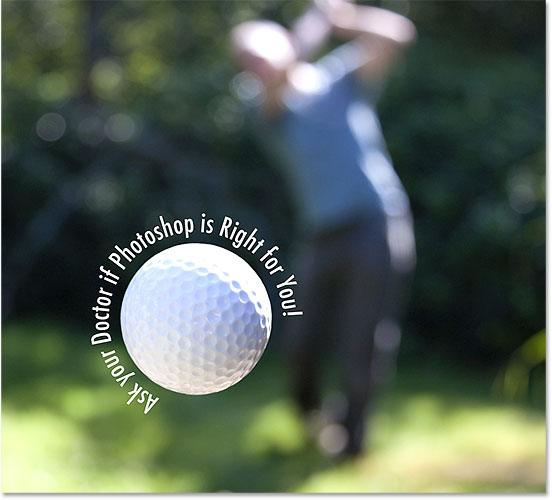
Keep in mind that even though we've added the type to a path, Photoshop has not done anything fancy with the text itself. It's still just text, which means you can go back at any time and edit it, or completely change it if you need to. You can choose a different font, change its size or color, adjust the leading, kerning or tracking, the baseline shift, and anything else you can do with regular type!