
Photoshop Water Reflection Effect
Version note: This tutorial was written for Photoshop CS5 and earlier. Photoshop CC and CS6 users will want to check out our all-new Water Reflection Effect tutorial.
In this Photoshop tutorial, we'll learn how to easily add a realistic water reflection to any photo. It's a very easy effect to create and you can add it to any photo you like, although it tends to work best with images that don't already contain water in them. We'll be using a simple filter and a displacement map to create the water ripple effect, and a Hue/Saturation adjustment layer to give our water a little color.
Download PDF: Add A Realistic Water Reflection
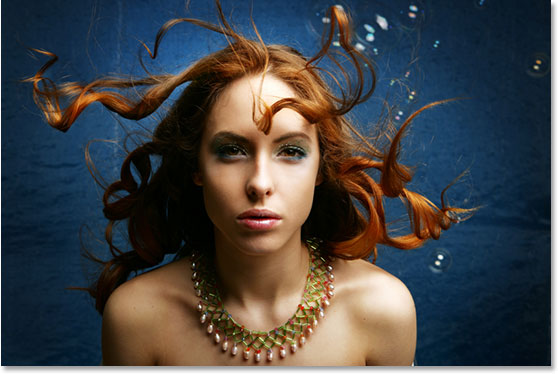
Here's the photo that I'll be working with throughout this tutorial:
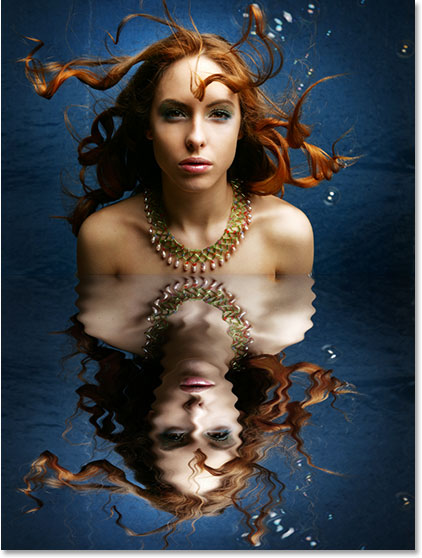
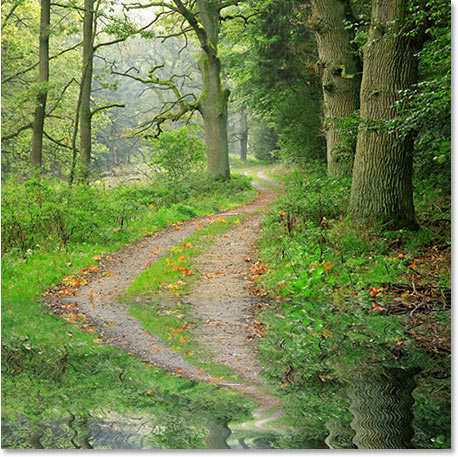
And here's what our image is going to look like after adding the water reflection :
This tutorial is from our Photo Effects series. Let's get started!
Step 1: Duplicate The Background Layer
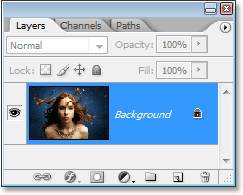
With our image newly opened inside Photoshop, we can see in the Layers palette that we currently have one layer, the Background layer, which contains our image:
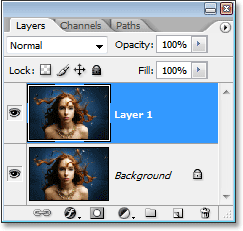
We need to duplicate the Background layer, and we can do that using the keyboard shortcut Ctrl+J (Win) / Command+J (Mac). Now when I look in my Layers palette now, I can see that I now have two layers - my original Background layer on the bottom and a new layer, "Layer 1", above it which is my duplicate:
New! Add Amazing Water Reflections in Seconds with Generative Fill
Step 2: Add More Canvas Space To The Bottom Of The Document
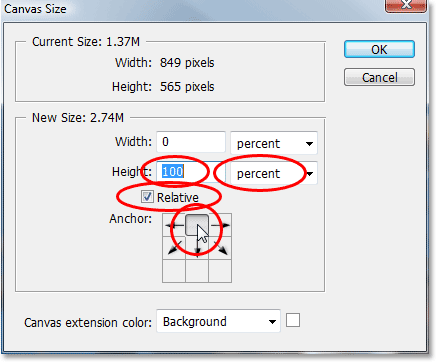
We're going to add our water reflection below the image, so let's add some canvas space to the bottom of our document to make room for our reflection. To do that, go up to the Image menu at the top of the screen and choose Canvas Size. This will bring up Photoshop's "Canvas Size" dialog box. The easiest thing to do here is to add twice as much canvas space as what we currently have, but we only want it to appear at the bottom of the document, not above it or on either side, so we need to tell Photoshop exactly where we want this extra canvas space to go.
First, enter 100 for the Height and set the measurement to percent, as circled in red below. Leave the Width option set to 0. Then make sure the Relative option is checked, which tells Photoshop to give us 100% more canvas space than what we already have. Below the "Relative" option is a 3x3 grid of squares. This is where we tell Photoshop where we want to place our additional canvas space. Click inside the square in the middle of the top row (again as circled below). This tells Photoshop not to place any of the extra canvas space above the document and instead to place all of it at the bottom:
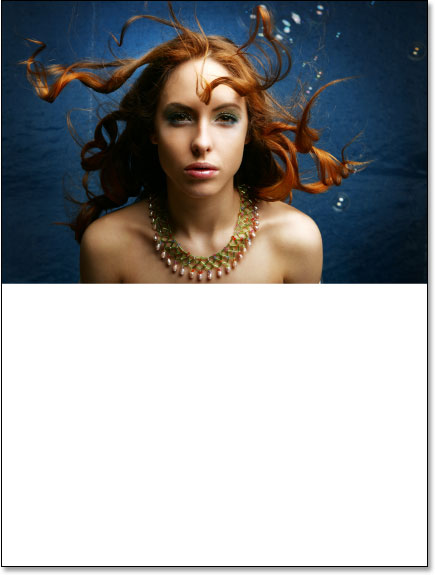
Click OK to exit out of the dialog box, and Photoshop will add the extra canvas space to the bottom of the image:
 x
x
Step 3: Flip The Top Layer Vertically
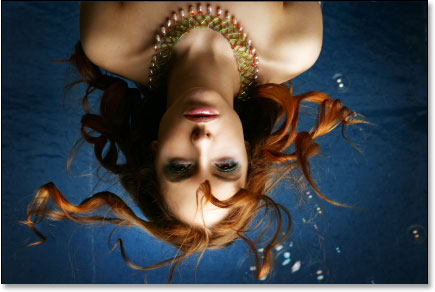
In order to create our reflection, we need to flip our image upside down, so let's do that. With the top layer selected in the Layers palette, go up to the Edit menu at the top of the screen, choose Transform, and then choose Flip Vertical. Photoshop will flip the image upside down in the document:
Step 4: Drag The Flipped Image To The Bottom Of The Document
We need the flipped image to be at the bottom of the document, so grab your Move Tool from the Tools palette, or press V on your keyboard for the shortcut:
Then, with the Move Tool selected, click inside the document and drag the flipped image down to the bottom until the top of it is lined up with the bottom of the original image above it. Hold down Shift as you drag to make sure you drag down in a straight line:
Step 5: Add A New Blank Layer
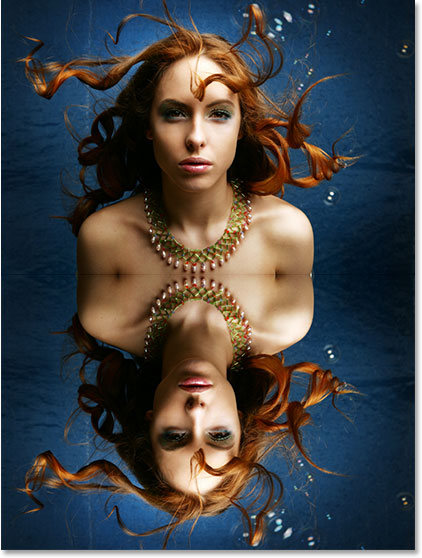
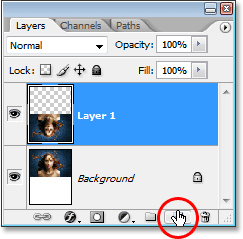
Now that we have our flipped image in place, we can begin to create our water ripple effect. First, we need to add a new blank layer at the top of the Layers palette, so with "Layer 1" still selected, click on the New Layer icon at the bottom of the Layers palette:
Step 6: Fill The New Layer With White
We're going to fill our new blank layer with white. If white is not currently your Background color, press D on your keyboard, which will reset Photoshop's Foreground and Background colors, making black your Foreground color and white your Background color. Then use the keyboard shortcut Ctrl+Backspace (Win) / Command+Delete (Mac) to fill the new layer with the Background color (white). Your document will be filled with solid white.
Step 7: Apply The "Halftone Pattern" Filter To Create Black And White Horizontal Lines
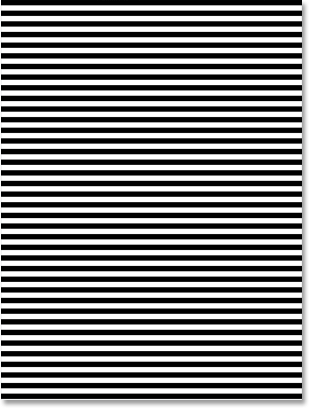
Go up to the Filter menu at the top of the screen, choose Sketch, and then choose Halftone Pattern. This brings up Photoshop's Filter Gallery (in Photoshop CS and higher) set to the "Halftone Pattern" filter options on the right, with a large preview of the effect on the left. We're going to use this filter to add a series of black and white horizontal lines to the image. These lines are going to become our water ripples . The more lines we have, the more ripples we'll have.
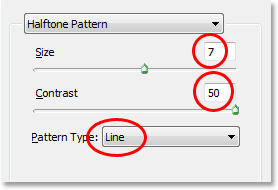
First, we want to make sure we're creating lines and not dots or circles, so set the Pattern Type option to Lines. We control the number of lines by adjusting the Size option. Lower values give us more lines, since we're lowering the size of each line, and higher values give us fewer but thicker lines. I'm going to set my Size value to 7, which I think works best for my image. You may want to experiment with this value on your own. The Contrast option below it determines how sharp the edges of the lines are. Lower values give you softer lines, white higher values give you hard edge lines. Set this value all the way to 50 to give your lines sharp edges. We're going to soften them ourselves with the Gaussian Blur filter in a moment:
Click OK when you're done to exit out of the dialog box, and Photoshop will fill the image from top to bottom with your black and white lines:
Step 8: Apply The "Gaussian Blur" Filter To The Lines
Before we can use our black and white lines as water ripples , we need to smooth them out and create nice, smooth transitions between them. To do that, go up to the Filter menu once again, choose Blur, and then choose Gaussian Blur, which brings up the "Gaussian Blur" dialog box. Keep an eye on your image and drag the slider at the bottom of the dialog box to increase the Radius value until the lines have a very soft edge to them. I'm using a small image for this tutorial, so for me, a Radius value of about 4 pixels works well. If you're using a larger, high resolution image, you'll need to set yours to a higher value:
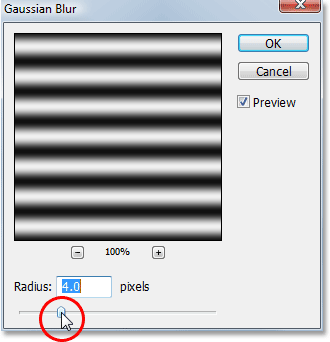
Click OK to exit out of the dialog box and apply the blur to the lines.
Step 9: Duplicate The Lines Layer As A New Document
We're going to create a brand new document out of our lines layer, which we'll then use as our displacement map for our water ripples . With the lines layer selected, go up to the Layer menu at the top of the screen and select Duplicate Layer, which brings up the "Duplicate Layer" dialog box. In the "Destination" options, click on the down-pointing arrow to the right of the Document option and set it to New, which will create a new Photoshop document out of our layer:
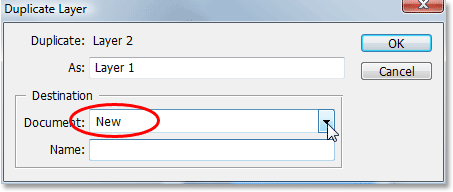
Click OK to exit out of the dialog box, and your layer will open up in a new document on the screen.
Step 10: Save The New Document And Close Out Of It
This new document that we've created is going to become our displacement map, but before we can use it, we need to save it. We're also going to close out of it after we've saved it, since we won't need it open anymore, and the easiest way to accomplish both of those tasks is to simply close out of the document. When you try to close out of it, Photoshop will as you if you want to save the document before closing it. Click Yes:
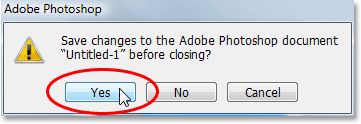
Photoshop will bring up the Save As dialog box. You can name your new document anything you like. I'm going to name mine "water-ripples". Make sure you save it as a Photoshop .PSD file, since those are the only files that Photoshop can use as a displacement map. You'll probably want to save the document to your Desktop, since we'll need to find it again in a moment.
Step 11: Delete The Lines Layer
Now that we've used our black and white lines to create the file we'll be using as our displacement map, we can get rid of it. To do that, simply click on it and drag it down onto the Trash Bin icon at the bottom of the Layers palette:
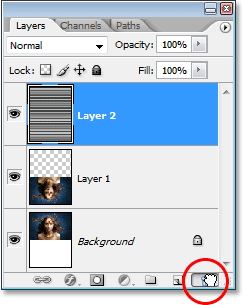
Step 12: Merge The Two Layers Onto A New Layer
Before we can add use our displacement map, we need to merge our two image layers onto a new layer above them. To do that, with "Layer 1" selected, use the keyboard shortcut Shift+Ctrl+Alt+E (Win) / Shift+Command+Option+E (Mac). Nothing will appear to have happened in the document, but if we look in the Layers palette, we can see that both layers have been merged onto a new layer at the top:
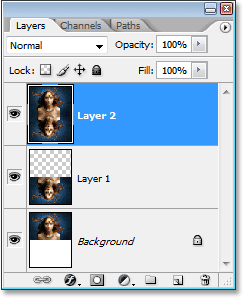
Step 13: Use The "Displace" Filter To Create The Water Ripples
We're ready to create our water ripples using the displacement map we just created. With the new merged layer selected in the Layers palette, go back up to the Filter menu at the top of the screen, choose Distort and then choose Displace .
This brings up Photoshop's "Displace" filter dialog box. This is where we determine the strength of our ripple effect, and we do that with the Horizontal Scale option at the top. I'm going to set mine to a value of 4, which will give me a realistic ripple effect. You may want to experiment with this value with your own image. Setting it too high though will create too much of a horizontal distortion and you'll lose the realism.
We don't need any vertical distortion to create our effect, so set the Vertical Scale option to 0. Also, make sure that Stretch To Fit and Repeat Edge Pixels are selected:
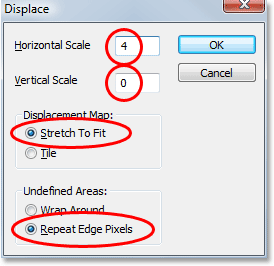
Click OK in the top right corner of the dialog box, and Photoshop will ask you which file you want to use as your displacement map. Choose the file that you just saved a moment ago, which I saved to my Desktop as "water-ripples.PSD", and then click Open. Photoshop will then apply the displacement map to the entire image, creating our water ripples :
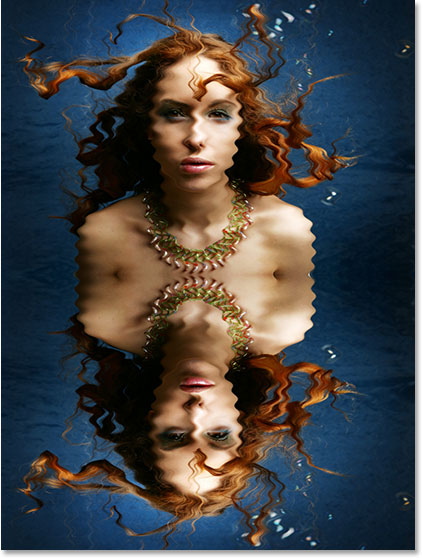
Step 14: Hide The Ripples On Top With A Layer Mask
Of course, we have a slight problem at the moment. We've added our water ripple effect to the entire image, and we only wanted it in the bottom half. We can fix that easily though using a layer mask. First, Ctrl-click (Win) / Command-click (Mac) directly on the thumbnail for "Layer 1" in the Layers palette to place a selection around the flipped image at the bottom of the document:
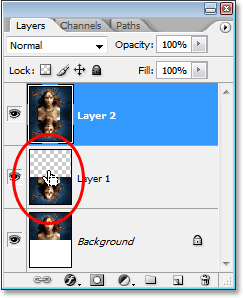
You'll see a selection appear around the bottom half of the image in your document. Now, with the merged layer still selected, click on the Layer Mask icon at the bottom of the Layers palette:
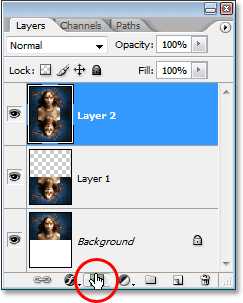
Photoshop will add a layer mask to the merged layer, and because we had a selection around the bottom half of our document when we added the layer mask, only the bottom half of the merged layer remains visible. The top half becomes hidden from view, removing the unwanted water ripples from that part of the image:
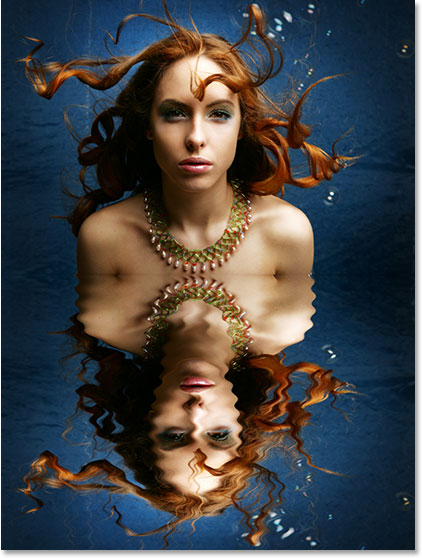
Step 15: Apply The "Gaussian Blur" Filter To The Layer Mask
Before we add our finishing touch by colorizing the water , let's soften the edge of the layer mask a little so there isn't such a harsh dividing line between the image on top and the water below. We'll use the Gaussian Blur filter for that, and since we want to apply it to the layer mask, we'll need to first select the mask. We can do that by clicking on the layer mask thumbnail in the Layers palette:
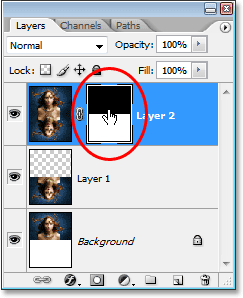
You can tell that the layer mask is now selected by the white highlight box around its thumbnail. We're going to apply the Gaussian Blur filter to the mask, so go back up to the Filter menu, select Blur once again, and then select Gaussian Blur. When the dialog box appears, simply click OK to apply the same Radius value we used previously.
Step 16: Colorize The Water With A Hue/Saturation Adjustment Layer
Let's finish things off now by adding just a hint of blue to our water, and we'll use a Hue/Saturation adjustment layer for that. We want the adjustment layer to only affect the bottom half of the image where the water ripples are, so hold down your Alt (Win) / Option (Mac) key, click on the New Adjustment Layer icon at the bottom of the Layers palette, then select Hue/Saturation from the list of adjustment layers:
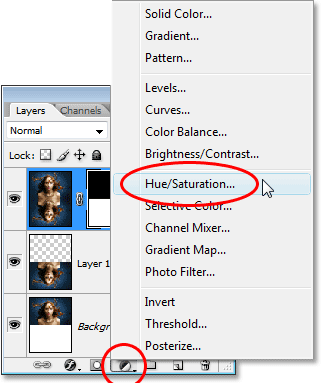
By holding down "Alt/Option", this tells Photoshop to bring up the New Layer dialog box before adding the adjustment layer. Select the Use Previous Layer To Create Clipping Mask option by clicking inside the checkbox to the left of it:
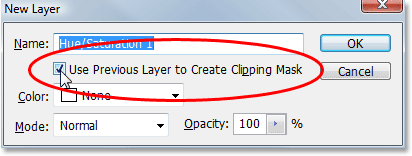
This option tells Photoshop that we want the adjustment layer to affect only the layer directly below it in the Layers palette, and since the layer below it is the layer containing our water ripples , only the water ripples will be colorized, which is what we want. Click OK to exit out of the dialog box.
This will bring up the Hue/Saturation dialog box. We want to colorize our water, so the first thing we want to do here is select the Colorize option in the bottom right corner. Then select the color you want your water to be by dragging the Hue slider at the top. I'm going to drag my slider to the right to a value of about 218, which I think is a good color for my water :
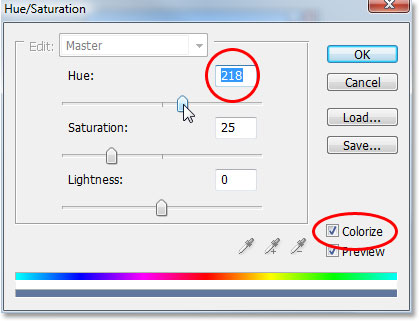
Click OK to exit out of the dialog box , and you'll see that your water on the bottom has now been colorized, but the color is much too strong at the moment.
Step 17: Lower The Opacity Of The Hue/Saturation Layer
To reduce the intensity of the color we just added to the water , all we need to do is go up to the Opacity option in the top right corner of the Layers palette and lower the opacity value. I'm going to lower mine all the way down to about 25%, which adds a much more realistic amount of color to the water :
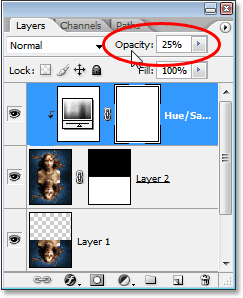
Once you've lowered the opacity of the adjustment layer to reduce the color intensity of the water , you're done! Here is my final "water reflection" result:
Just for fun, here's another example of the exact same effect applied to a different image. The only thing I changed here was that I only added half as much canvas space below the original image (I set the "Height" value in the Canvas Size dialog box to 50% instead of 100%). Everything else was done exactly the same way:
And there we have it! That's how to add a water reflection effect to an image with Photoshop! Visit our Photo Effects section for more Photoshop effects tutorials!