
Combining Reality With A Rotoscope-Style Painting In Photoshop
In this Photoshop Effects tutorial, we're going to look at how to easily combine reality with a rotoscope-style painting. "Rotoscoping" is the term used when artists paint or trace over live-action film, frame-by-frame, to create an animation, and it's being used in everything from tv commercials to Hollywood movies, most notably the recent Keanu Reeves movie "A Scanner Darkly".
We're not going to be creating an entire animated sequence here, but we are going to learn how to give a photo that same rotoscoped effect, and it's very easy to do. Rather than applying the effect to the entire image though, which we certainly could do if we wanted, we're only going to apply it to the main subject of the image, leaving everything else in the photo untouched so it looks like we're combining a painting with reality.
Here's the photo I'll be starting with:

And here's the image after applying the rotoscope painting effect to the main subject (the two people) while leaving the wall, the sidewalk and whatever it is he's holding in his hand untouched:

This tutorial is from our Photo Effects series. Let's get started!
Step 1: Select The Main Subject Of Your Photo
Since we're only going to be applying the effect to the main subject of the image, the first thing we need to do is isolate it from the rest of the photo, which means we're going to need to select it. In my case here, I want to apply the effect only to the two people sitting on the sidewalk, so I'm going to select them. You can use any selection tool you're most comfortable with to select your subject. I'll use the Pen Tool, but the Lasso tool would also work just fine. Go ahead and select your main subject:

Notice that I've selected around whatever it is the guy is holding in his hand, since I don't want the painting effect to be applied to it.
Step 2: Copy The Selection To A New Layer
With the main subject selected, use the keyboard shortcut Ctrl+J (Win) / Command+J (Mac) to copy the selection onto a new layer above the Background layer. You won't see anything happen in your document window, but if you look in your Layers palette, you'll see that your selection has been copied to a new layer which Photoshop has automatically named "Layer 1":

Step 3: Apply The "Poster Edges" Filter To The New Layer
With "Layer 1" selected in the Layers palette, go up to the Filter menu at the top of the screen, choose Artistic, and then choose Poster Edges.
This brings up Photoshop's Filter Gallery set to the "Poster Edges" filter options on the right (circled in red):
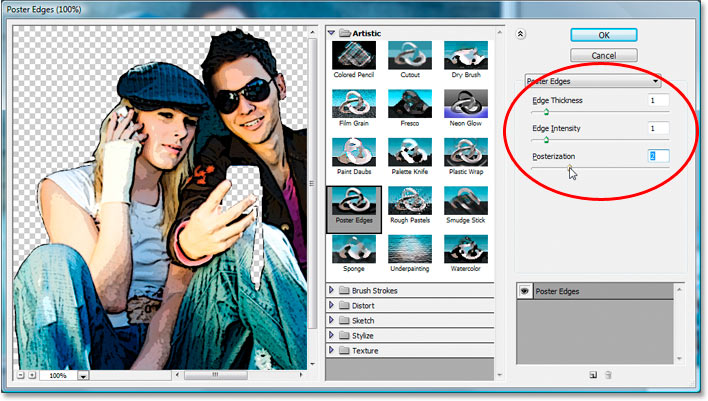
Keep an eye on the large preview area on the left to see what's happening to your image as you adjust the Poster Edges options. For my image, I've set Edge Thickness and Edge Intensity both to 1, and Posterization to 2. These settings work best for this image, but feel free to experiment with the options yourself to see if other settings work better for your image. The object is to make the subject look less like an actual photo and more like a painting. The main option here is the third one, "Posterization", which determines how many different shades of color your image will contain. Lower values tend to work best.
Click OK when you're happy with the results to exit out of the Filter Gallery. Here's my image after applying the filter:

Step 4: Add A Black Stroke Around The Main Subject
We're going to enhance the effect a little by adding a black stroke around the main subject. With "Layer 1" still selected, click on the Layer Styles icon at the bottom of the Layers palette:

The choose Stroke from the bottom of the list of Layer Styles that appears:

This brings up the Layer Style dialog box set to the Stroke options in the middle column. Photoshop always sets the default color of the stroke to red (which makes no sense at all). We want our stroke color to be black, so to change it, click on the color swatch to the right of the word "Color":

Photoshop's Color Picker will appear. Click in the bottom left corner of the large square area on the left to select black. You'll know you've selected pure black because the values for the "R", "G", and "B" options on the right will all read "0":

Click OK to exit out of the Color Picker. Then, back in the Stroke options in the Layer Style dialog box, set the stroke Size at the top to somewhere between 2-4 pixels depending on the size of your image. I've left mine set to the default of 3 pixels. Then change the stroke Position to Center by clicking on the down-pointing arrow and choosing "Center" from the list:

After adding the black stroke around your subject (the two people in my photo), your image should now look something like this:

Don't click out of the Layer Style dialog box yet. We have one more effect to add.
Step 5: Add A Drop Shadow
With the Layer Style dialog box still open, click directly on the words Drop Shadow on the left of the Layer Style dialog box. Make sure you click directly on the words and don't simply click inside the checkbox. We want access to the Drop Shadow options, and for that, you need to click directly on the words:

The middle column of the Layer Style dialog box will change to show the Drop Shadow options. The first thing we want to do here is lower the Opacity of the drop shadow down to around 40% so it's not so dark and intense. Then, increase the shadow Distance by dragging the slider to the right. Keep an eye on your image to see how far your shadow is extending outward from your subject as you drag the slider. I've increased my shadow distance to 30 pixels. Depending on the size of your image, you may want to set yours higher:

Here's my image after adding the drop shadow:

Step 6: Clean Up Any Unwanted Shadow Areas If Needed
The image is looking good except for one thing. If you recall from the beginning of the tutorial, I pointed out that the guy in the photo is holding something in his hand, and because I only wanted the rotoscope painting effect to be applied to the two people in the image, I made sure that whatever it is he's holding wasn't included in my initial selection so that it wouldn't be affected. Problem is, the drop shadow I just applied is extending over top it, as well as the strap dangling below it, and it doesn't look right. I need to clean that up.
To clean up the drop shadow, I'm going to use the Eraser tool, but before I can use it on a layer style, I need to convert the layer style into a normal layer. To do that, I'm going to go up to the Layer menu at the top of the screen, then I'll choose Layer Style, and then Create Layers:

If I look in my Layers palette, I can see that both the stroke and the drop shadow have been placed on their own layers, with the stroke appearing above "Layer 1" and the drop shadow appearing below it. I'm going to click on the Drop Shadow layer to select it:

Then I'm going to grab my Eraser tool from the Tools palette:

I could also press the letter E on my keyboard to quickly select it. Then, with the Eraser tool in hand and my drop shadow layer style now converted into a normal layer, all I need to do is click and drag my mouse over the areas where I want to remove the drop shadow, which in my case is over the item the guy is holding, including the strap hanging from it:

Once I'm done erasing away the drop shadow, the effect is complete! Here is the final "rotoscoped painting combined with reality" effect:
And there we have it! That's how to combine reality with a rotoscope-style painting in Photoshop! Check out our Photo Effects section for more Photoshop effects tutorials!