
Outlining The Action With Photoshop
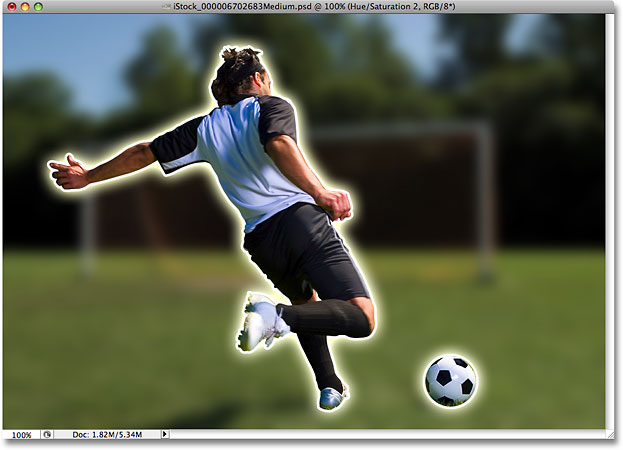
In this Photo Effects tutorial, we're going to learn how to highlight the main subject of a photo with a simple outline. Once we've added the outline itself, which we'll do using a couple of Photoshop's layer styles, we'll enhance the effect by boosting the color saturation of the main subject while decreasing saturation in the rest of the image, and we'll throw in a blur effect to further reduce the importance of the background.
This photo effect works great with sports and action shots, which is where the idea for this tutorial came from, but you can use it with virtually any image.
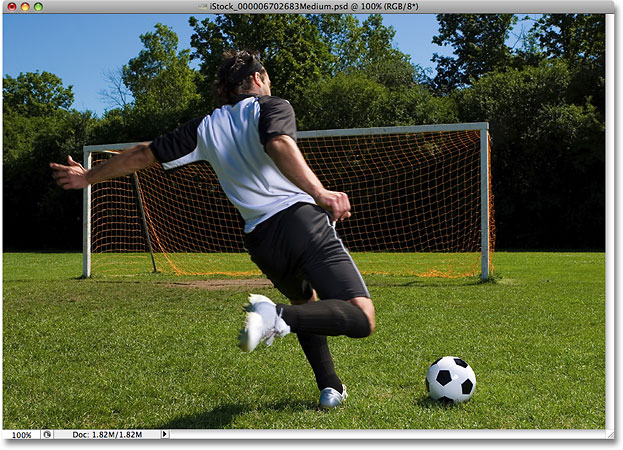
Here's the photo I'll be using for this tutorial:
Here's how it will look once we've added our "outline" effect:
How To Outline The Action
Step 1: Duplicate The Background Layer
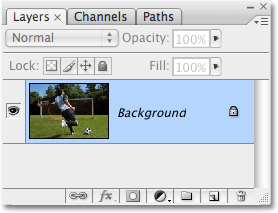
With our photo newly opened in Photoshop, the first thing we need to do is duplicate the Background layer. This is to avoid doing any damage to our original image. If we look in the Layers palette, we can see that our photo is sitting all by itself on the Background layer:
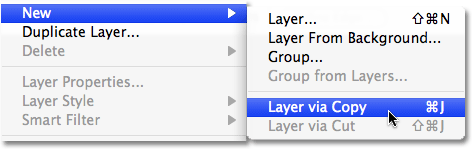
Let's duplicate this layer by going up to the Layer menu at the top of the screen, choosing New, and then choosing Layer via Copy. Or, for a faster way, use the keyboard shortcut Ctrl+J (Win) / Command+J (Mac):
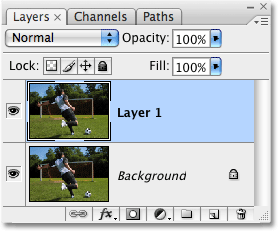
Either way tells Photoshop to create a copy of the Background layer for us, and if we look again in our Layers palette, we can see that we now have a copied version of the layer, which Photoshop has named "Layer 1", sitting above the original:
Step 2: Select The Main Subject Of Your Photo
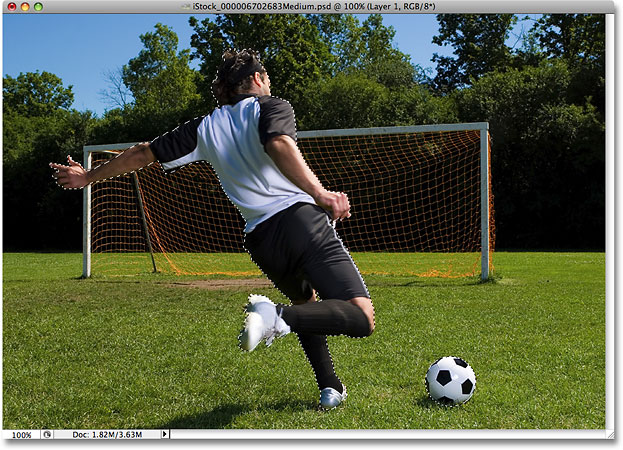
Use the selection tool of your choice (Lasso Tool, Pen Tool, etc.) to draw a selection around the main subject of your photo. For clean, professional looking selections, the Pen Tool is your best bet (if you're not sure how to use the Pen Tool, you'll find everything you need to know to get up and running with it in our Making Selections With The Pen Tool tutorial), but the Lasso Tool will also work. In my case, I want to select the soccer player (or football player, depending on where you live), as well as the ball that he's about to kick, so I'll select both of them. When you're done, you should have a selection outline visible around your main subject(s):
For additional help with making selections in Photoshop, check out our Full Power Of Basic Selections tutorial, which you'll find in the Photo Editing section of the website.
Step 3: Copy The Selection To A New Layer
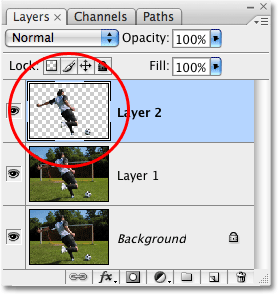
We need to copy the selected area to its own layer so we can work on it separately from the rest of the image. We can do that using the exact same method we used to duplicate the Background layer a moment ago except that this time, only the area inside our selection will be duplicated, not the entire image. Go back up to the Layer menu at the top of the screen, choose New and then choose Layer via Copy, or press the keyboard shortcut Ctrl+J (Win) / Command+J (Mac). Nothing will seem to have happened to the image in the document window, but if we look in the Layers palette, we can see that we now have a new layer named "Layer 2" sitting above "Layer 1", and if we look in the preview thumbnail for "Layer 2", we can see that the layer contains a copy of the main subject, while the rest of the layer is blank, indicated by the gray checkerboard pattern:
Step 4: Apply A Stroke Layer Style
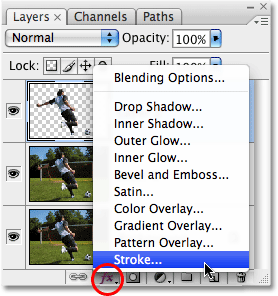
To place an outline around our main subject(s), we can use Photoshop's layer styles. Click on the Layer Styles icon at the bottom of the Layers palette, which will pop up a list of all the available layer styles that we have to choose from. Select the Stroke layer style from the bottom of the list:
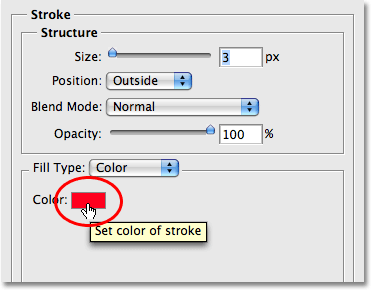
This brings up the Layer Style dialog box set to the Stroke options in the middle column. By default, the stroke color is set to red. Let's change it to white. Click on the color swatch to the right of the word "Color":
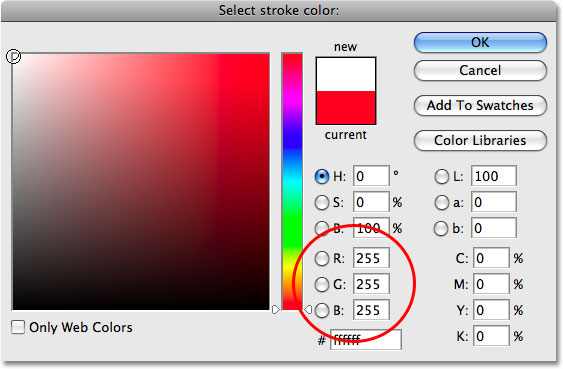
This brings up Photoshop's Color Picker. Select white from the Color Picker. An easy way to select white is to simply enter a value of 255 into the R, G and B options near the bottom center of the dialog box. Click OK when you're done to exit out of the Color Picker:
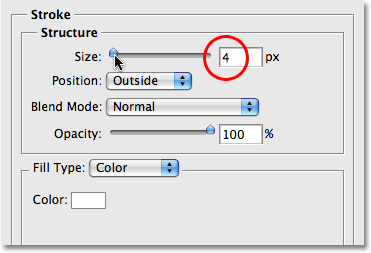
With the color of the stroke now set to white, let's adjust the width of the stroke. We can do that using the Size slider at the top of the Stroke options. The actual size you choose will depend on the size of the image you're working with and how large you want your stroke to appear, so keep an eye on your photo in the document window as you drag the Size slider to increase or decrease the stroke width. Dragging the slider to the right increases the stroke's width, while dragging to the left decreases it. For my image, I'm going to go with a stroke size of 4 px (pixels):
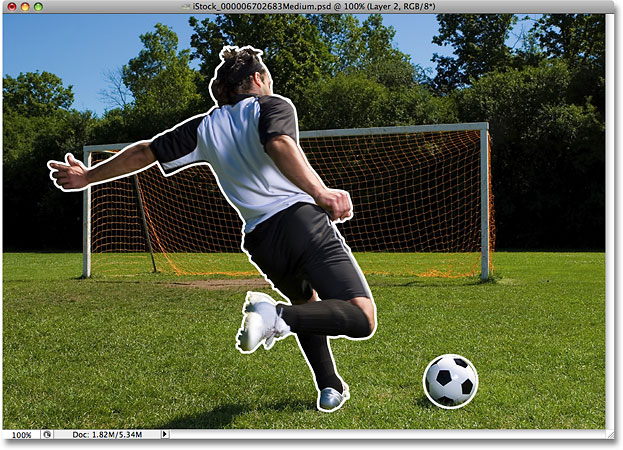
Don't click out of the dialog box just yet. We still have one more layer style to add. You should now have a white stroke around the main subject(s) in your photo:
Step 5: Add An Outer Glow Layer Style
Let's add a bit more interest to our outline effect by applying an Outer Glow layer style as well. With the Layer Style dialog box still open, click directly on the words Outer Glow on the left of the dialog box. Make sure you click directly on the words themselves, not just inside the checkbox to the left of the words. We want to be able to change some options for the layer style, and the only way to gain access to the options is by clicking directly on the layer style's name:
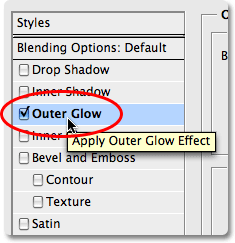
This changes the middle column of the Layer Style dialog box to the options for the Outer Glow. By default, the color of the glow is set to yellow, which I think works fine with this effect so I'm going to leave it alone. Increase the Opacity of the outer glow to 100%. Then, down in the Elements section of the options, increase the Spread to around 6% and the Size to around 30 px:
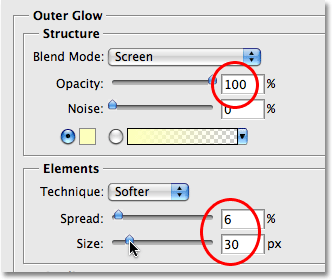
You may need to experiment a bit on your own with these settings depending on the size of your image, but when you're done, your outline effect should look something like this:
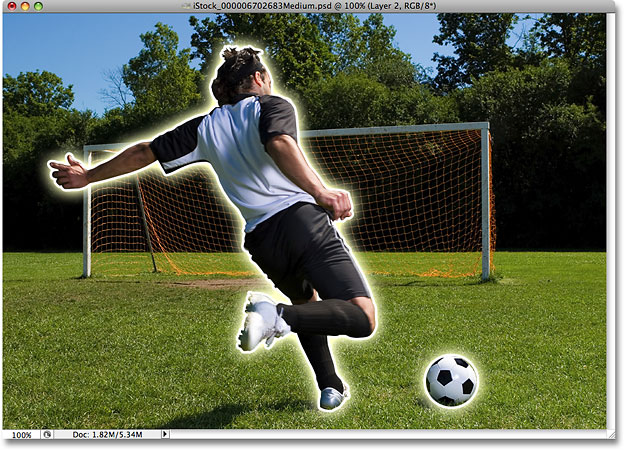
Click OK to exit out of the Layer Style dialog box at this point. We're done applying our layer styles.
Step 6: Boost The Color Of The Main Subject With A "Hue/Saturation" Adjustment Layer
The main outline effect is now complete, but let's enhance our image even more with a couple of color adjustments and some blurring. First, we'll boost the color saturation of our main subject. For that, we can use a Hue/Saturation adjustment layer. We want to make sure, though, that our adjustment layer affects only the main subject, not the entire image, so we're going to clip the adjustment layer to "Layer 2", which is the layer that contains our main subject. Hold down your Alt (Win) / Option (Mac) key and click on the New Adjustment Layer icon at the bottom of the Layers palette. Select Hue/Saturation from the list of adjustment layers that appears:
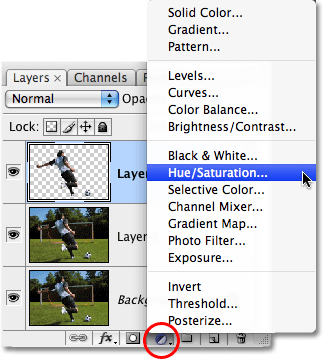
By holding down the Alt / Option key as we click on the New Adjustment Layer icon, we tell Photoshop to pop open the New Layer dialog box which allows us to set some options before the adjustment layer is added. Directly below the Name option is an option called Use Previous Layer to Create Clipping Mask. This option, if selected, will clip the adjustment layer to the layer directly below it, which means, in our case, that whatever we do with our adjustment layer will affect only our main subject on "Layer 2". Click inside the checkbox to select this option, then click OK to exit out of the New Layer dialog box:
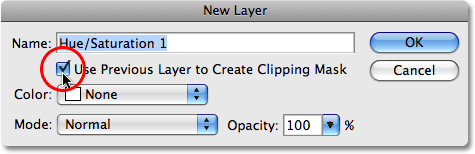
As soon as we exit out of the dialog box, the Hue/Saturation dialog box appears. We want to use it to increase the color saturation of our main subject, so click on the Saturation slider in the middle of the dialog box and drag it towards the right. The further you drag to the right, the more you'll increase color saturation, so keep an eye on your image in the document window as you drag the slider to make sure you don't overdo it. I'm going to drag my Saturation slider to a value of around +35, which gives my main subject a nice boost in color:
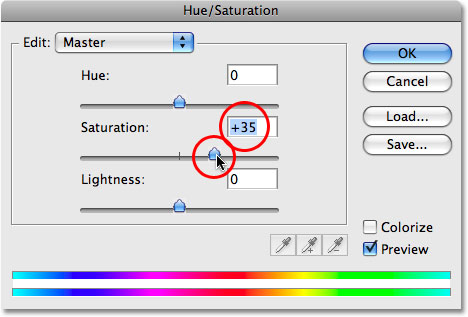
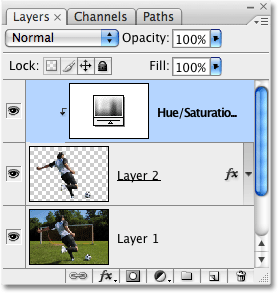
Click OK to exit out of the dialog box when you're done. If we look in the Layers palette for a moment, we can see the Hue/Saturation adjustment layer sitting above "Layer 2". Notice how the adjustment layer is indented to the right. This tell us that the layer is clipped to the layer below it:
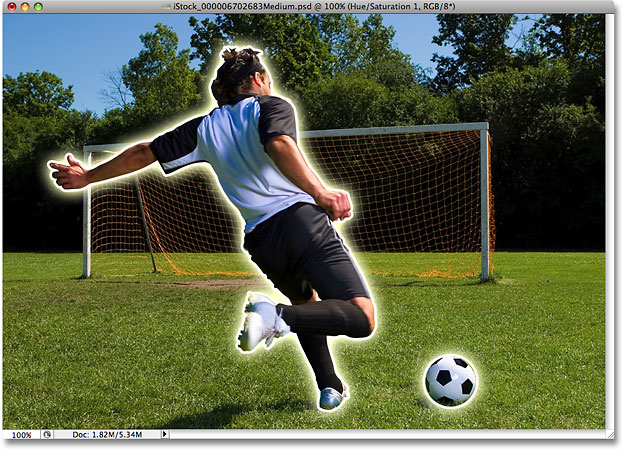
Here's my image after boosting the color saturation of my main subject:
Step 7: Apply The "Gaussian Blur" Filter To "Layer 1"
We're done working on our main subject. Let's finish things off by reducing the importance of the rest of the photo. Click on "Layer 1" in the Layers palette to select it. The currently selected layer always appears highlighted in blue in the Layers palette. We're going to blur the rest of the photo, and to do that, we'll use Photoshop's Gaussian Blur filter. Go up to the Filter menu at the top of the screen, choose Blur, and then choose Gaussian Blur:
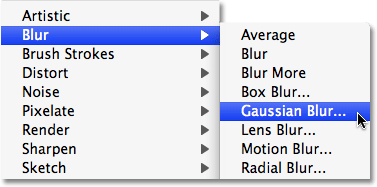
This brings up the Gaussian Blur filter dialog box. Set the Radius of the blur to around 10 pixels. Again, you may need to increase or decrease this amount depending on the size of the image you're working on, but 10 pixels generally works well:
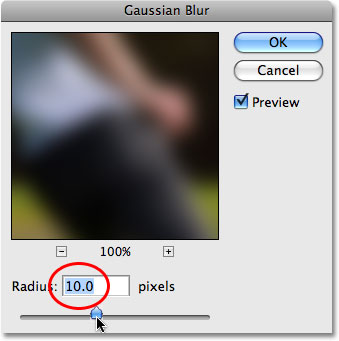
Click OK to exit out of the Gaussian Blur dialog box, and if we look at our image in the document window, we can see that the background is nicely blurred out while our main subject remains sharp:
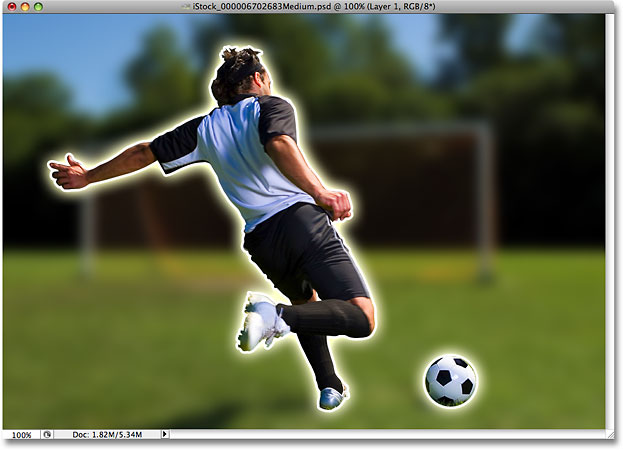
Step 8: Reduce The Color Saturation Of The Background With "Hue/Saturation"
As a final step, let's lower the color saturation of the background, which will help the main subject stand out even more. With "Layer 1" still selected, click once again on the New Adjustment Layer icon at the bottom of the Layers palette and choose Hue/Saturation from the list. There's no need to hold down the Alt / Option button this time:
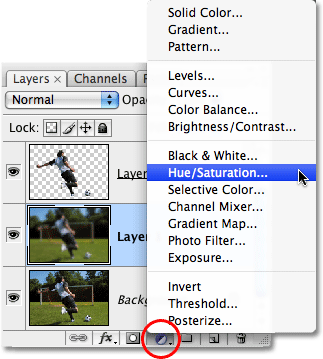
When the Hue/Saturation dialog box appears, drag the Saturation slider towards the left to reduce the color saturation of the background. The further you drag to the left, the more you'll reduce saturation. I'm going to drag my slider to a value of around -25:
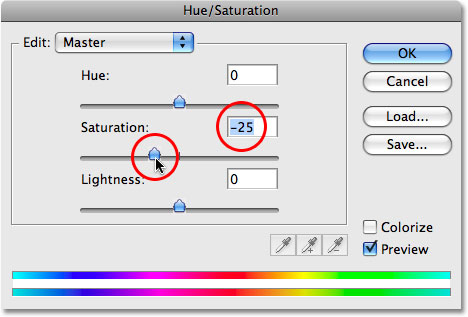
Click OK when you're done to exit out of the dialog box, and we're done! Here, after reducing the color saturation of the background is my final result: