Cast Light From A Window With Photoshop
In this Photoshop Effects tutorial, we're going to learn how to take an ordinary photo and give it more focus and impact by creating a light source and shining it on the main subject through a window. You'll need the photo you want to add the lighting effect to, as well as a photo of the window you want to use. If you don't have a photo of a window, just do a quick search on the internet for one, since it's really just the shape of the window we'll be using, not the window itself.
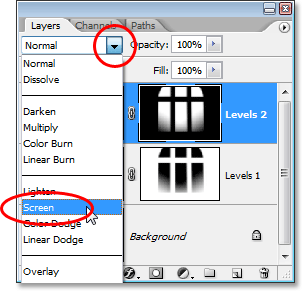
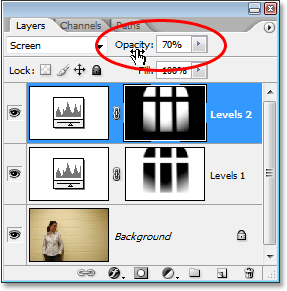
To create the lighting effect, we'll be using a Levels adjustment layer, along with its layer mask, and we'll see how we can use a layer blend mode at the end to enhance the light even further. It may sound complicated, but it's really very easy. The great thing about this effect is that there's lots of room for creativity, since there's no need to limit yourself to using only windows as the object the light is shining through. With a little imagination, you can shine light through any shape you can think of for some truly interesting and unique results!
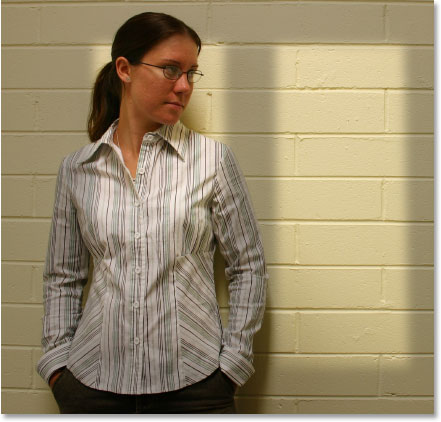
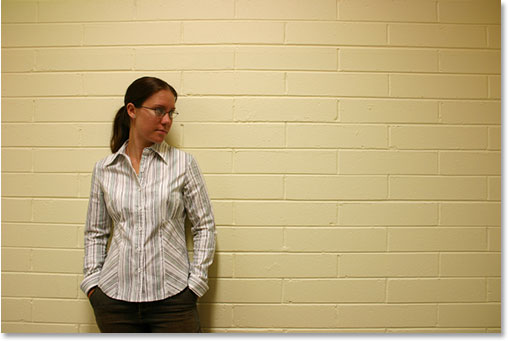
Here's the image I'll be starting with, a very simple photo of a woman standing in front of a wall. The wall itself is so bright that it's a bit difficult to see the woman's face:
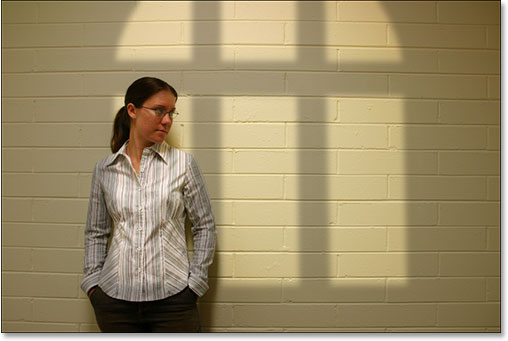
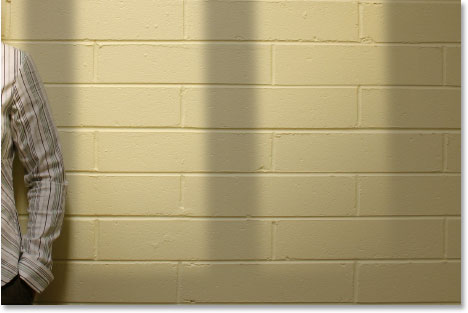
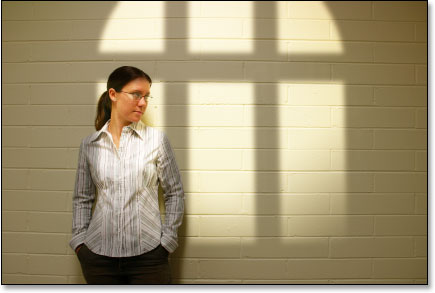
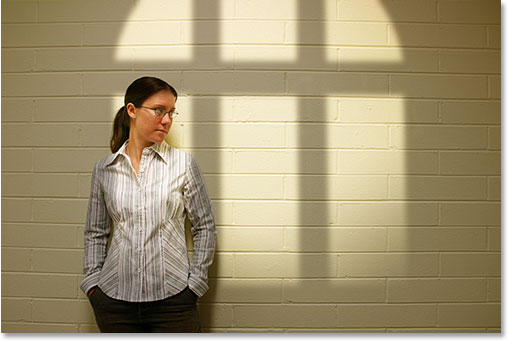
Here's how the photo will look after altering the lighting, giving it the appearance of a single light source shining from a window onto the woman and the wall behind her, which gives the photo itself a more focused and dramatic result. The woman's face is also now clearly visible:
This tutorial is from our Photo Effects series. Let's get started!
Step 1: Drag The Photo Of The Window Into The Main Image
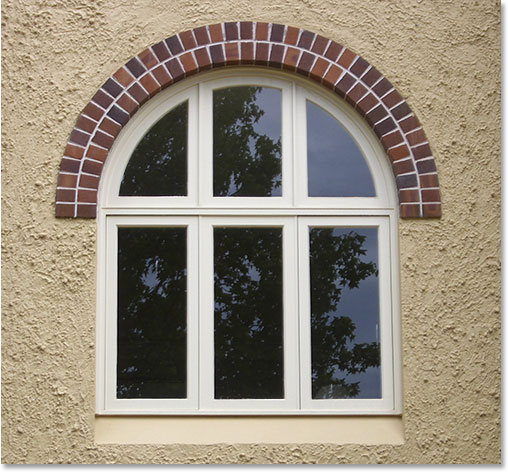
To start things off, you'll need both your main image and the photo of your window open in Photoshop. We've already seen my main image, and here's the photo of the window I'll be using:
With both photos open in their own separate document windows, select your Move Tool from the Tools palette:
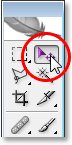
You can also select the Move Tool by pressing V on your keyboard. Then, with the Move Tool selected, click anywhere inside the photo of the window and drag it into the main image's document window:
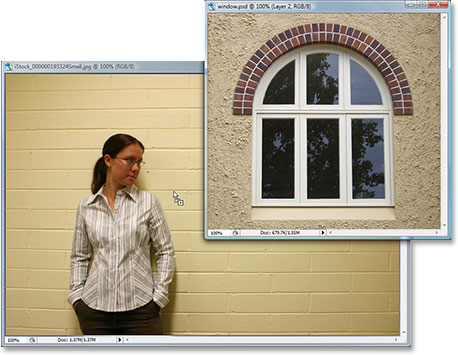
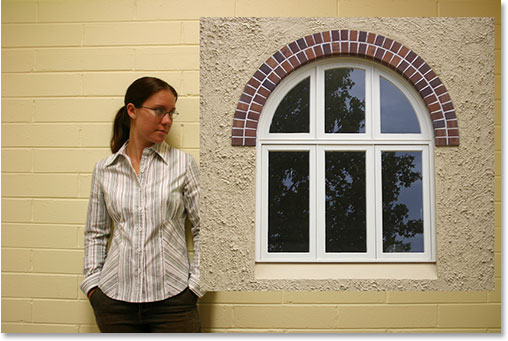
When you release your mouse button, the photo of the window will appear inside the main image:
If you look in your Layers palette, you'll see your main image on the Background layer, and the window photo above it on its own layer, which Photoshop has named "Layer 1":
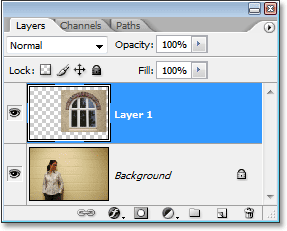
Step 2: Select Around The Inside Of The Window
Now that our window photo is inside our main image, we need to make a selection around the inside of the window.
Depending on the window you're using, the Rectangular Marquee Tool or the Elliptical Marquee Tool may be all you need to select it. Be sure to check out our tutorial on the Full Power Of Basic Selections if you need help with adding to, subtracting from, or intersecting with selections.
For more complex window shapes, the Pen Tool may be your tool of choice, which is what I used here to select around the insides of all six window sections (check out our full tutorial on Making Selections With The Pen Tool) if you need help:

Step 3: Delete The Window Layer
With the window shape now selected, we no longer need the window photo inside our main image, so click on the window layer ("Layer 1") in the Layers palette and drag the layer down onto the Trash Bin icon in the bottom right corner of the Layers palette to delete it:
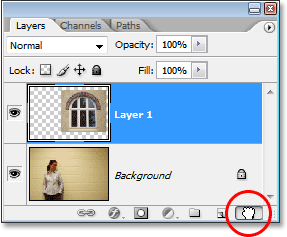
This will delete the window layer, but the selection we just made remains:
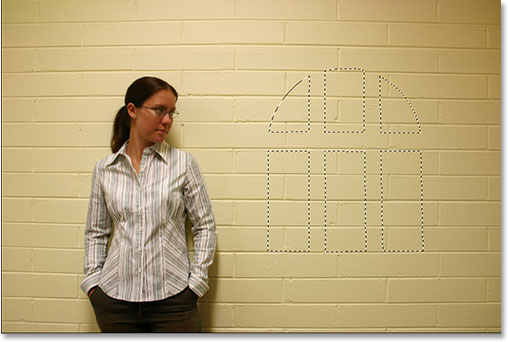
Step 4: Invert The Selection
We're going to use a Levels adjustment layer in a moment to darken the image everywhere except in the area that was inside the window, which is going to give us our "light shining from a window" effect. To do that though, we need to have everything except the area that was inside the window selected, but at the moment, we have the exact opposite. We have the area that was inside the window selected, while the rest of the image is not selected. To fix that, we need to invert our selection, which basically means we need to swap the selection around so that what's currently selected becomes deselected, and what is currently not selected becomes selected. To do that, all we need to do is go up to the Select menu at the top of the screen and choose Inverse, or we can use the keyboard shortcut Shift+Ctrl+I (Win) / Shift+Command+I (Mac).
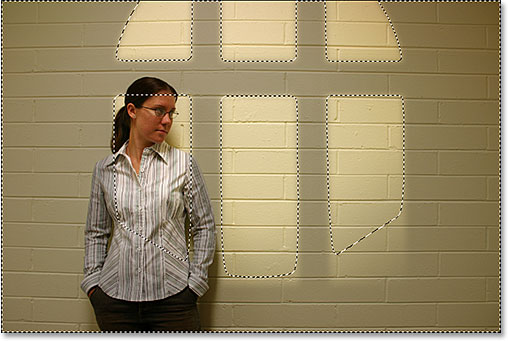
Whichever way you choose, you'll see a selection box appear around the outside edges of your image, which tells us that everything in the image except for the area that was inside the window is now selected, while the area that was inside the window has now been deselected:
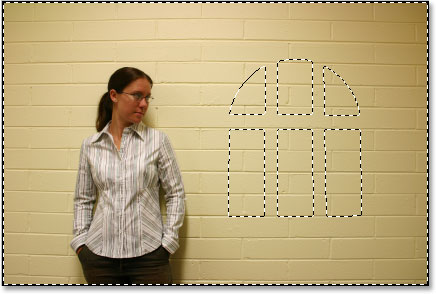
Step 5: Add A Levels Adjustment Layer
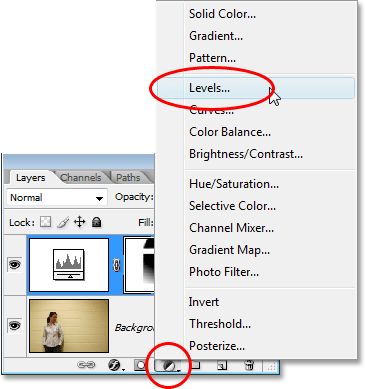
Click on the New Adjustment Layer icon at the bottom of the Layers palette:
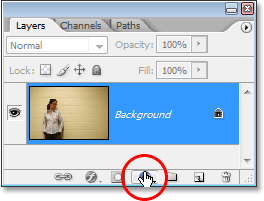
Then choose Levels from the list of adjustment layers that appears:
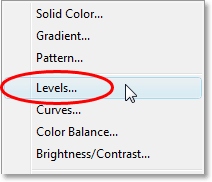
This will bring up the Levels dialog box, and we're going to use it to darken our image and create our lighting effect next.
Step 6: Darken The Area Around The Window With The Levels Adjustment Layer
With everything except the area that was inside the window selected, we can now darken the image and create our lighting effect quite easily using the Levels adjustment layer.
If you look at the bottom of the Levels dialog box, you'll see a horizontal bar with a gradient going from black on the left to white on the right, with a small black slider below it on the far left and a small white slider below it on the far right. These sliders are the Output Levels sliders. The name is a bit confusing, but what these sliders do is determine how bright or dark the image can be. If you don't touch the sliders at all (normally you just leave these sliders alone), the image can be displayed with a full tonal range. In other words, it can display everything from pure black to pure white and everything in between. Normally, this is what you want.
Sometimes though, like when you're creating an effect as we're doing here, you want to limit how bright or dark the image can be. In our case, we want to darken the image, and the easiest way to do that is to simply limit how bright it can be by clicking on the white output levels slider on the far right and dragging it towards the left. As you drag, you'll see the image becoming darker and darker, and that's because we're limiting how bright it can be. The only part of the image that will not be affected by the slider, and therefore not become darker, is the area that was inside the window which is the only part of the image that is not currently selected. It will remain at its original brightness level, giving our us lighting effect.
Go ahead and begin dragging the white output levels slider towards the left while keeping an eye on your image to see what's happening:
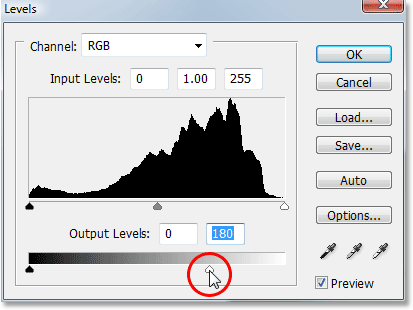
As you continue dragging the slider towards the left, darkening the image more and more, the light shining from a window appears:
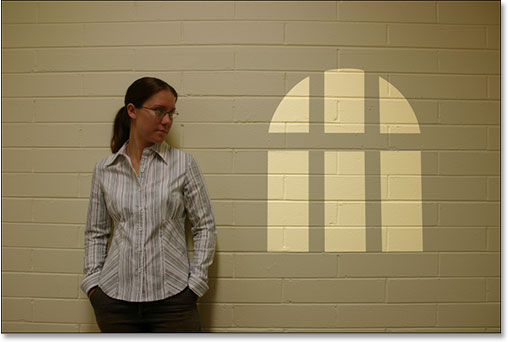
It's completely up to you how dark you want to make the image, so drag the slider until you're happy with the results, then click OK to exit out of the Levels dialog box.
Step 7: Load The Selection Again
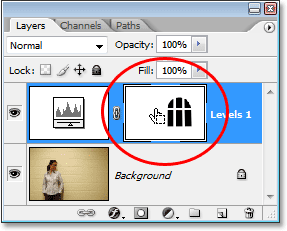
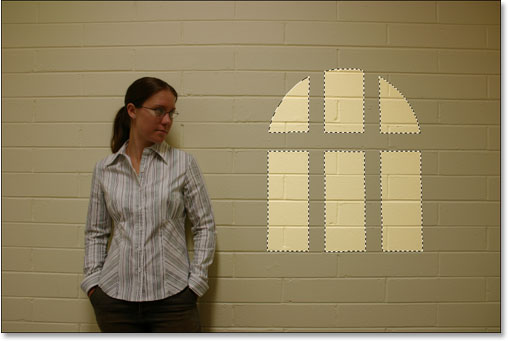
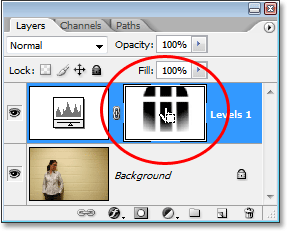
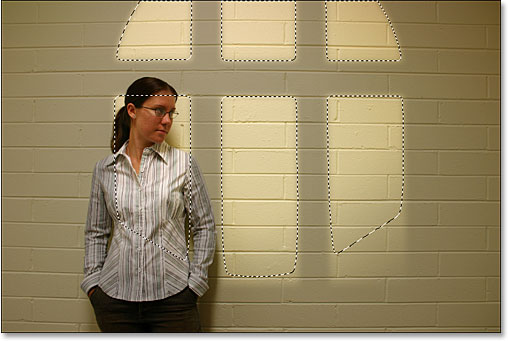
Hold down your Ctrl (Win) / Command (Mac) key and click directly on the layer mask thumbnail for the Levels adjustment layer in the Layers palette. This will load the selection once again inside the image: