
Easy Depth Of Field Effect In Photoshop
In this Photoshop Effects tutorial, we're going to look at an easy way to adjust the depth of field in a photo, keeping only a small portion of the image in focus while taking the rest of it out of focus. This is a great way to bring attention to a specific part of an image (someone's face, for example), and the effect is similar to how things would look if we had shot the photo with a wide aperture.
For best results, we'll be using Photoshop's Lens Blur filter to create this effect, which is available in Photoshop CS and later, which means you'll need at least Photoshop CS to follow along with this tutorial. If you're using Photoshop 7 or earlier, you can still achieve good results with Photoshop's classic Gaussian Blur filter, but the Lens Blur filter is the filter of choice for this effect because it tries to mimic how an actual camera lens works, whereas the Gaussian Blur filter simply blurs everything out.
Here's the photo I'll be working with:
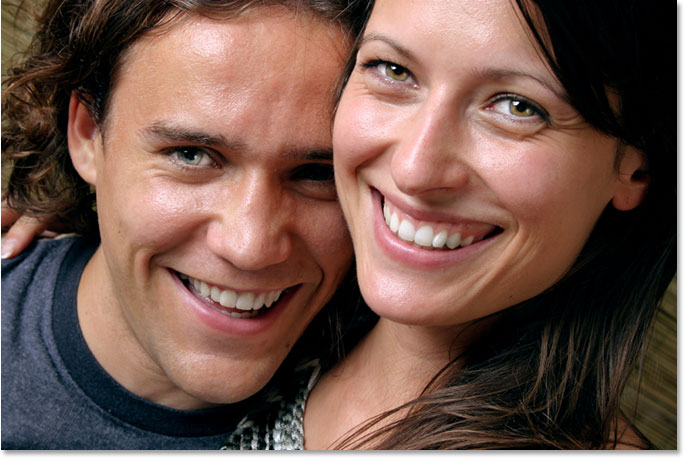
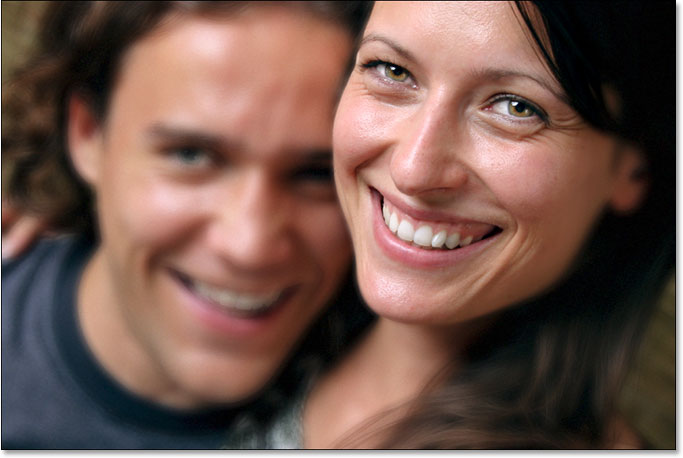
Let's say we wanted to bring attention to the woman's face. There's lots of creative ways we could do that, but since her face is closer to the camera than anything else in the photo, the easiest way would be to limit the photo's depth of field so her face becomes the only part of the image that's in focus. Here's how it will look when we're done:
Step 1: Duplicate The Background Layer
Let's begin by duplicating our Background layer so that we're not harming our original image information. To duplicate the Background layer, go up to the Layer menu at the top of the screen, choose New, and then choose Layer via Copy:

For a faster way, use the keyboard shortcut Ctrl+J (Win) / Command+J (Mac). Either way tells Photoshop to create a copy of the Background layer for us, and if we look in the Layers palette, we can see our copy, which Photoshop has named "Layer 1", above the original Background layer:

Step 2: Select The Area That Will Remain In Focus
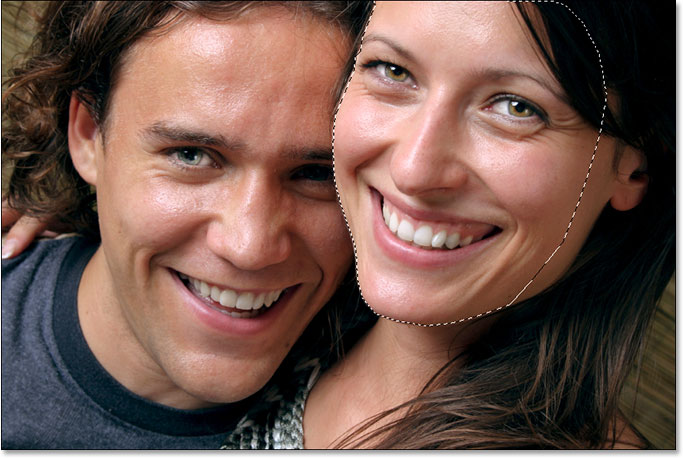
Using the selection tool of your choice (Lasso Tool, Polygonal Lasso Tool, Pen Tool, etc.), draw a rough selection around the area that will remain in focus. In my case, I want the woman's face to be in focus, so I'm going to use the Polygonal Lasso Tool, which you can find hiding behind the Lasso Tool in Photoshop's Tools palette, to select her face. Your selection doesn't need to be surgically precise, so don't spent too much time on it. In fact, we'll be softening the edges of the selection (commonly known as feathering the selection) in a moment, and we'll see how to fine-tune things if you need to a bit later:
Step 3: Enter Quick Mask Mode
Once you've made your selection, press the letter Q on your keyboard to enter Photoshop's Quick Mask mode. You can also click on the Quick Mask icon near the bottom of the Tools palette:

If you look at your image, you'll see that your selection outline has disappeared temporarily and that the area outside of the selection is now overlaid in red:

Notice how my selection looks pretty bad, but that's okay because we'll be softening it next.
Step 4: Apply The Gaussian Blur Filter
We need to soften the edges of our selection to create a smooth transition between the selected and unselected portions of the photo, and the Quick Mask mode is going to make it very easy for us to see what we're doing. We'll use Photoshop's Gaussian Blur filter to soften the edges. Go up to the Filter menu at the top of the screen, choose Blur, and then choose Gaussian Blur:

This brings up the Gaussian Blur dialog box. Keep an eye on the selection edges in the document window as you adjust the Radius slider at the bottom of the dialog box. Dragging the slider to the right will increase the amount of blurring along the edges, increasing the edge softness, while dragging it to the left will decrease the amount of blurring. Adjust the Radius value until you see a nice, smooth transition along the edges. Here, I'm increasing my Radius value to somewhere around 16-17 pixels. The value you end up using may be different depending on the size of your image:

Click OK when you're done to exit out of the dialog box. Here we can see the smooth transition area around my selection edges:

Step 5: Exit Out Of Quick Mask Mode
Now that we've softened our selection edges, we can exit out of Quick Mask mode and go back to Standard mode. To do that, either press the letter Q on your keyboard once again or click on the Standard Mode icon in the Tools palette:

You'll see the red overlay disappear in the document window and your selection outline returns:

Step 6: Save The Selection
We've done everything we need to do with our selection. Now we need to save it. To do that, go up to the Select menu at the top of the screen and choose Save Selection:

When the Save Selection dialog box appears, just click OK in the top right corner to exit out of it. There's no need to name the selection:

Press Ctrl+D (Win) / Command+D (Mac) to deselect your selection in the document window. If you switch over to your Channels palette, which you'll find grouped in beside the Layers palette, you'll see that your selection has been saved as a new alpha channel named Alpha 1 at the bottom of the palette. We can see by looking at the channel's preview thumbnail on the left that the area that was inside the selection appears white, while everything that was outside the selection appears black. It's tough to make out in the small thumbnail, but the smooth transition area we created around the selection edges appears as a narrow white-to-black gradient:

This is important because in a moment, we're going to be using this black and white alpha channel we've created as a depth map for the Lens Blur filter. A depth map is simply a grayscale (black and white) image that Photoshop uses with the Lens Blur filter to decide which parts of the image to blur out and by how much. Any areas in the depth map that are pure black remain 100% in focus while areas that are pure white are completely blurred out. Areas that fall between pure black and pure white, such as the transition area around the selection edges, will be blurred to a lesser degree depending on how light or dark they are.
If you were paying attention there, you may be thinking "Wait a minute, isn't that exactly the opposite of what we want? You said black areas remain in focus while white areas are blurred out, but in the alpha channel we just created, it's the white area that we want to keep in focus, not the black area. The black area is where we want to apply the blurring!" You're absolutely correct. We'll need to tell Photoshop to invert our depth map in the Lens Blur filter's dialog box, and we'll see how to do that in a moment.
Switch back over to your Layers palette to continue.
Step 7: Apply The "Lens Blur" Filter
Now that we're back in the Layers palette, make sure you have "Layer 1" selected (the currently selected layer is highlighted in blue). We're going to create our depth of field effect at this point, and we're going to do it using Photoshop's Lens Blur filter. Go up to the Filter menu at the top of the screen, choose Blur, and then choose Lens Blur:

This brings up the Lens Blur dialog box, which consists of a large preview area on the left and a bunch of potentially confusing options along the right. You can safely ignore every option except for two of them - the Depth Map option that we just talked about a moment ago and the Radius option. For the Depth Map, make sure that Alpha 1 is selected so Photoshop uses the selection we made to determine how to blur the image. Of course, as we just pointed out, we need to tell Photoshop to invert our depth map so that the area we selected is the area that remains in focus. In my case, this means the woman's face will remain in focus while everything else becomes blurred. To do that, simply click inside the checkbox to the left of the word Invert.
The Radius option works exactly the same here as it does in the Gaussian Blur filter. Simply drag the Radius slider to the right to increase the amount of blurring that's applied to the image. Keep an eye on the preview area on the left as you drag the slider so you can see what's happening. Adjust the Radius slider until you achieve the amount of blur you're looking for. Here, I've set my Radius value to 20. Again, the value you choose for your image may be different:

Click OK in the top right corner of the dialog box when you're done to exit out of it. Here's my image now with the blurring applied. Only the woman's face remains in focus:

If, after applying the blur effect, you feel it's a bit too strong, you can fine-tune it simply by lowering the opacity of "Layer 1". You'll find the Opacity option in the top right corner of the Layers palette. I'm going to lower mine to around 85%:

Here's my image after lowering the opacity. The change is subtle, but you can make out the man's facial features a little better now:

At this point, the only thing I don't like is that there's some blur being applied to the left side of the woman's face (her right, our left) and it's causing her face to blend in with the man's face behind her. I'd like to touch that up so that her face appears nice and sharp along the edge. I can do that easily using a layer mask, and I'll do that next!
Step 8: Add A Layer Mask
This part is optional. You may not need to touch up your blur effect, but if you do, make sure you still have "Layer 1" selected, then click on the Layer Mask icon at the bottom of the Layers palette:

Nothing appears to have changed in the document window, but if we look at "Layer 1" in the Layers palette, we can see that we now have a layer mask thumbnail to the right of the layer's preview thumbnail:

Step 9: Select The Brush Tool
I'm going to paint away the blur effect from the side of the woman's face. For that, I'll need Photoshop's Brush Tool so I'll select it from the Tools palette. You can also access the Brush Tool simply by pressing the letter B on your keyboard:

Step 10: Set Your Foreground Color To Black
By default, whenever we have a layer mask selected, Photoshop sets our Foreground color to white and our Background color to black. To paint away the blur effect on "Layer 1", we need to paint with black, which means we need black as our Foreground color. Press the letter X on your keyboard to swap your Foreground and Background colors, making black the Foreground color and white the Background color. We can see what the colors are currently set to by looking at the two color swatches near the bottom of the Tools palette. The top left swatch is the current Foreground color and the bottom right swatch is the current Background color:

Step 11: Paint Away Any Unwanted Areas Of Blurring
With the Brush Tool selected and black as your Foreground color, simply paint over the areas where you want to remove the blur effect. In my case, I'm going to paint along the edge of the woman's face. You can adjust the size of the brush using the left and right bracket keys on your keyboard. The left bracket key makes the brush smaller while the right bracket key makes it larger. You can also adjust the edge hardness of the brush by holding down the Shift key and pressing the left and right bracket keys. Holding Shift while pressing the left bracket key makes the brush edges softer, and holding Shift while pressing the right bracket key makes the edges harder. I'm going to use a small brush with fairly hard edges and paint along the left side of the woman's face to remove the blurring:

If you make a mistake and accidentally paint over the wrong area, simply press X on your keyboard to switch your Foreground color to white and paint over the mistake, then press X again to switch back to black and continue painting away the blur effect.
I'll continue painting along the edge of her face to remove the last bit of blurring. If I look at the layer mask thumbnail in the Layers palette, I can see all the areas where I've painted with black to remove the blurring from the photo:

And here, after removing the blur effect from along the side of the woman's face so it contrasts nicely with the out-of-focus man's face behind her, is my final "depth of field" result:
And there we have it! That's how to easily create a shallow depth of field effect with Photoshop! Check out our Photo Effects section for more Photoshop effects tutorials!