
Color Grid Design In Photoshop
In this Photoshop Effects tutorial, we'll learn how to create a colorized grid design! We'll use Photoshop's guides and rulers to set up the initial spacing, then a couple of rarely used selection tools to convert the guides into an actual grid. We'll learn how to easily select random squares in the grid and colorize them with adjustment layers and blend modes, and finally, how to color and adjust the appearance of the grid itself!
I'll be using Photoshop CS5 throughout the tutorial, but any recent version will work.
Here's the final effect we'll be working towards:
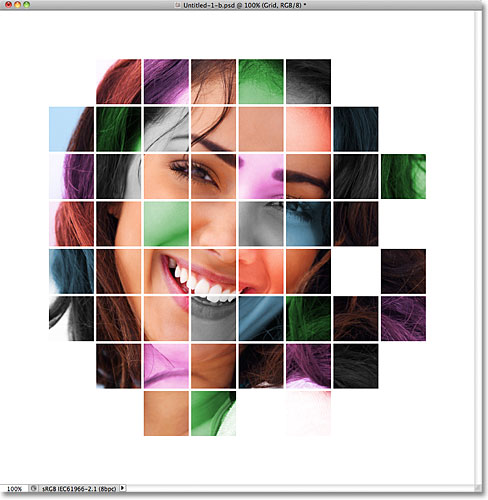
How To Create A Color Grid Design
Step 1: Create A New Photoshop Document
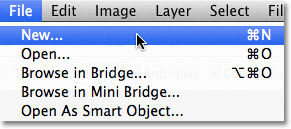
Let's begin by creating a new document for the grid. Go up to the File menu in the Menu Bar along the top of the screen and choose New:
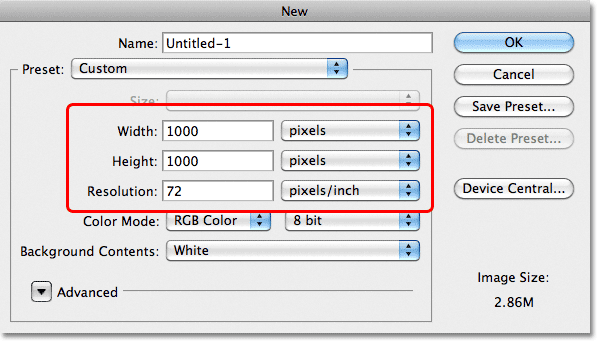
This opens Photoshop's New Document dialog box. I'm going to create a square-shaped document by entering 1000 pixels for both the Width and Height. Of course, you can enter whatever dimensions you need, but the effect tends to work best if you stick to a square shape. For this tutorial, I'll leave the Resolution value set to 72 pixels/inch, which is fine if you're creating this effect for the web. If you're planning on printing the final result, you'll want to create a larger document and set your resolution to 240 pixels/inch or higher. Click OK when you're done to close out of the dialog box. The new document will appear on your screen:
Step 2: Show Rulers
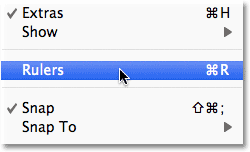
Go up to the View menu at the top of the screen and choose Rulers, or press Ctrl+R (Win) / Command+R (Mac) to quickly turn the rulers on with the keyboard shortcut:
Step 3: Change The Ruler Measurement Type To Percent
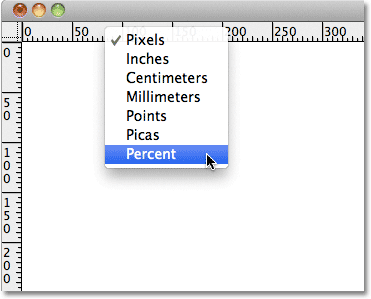
This displays Photoshop's rulers along the top and left of the document. Depending on what measurement type your rulers are set to in Photoshop's Preferences, they're probably displaying either pixels or inches. Move your mouse cursor into the rulers, either along the top or the left, then Right-click (Win) / Control-click (Mac) inside the rulers and choose Percent from the list. You'll see the rulers change to percentage increments:
Step 4: Drag Out Horizontal And Vertical Guides At 10 Percent Increments
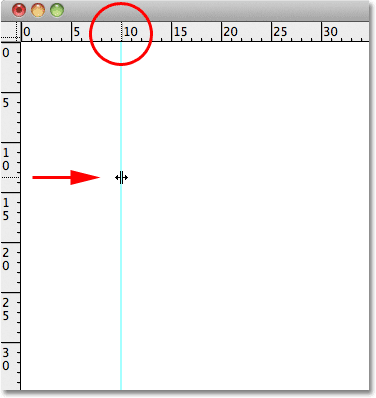
The reason we turned the rulers on was so that we could easily add equally-spaced guides to our document, which will then become our grid lines. Let's add vertical guides first. Click inside the ruler along the left of the document, and with your mouse button held down, drag out the first guide. Use the top ruler to place the guide at the 10% mark (release your mouse button to place the guide):
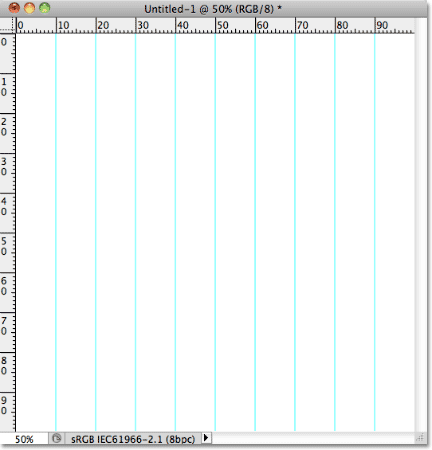
Do the same thing to add a guide at each 10% increment (20%, 30%, 40%, and so on), all the way up to the 90% mark. Your document should now appear divided into 10 equally-spaced vertical columns:
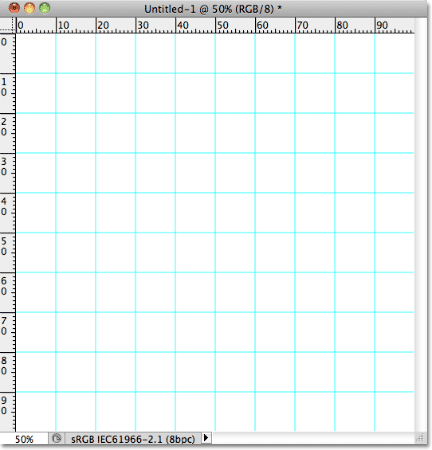
Next, use the same steps to add horizontal guides. Click inside the top ruler and with your mouse button held down, drag out a horizontal guide. Use the left ruler to place the guide at the 10% mark. Continue dragging out horizontal guides at 10% increments (20%, 30%, 40%, just like before) all the way down to the 90% mark. When you're finished, you should have the same number of horizontal and vertical guides dividing the document up into a grid of squares:
With the guides in place, press Ctrl+R (Win) / Command+R (Mac) on your keyboard to hide the rulers, since we no longer need them.
Step 5: Add A New Blank Layer And Name It "Grid"
Hold down your Alt (Win) / Option (Mac) key and click on the New Layer icon at the bottom of the Layers panel:
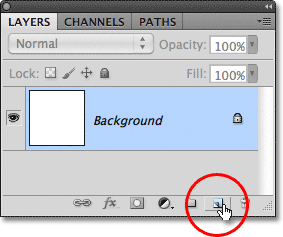
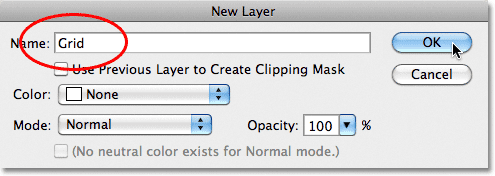
Normally, Photoshop would just go ahead and add a new blank layer, but by holding down Alt (Win) / Option (Mac) when clicking the New Layer icon, we tell it to first pop open the New Layer dialog box, which gives us the chance the name the new layer before it's added. Name the layer "Grid", then click OK:
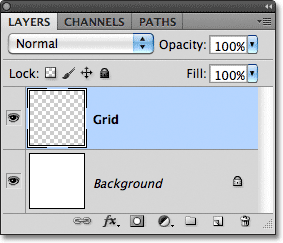
The new blank layer appears in the Layers panel above the Background layer:
Step 6: Create A Selection From The Guides
We've divided our document up into a grid using Photoshop's guides, but the guides are just for visual reference. They won't be of any real use to us unless we somehow convert them into an actual pixel-based grid, and we can do that easily using a couple of Photoshop's rarely used selection tools - The Single Row and Single Column Marquee Tools.
Click on the Rectangular Marquee Tool near the top of the Tools panel and hold your mouse button down for a second or two until a small fly-out menu appears showing you the other tools nested in behind in, then choose the Single Row Marquee Tool from the list:
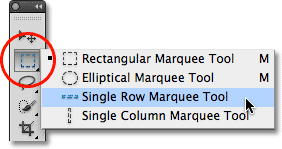
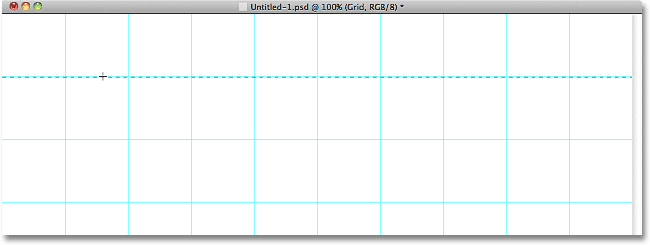
As it's name implies, the Single Row Marquee Tool will select a single horizontal row of pixels in the document. To use the tool, we just need to click anywhere in the document and Photoshop will automatically select the pixel we clicked on, plus every other pixel in that row from left to right. We're going to use the tool to convert the horizontal grid lines into a series of selection outlines. First, move your cursor directly over the top horizontal grid line (the one you placed at the 10% mark) and click. You'll see a 1-pixel thick selection outline appear along the guide:
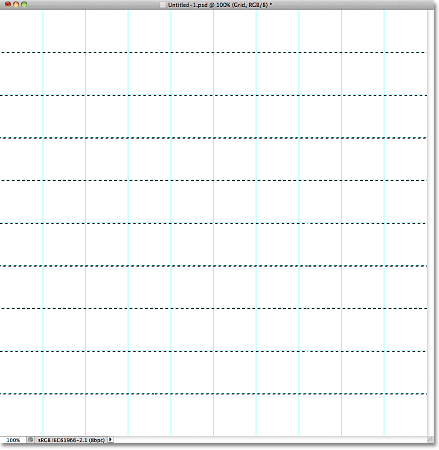
Hold down your Shift key and click on the next horizontal guide below it. This will add a second selection outline to the document. Continue holding down your Shift key and clicking on all the horizontal guides until a selection outline appears along each of them. You should see 9 selection outline rows in total. Make sure you keep your Shift key held down as you click on each new guide, otherwise you'll just replace the previous selection outline with the new one:
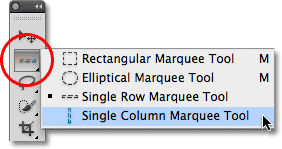
We need to do the same thing now with the vertical guides, which means we need to switch to the Single Column Marquee Tool. Click on the Single Row Marquee Tool in the Tools panel (it will appear where the Rectangular Marquee Tool icon appeared earlier) and hold your mouse button down until the fly-out menu appears, then choose the Single Column Marquee Tool from the list:
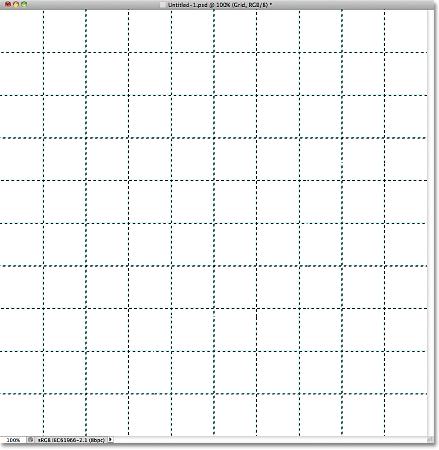
We want our vertical selection outlines to be added to the horizontal selection outlines we already have, so once again hold down your Shift key, then click on each of the vertical guides in the document until they're all selected. When you're done, you should have selection outlines along every guide, horizontally and vertically:
Step 7: Fill The Selection With Black
Go up to the Edit menu at the top of the screen and choose Fill:
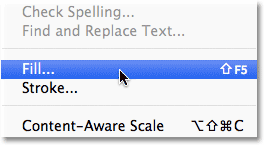
When the Fill dialog box appears, set the Use option at the top to Black, then click OK to close out of the dialog box:
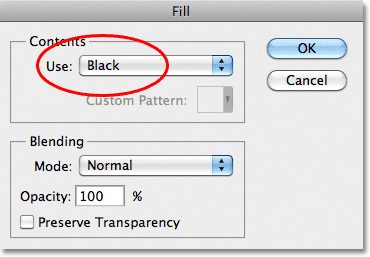
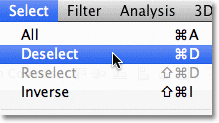
This fills the selections with black, although it may be hard to see with the guides and selection outlines in the way, so go up to the Select menu at the top of the screen and choose Deselect, which will remove the selection outlines:
Then, to turn off the guides, go up to the View menu, choose Show, and then choose Guides. At first, you'll see a checkmark to the left of the word Guides which tells us the guides are currently visible. Clicking Guides will remove the checkmark and turn the guides off:
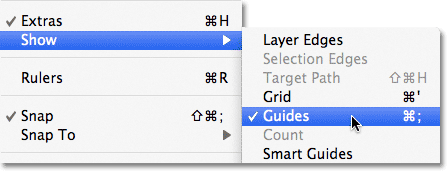
With the selection outlines and guides removed, we can see our black grid on the Grid layer:
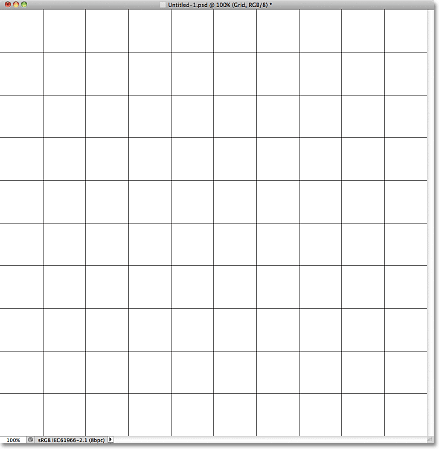
Step 8: Open The Photo You Want To Use With The Effect
Open the photo you'll be using with the grid effect. Here's my image:
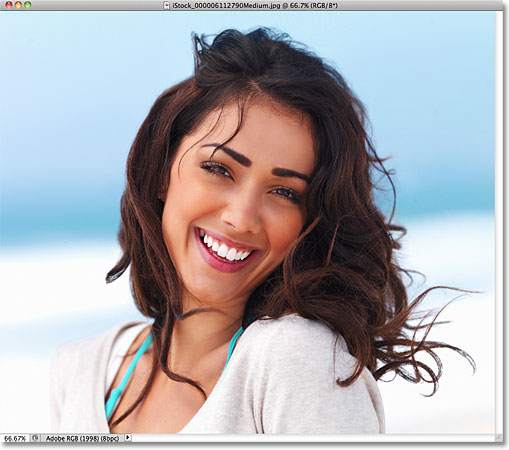
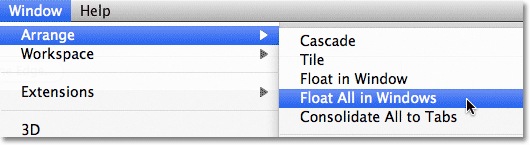
If you're using Photoshop CS3 or earlier, the photo will automatically open in its own floating document window. If you're using Photoshop CS4 or CS5, depending on how you have things set up in Photoshop's Preferences, the photo may open in a tabbed document. If that's the case, to make the next step easier, go up to the Window menu at the top of the screen, choose Arrange, and then choose Float All in Windows (CS4 and CS5 only):
Step 9: Drag The Photo Into The Grid Document
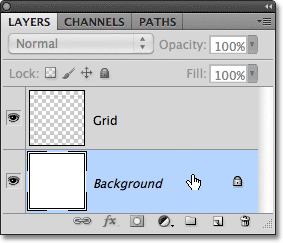
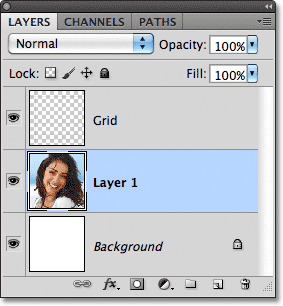
Click anywhere inside the grid's document window to make it active, then click on the Background layer in the Layers panel to select it. This way, when we drag the photo into the document, as we'll be doing in a moment, the photo will appear on its own layer between the Background and Grid layers:
Now click anywhere inside the photo's document window to make it active and select the Move Tool from the Tools panel:
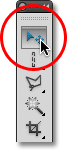
Hold down your Shift key, then click with the Move Tool inside the photo's document window and drag the photo into the grid's document window:
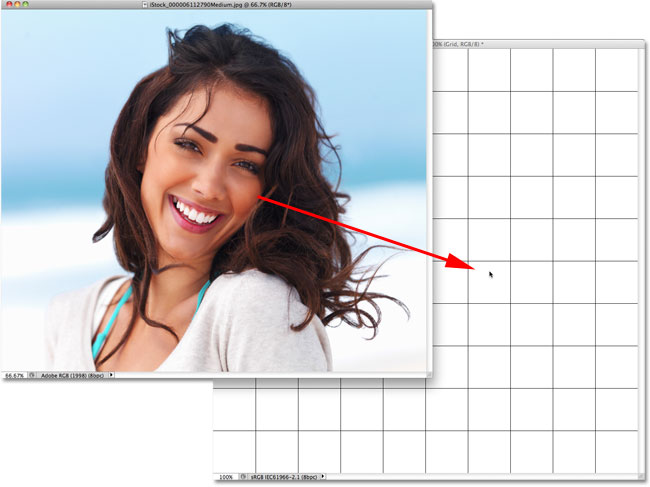
Release your mouse button, then release your Shift key, and the photo will appear centered inside the grid's document window. You can close out of the photo's document at this point since we no longer need it:
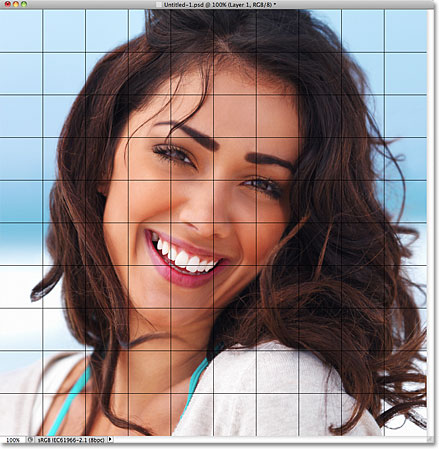
Notice that the grid appears in front of the photo. That's because, if we look in the Layers panel, we see that the photo has been placed on its own layer under the Grid layer, just as we wanted:
Step 10: Resize The Photo If Needed With Free Transform
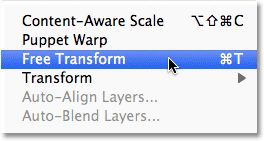
If you need to resize your photo inside the grid document, go up to the Edit menu at the top of the screen and choose Free Transform:
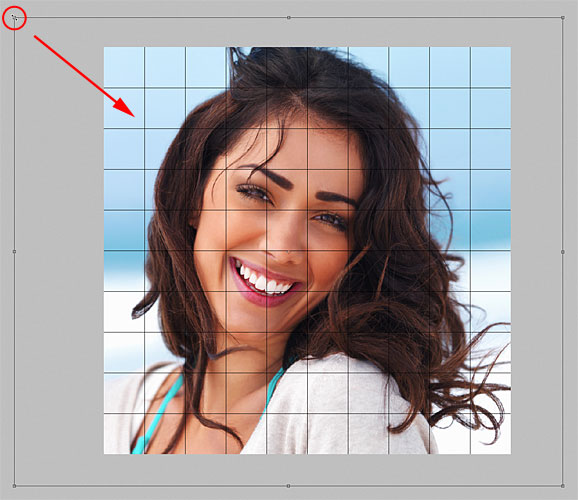
This places the Free Transform bounding box and handles around the image. If you can't see the handles because the edges of your photo extend beyond the viewable area in the document window, go up to the View menu and choose Fit on Screen:
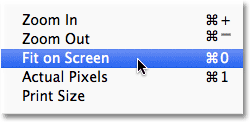
Photoshop will instantly zoom the image out far enough so that everything, including the Free Transform handles, fits inside the document window. To resize the photo, hold down your Shift key, then click on any of the four corner handles and drag them. Holding the Shift key down as you drag will maintain the original aspect ratio of the image so you don't accidentally distort the look of it. If you want to resize the photo from its center rather than from a corner, hold Shift+Alt (Win) / Shift+Option (Mac) as you drag any of the corner handles. If you need to move the image around inside the document, simply click anywhere inside the Free Transform bounding box and drag it into place. When you're done, press Enter (Win) / Return (Mac) to accept the change and exit out of the Free Transform command:
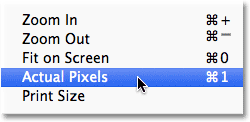
If you zoomed the image out a moment ago using the Fit on Screen command and want to zoom back in now that you're done resizing the image, go back up to the View menu and choose Actual Pixels (see our Zooming and Panning in Photoshop tutorial for more info on zooming in and out of documents):
Step 11: Select The Grid Layer
At this point, all the initial hard work is done. We've created our grid, we've dragged our photo into the grid's document, and we've resized and moved the photo into position. We're ready to have some fun colorizing the grid! First, we need to select the Grid layer, so click on it in the Layers panel to select it:
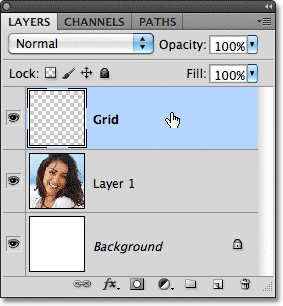
Step 12: Select The Magic Wand Tool
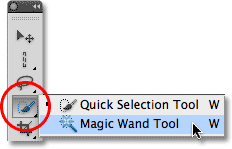
To colorize the grid, we need a way to select the individual squares, and we can do that using Photoshop's Magic Wand Tool. Select it from the Tools panel. If you're using Photoshop CS2 or earlier, you can simply click on the Magic Wand's icon. For Photoshop CS3 and higher, click on the Quick Selection Tool, then hold your mouse button down until a fly-out menu appears and choose the Magic Wand from the menu:
Step 13: Select The Outer Edge Squares
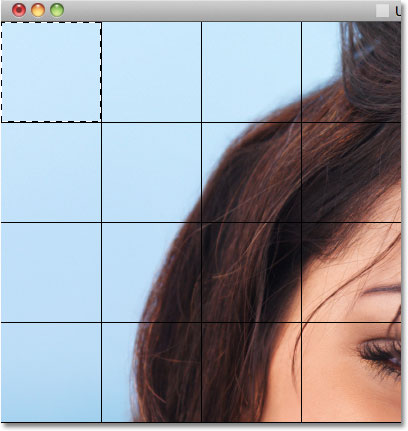
To select a square in the grid, make sure you have the Grid layer selected in the Layers panel, then simply click inside the square with the Magic Wand. A selection outline will appear around the outer edges of the square. To then add additional squares to the selection, hold down your Shift key and click inside the squares you want. Each new square you click inside of will become selected and added to the previously selected squares. Let's begin by selecting all the squares around the outer edge of the grid. First, click inside the square in the top left corner of the grid. A selection outline will appear around it:
Hold down your Shift key and continue clicking inside each of the squares around the outer edges of the grid to add them all to the selection:
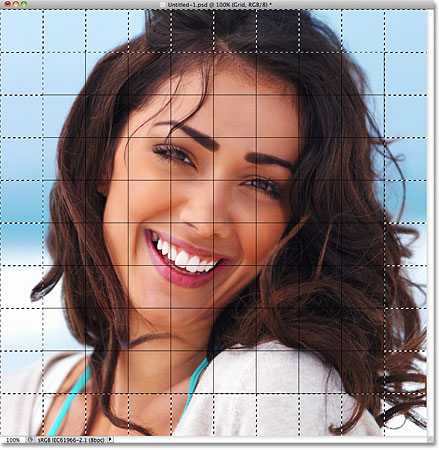
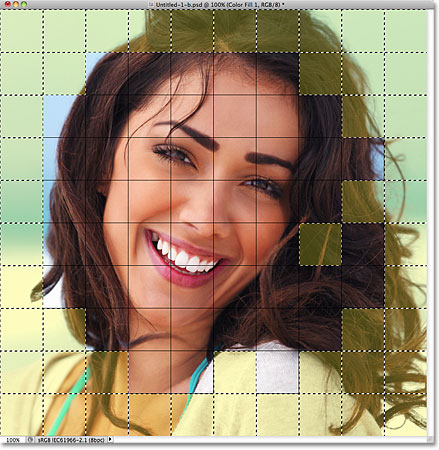
I'm going to add a few more squares to my selection as well by again holding down my Shift key and clicking inside them to add them to the previously selected squares. To make it easier to see which squares I've selected, I've colorized them in yellow (this isn't part of the effect, it's just to make it easier to see the squares I've selected in the screenshot):
Step 14: Add A New Layer Below The Grid Layer
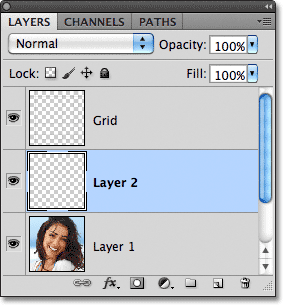
We'll fill these initial squares with white, which will create a border for the effect. Hold down your Ctrl (Win) / Command (Mac) key and click on the New Layer icon at the bottom of the Layers panel:

Normally, Photoshop adds new layers directly above the currently selected layer, but by holding the Ctrl (Win) / Command (Mac) key when clicking the New Layer icon, the layer is added below the currently selected layer. We can see in the Layers panel that we now have a new blank layer between the photo on Layer 1 and the Grid layer:
Step 15: Fill The Selected Squares With White
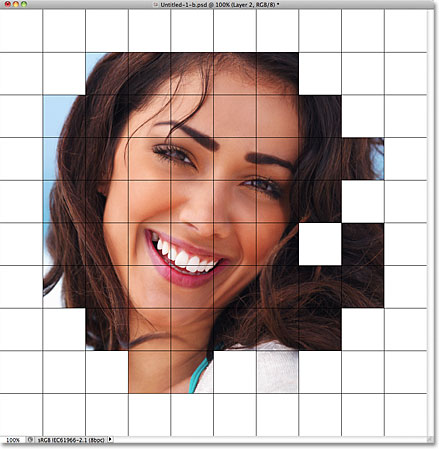
Go up to the Edit menu at the top of the screen and once again choose the Fill command. This time, when the Fill dialog box appears, change the Use option to White. Click OK when you're done:

Photoshop fills the selected squares with white. Deselect the squares by going up to the Select menu and choosing Deselect, or simply press Ctrl+D (Win) / Command+D (Mac) to deselect them with the keyboard shortcut:
Step 16: Select The Grid Layer
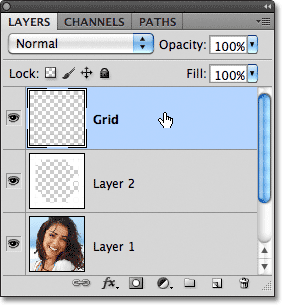
Let's select a few different squares to colorize. First, we need have the Grid layer active in the Layers panel, so click on it to select it. Remember, you always need the Grid layer selected before you can select any squares:
Step 17: Select Different Squares
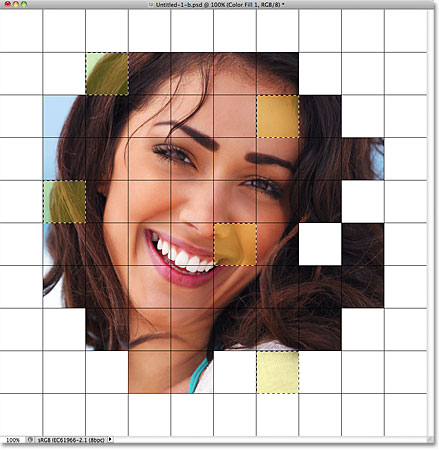
With the Grid layer now active, click inside an initial square to select it, then hold down your Shift key and click inside other squares to add them to the previously selected square(s). If you change your mind and want to remove a square from the selection, hold down your Alt (Win) / Option (Mac) key and click inside the square to deselect it. Here once again, I've highlighted the squares I've selected in yellow just to make them easier to see in the screenshot:
Step 18: Select The Photo Layer
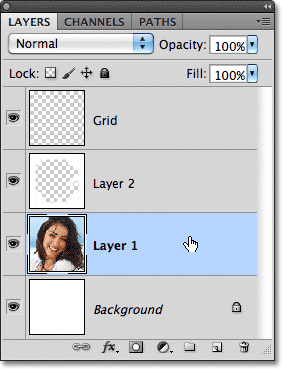
Click on the photo's layer (Layer 1) in the Layers panel to select it:
Step 19: Colorize The Squares With A Hue/Saturation Adjustment Layer
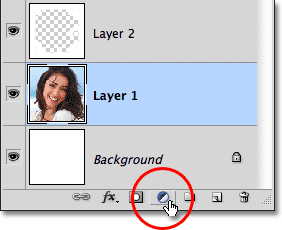
Click on the New Adjustment Layer icon at the bottom of the Layers panel:
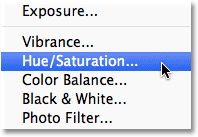
Choose Hue/Saturation from the list of adjustment layers that appears:
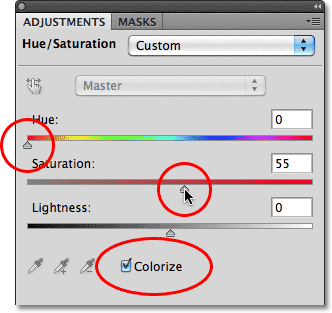
If you're using Photoshop CS4 or CS5, the controls and options for the Hue/Saturation adjustment layer will appear inside the Adjustments Panel. In CS3 and earlier, a separate Hue/Saturation dialog box will open. First, select the Colorize option by clicking inside its checkbox. Then, choose the color you want to colorize the selected squares with by dragging the Hue slider. For these squares, I'm going to leave the Hue slider set all the way to the left (its default position) which selects red. Of course, you can choose whichever color you like. To increase the color's saturation, drag the Saturation slider towards the right. I'm going to set my Saturation value to 55. Keep an eye on your document as you drag the sliders to preview the results. For Photoshop CS3 and earlier users, click OK when you're done to close out of the dialog box:
Step 20: Change The Blend Mode For The Adjustment Layer To Color
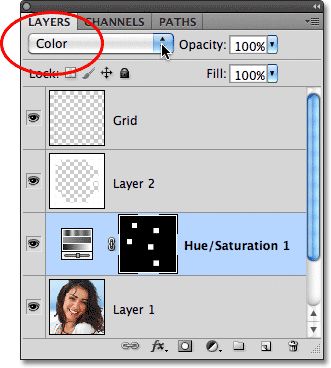
If we look in the Layers panel, we see the adjustment layer sitting directly above the photo layer. Make sure it's selected (highlighted in blue), then go up to the Blend Mode option at the top of the Layers panel and change its blend mode from Normal (the default mode) to Color. This makes sure we're changing only the colors in the image, not the brightness values:
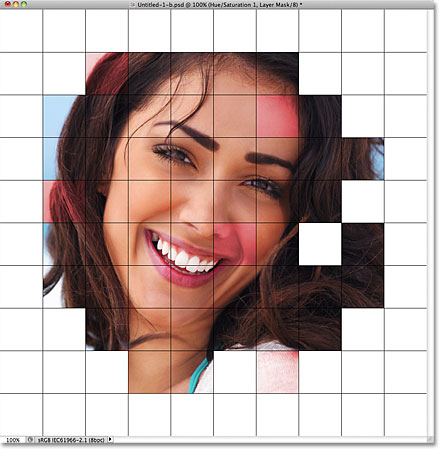
Here's my document after colorizing some of the squares red:
Step 21: Select And Colorize More Squares
Repeat steps 16-20 to select and colorize more squares. First select the Grid layer in the Layers panel, then click inside a square to select it with the Magic Wand. Hold Shift and click inside more squares to add them to the selection. Click on the photo layer in the Layers panel to select it, then click on the New Adjustment Layer icon and choose Hue/Saturation. Select the Colorize option, then choose a color with the Hue slider and a saturation level with the Saturation slider. Click OK to close out of the dialog box (CS3 and earlier). Finally, change the blend mode of the new adjustment layer to Color.
You can also use a Hue/Saturation adjustment layer to completely desaturate some of the squares, leaving them black and white. To do that, select some squares, then add a Hue/Saturation adjustment layer as you normally would, but rather than choosing a color with the Hue slider, simply drag the Saturation slider all the way to the left, which will remove all the color (no need to select the Colorize option, either):
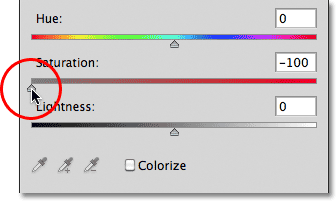
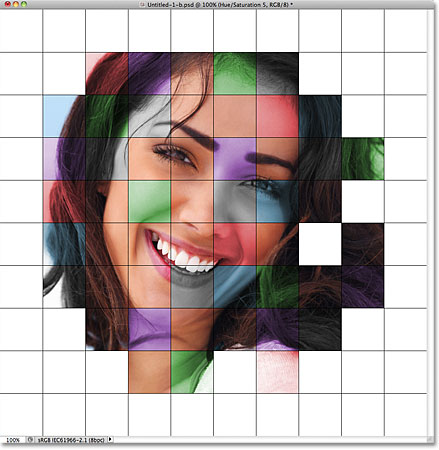
Here's my effect so far after colorizing more squares with additional Hue/Saturation adjustment layers. In case you want to use the same colors I did, for blue I set Hue to 200, Saturation to 30. For Green, Hue was set to 120, Saturation 25. For Purple, Hue was 289, Saturation 35. And as I just mentioned, for the black and white squares, Saturation was set to -100 by dragging the slider all the way to the left:
Step 22: Try A Different Color Mode For Some Of The Adjustment Layers
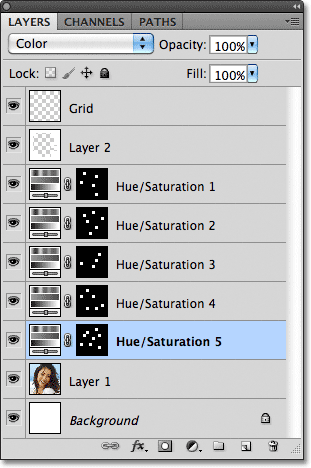
The one problem I have with my result so far is that it doesn't really look as bright and colorful as I was hoping for. One way to change that is to change the blend mode for some of the adjustment layers. If we look in the Layers panel, we can see all the adjustment layers I've used to colorize the squares. There's five in total, including the one I used for the black and white effect:
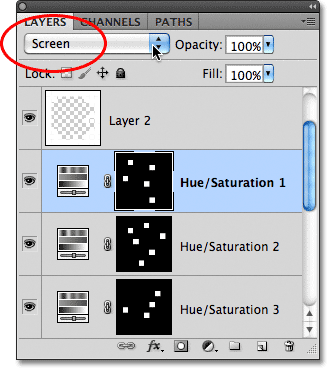
To add more interest to the image, try changing the blend mode for some of the adjustment layers to something other than Color. To do that, just click on the adjustment layer in the Layers panel to select it, then change the blend mode at the top of the Layers panel. For example, I think the red color in my image is looking a little dull, so I'll click on the top Hue/Saturation adjustment layer in the Layers panel to select it (since it's the one I used to add red), then I'll change its blend mode from Color to Screen:
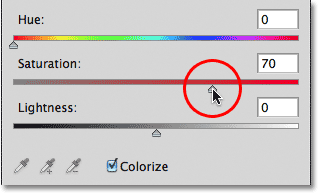
The Screen blend mode makes things brighter but also tends to reduce color saturation, so to compensate, with the red Hue/Saturation adjustment layer selected, I'll go back to the Adjustments Panel and increase the Saturation value for red to 70 (for Photoshop CS3 and earlier users, click on the adjustment layer's thumbnail in the Layers panel to re-open the Hue/Saturation dialog box to make any changes, then click OK to close out of the dialog box):
Here's my image after changing the blend mode for red to Screen and increasing its color saturation. Notice the red squares now look brighter:
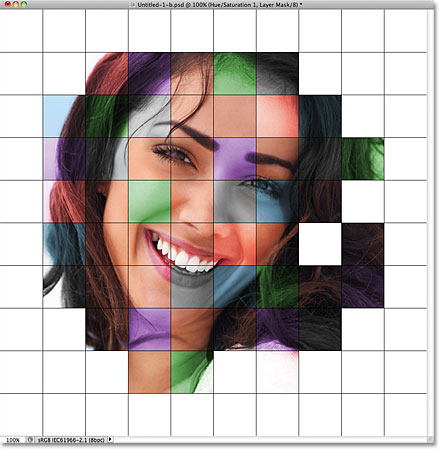
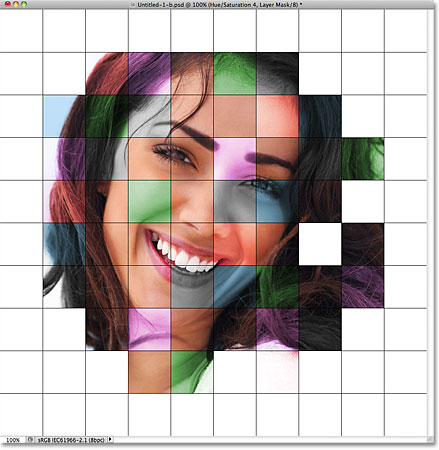
I'll do the same thing with the purple Hue/Saturation adjustment layer, first clicking on it to select it in the Layers panel, then changing its blend mode to Screen and increasing its color saturation to 55 in the Adjustments Panel (or dialog box in CS3 and earlier). Other blend modes that can give you good results include Multiply (for a darker color), as well as Overlay which will give you a higher contrast effect but may also change the appearance of the color itself. Here's my effect now with the red and purple squares set to the Screen blend mode:
Step 23: Change The Color Of The Grid Lines To White
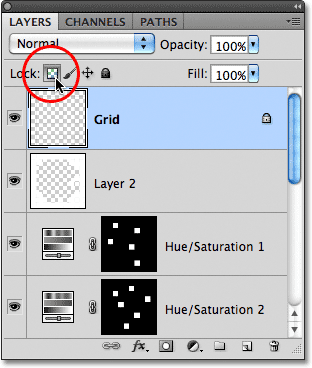
As a final step for the effect, lets change the appearance of the grid lines themselves, first by changing their color from black to white. Click on the Grid layer in the Layers panel to select it, then click on the Lock Transparent Pixels icon just below the blend mode option (it's the first of four icons in a row):
Step 24: Fill The Grid Lines With White
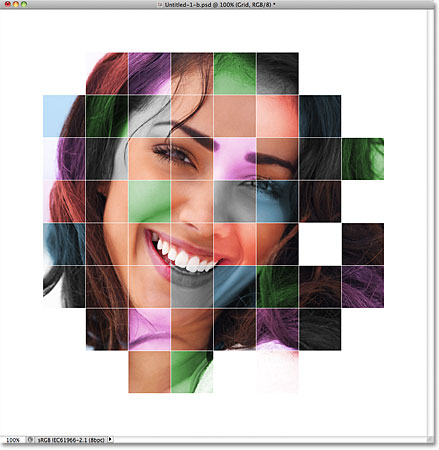
With the Lock Transparent Pixels option selected on the Grid layer, anything we do to the layer will affect only the pixels themselves. It will not have any affect on the transparent areas. This way, if we fill the layer with, say, white (as we're about to do), only the grid lines will be filled with white. The transparent areas on the layer will remain transparent.
Go up to the Edit menu and once again choose Fill. When the Fill dialog box appears, the Use option should already be set to White since that's what we set it to last time, so just click OK to close out of the dialog box. Photoshop will fill the grid lines with white:
Step 25: Add A Stroke Layer Style
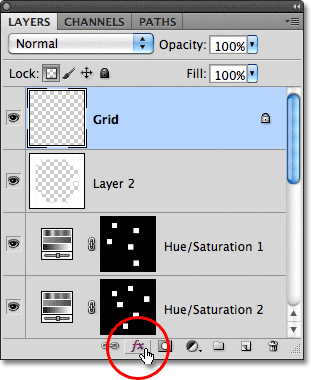
If you want to increase the thickness of the grid lines, click on the Layer Styles icon at the bottom of the Layers panel:
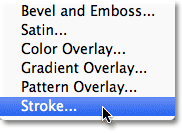
Choose Stroke from the list of layer styles that appears:
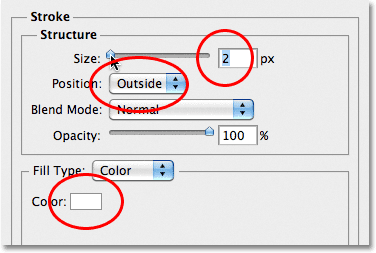
This opens Photoshop's Layer Style dialog box set to the Stroke options in the middle column. Click on the color swatch beside the word Color, which opens the Color Picker. Choose white from the Color Picker, then click OK to close out of it. With white now as the stroke color, leave the Position set to Outside and adjust the width of the stroke by dragging the Size slider while keeping an eye on the document to judge the result. I'm going to set my stroke's size to 2 px (pixels):
Click OK to close out of the Layer Style dialog box, and we're done! Here is my final color grid effect: