
Photoshop Advanced Blending – The Blend If Sliders
In this Photoshop Effects tutorial, we're going to take a look at some of Photoshop's more advanced blending options, specifically the "Blend If" sliders. Don't let the word "advanced" scare you off, they're really very easy to use and lots of fun, and not only can they give you much better blending results than anything you could get using the standard layer blend modes, they also give you a lot more control.
We're going to be using them here to make some simple text look as if it was written on the wall behind it, but you can use them to blend any two images together for both realistic or creative effects, and as we'll see in this tutorial, using them is as easy as dragging a couple of sliders left and right.
Here's the image I'm going to be starting with, a simple photo of a rather grungy looking brick wall with some text that I've added over top of it:

Right now, it looks like, well, text in front of a brick wall. But with a little help from the "Blend If" sliders, we can make it look more like this:

This Advanced Blending tutorial is from our Photo Effects collection. Let's get started!
Step 1: Open Your Image In Photoshop And Add Some Text
Go ahead and open your image in Photoshop, then press the letter T on your keyboard to quickly access the Type tool, choose your font and font size in the Options bar at the top of the screen and add some text above your image. I've already gone ahead and done that here, as we can see in my Layers palette:

I've added "PHOTOSHOP WUZ HERE!" (yes I know, I purposely spelled it wrong because I'm crazy like that), as we can see in the image below:
Step 2: Access Photoshop's Blending Options
We need to access Photoshop's Blending Options next, and there's a couple of different ways to do that. We could go up to the Layer menu at the top of the screen, select Layer Style and then select Blending Options, but there's a faster way. With the type layer selected in the Layers palette, click on the Add Layer Style icon at the bottom of the Layers palette:

We're not going to select any of the standard layer styles like Drop Shadow or Stroke here. Instead, we want the option at the very top of the list, Blending Options. Click on it to select it:

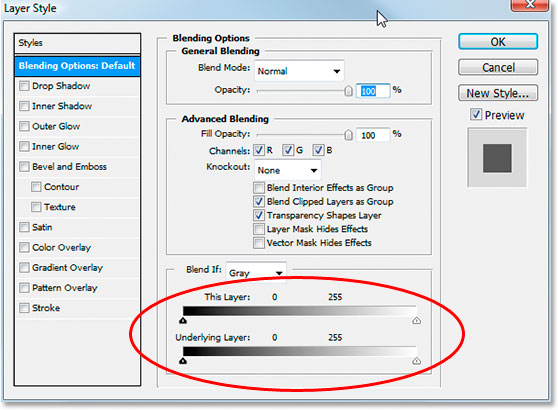
This brings up the Layer Style dialog box set to the Blending Options, and the "Blend If" sliders we're looking for are at the very bottom:
Step 3: Drag The Black And White Sliders In Towards The Center To Blend The Layers
Let's take a closer look at the Blend If slider bars:

There's two Blend If slider bars, and if you're not familiar with them, you're probably thinking they look identical, and you'd be right. They both have a gradient inside them running from black on the left to white on the right, and they both have little black and white sliders on either end. But while they both look the same, they do slightly different things.
If you look closely, you'll see "This Layer" written above the top slider bar, and "Underlying Layer" written above the bottom one. The bar on top affects the layer you currently have selected in the Layers palette. The bottom bar is a bit misleading though because while it says "Underlying Layer", it really affects every layer below the currently selected layer. In my case here I only have one layer, my Background layer, below my type layer, but if I had more than one layer below my type layer, it would look at all of them, not just the one.
As I mentioned, both bars may look the same, but there's a slight difference between them. Moving the black and white sliders for the bar on top will cause areas of the currently selected layer to disappear from view. Moving the sliders for the bar on the bottom will cause areas of the layer(s) below the currently selected layer to show through the selected layer, as if it's punching holes through the layer. In other words, since I had my type layer selected, if I move the sliders on the top bar in towards the center, I'll be making areas in my type disappear. If I move the bottom bar's sliders in towards the center, I'll be making areas of my brick wall photo show through my type. Moving the white slider affects the lightest areas in the image, and moving the black slider affects the darkest areas. The further I move the sliders, the greater the tonal range that's affected.
I want to make my type look as if it was painted onto the brick wall behind it, and to do that, I need some of the wall to show through my type. Since I have my type layer selected in the Layers palette, and my brick wall photo is on the layer underneath it, I'm going to move the sliders on the bottom Blend If bar in towards the center to force some of the wall to show through my type. I'll start by moving the black slider towards the center:

As I drag the black slider to the right, the darker areas of the brick wall begin to show through my text:

That looks pretty good already, but there's a problem. The areas where the brick wall is showing through the type are too harsh. It's either the text showing 100% or the wall behind it showing 100%. I need more of a subtle transition between the two to smooth things out and make it look more realistic, and I'll do that next.
Step 4: Smooth Out The Blending By Splitting The Slider Bars In Two
To smooth out the blending and create more of a transition between the two layers, I'm going to hold down the Alt (Win) / Option (Mac) key and drag the black slider back towards the left. Holding down the Alt/Option key causes the slider to split in half, as we can see here:

With the black slider now split in two, the half on the left is where the blending begins, the half on the right is where the blending reaches 100%, and the area in between is the transition area. I can now drag both halves independently of each other until I'm happy with the results. Here's my image after dragging the black slider to the right to force the darker parts of the brick wall to show through the type, then splitting the slider in two and dragging the left half of the slider back towards the left to smooth out the transition:

I'm going to do the same thing with the bottom white slider to cause some lighter areas of the brick wall photo to show through my text. First, I'll drag the white slider to the left until I'm happy with how much of the wall is showing through:

Then I'll hold down my Alt (Win) / Option (Mac) key to split the white slider in half and drag the right half back towards the right to create another nice transition between the two layers:

And there we go, all done. I've moved both the black and white sliders in towards the center to force some of the brick wall to show through the type, then split the sliders in half to smooth out the transitions between the two layers. Here's the original image once again with my type above it before I used the Blend If sliders:
And here, thanks to Photoshop's advanced blending options and a few simple moves of the "Blend If" sliders, is my final, much more realistic looking result:
And there we have it! That's a look at how to create some advanced blending effects using the Blend If sliders in Photoshop! Visit our Photo Effects section for more Photoshop effects tutorials!