
Neutralizing Color Casts With The Photo Filter In Photoshop
In this Photoshop photo editing tutorial, we're going to look at how to quickly neutralize a color cast in a photo using Photoshop's Photo Filter adjustment.
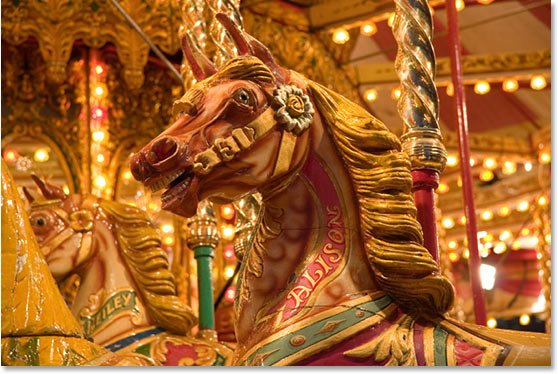
Here's the image I'll be using for this tutorial, which has quite an obvious orange color cast:
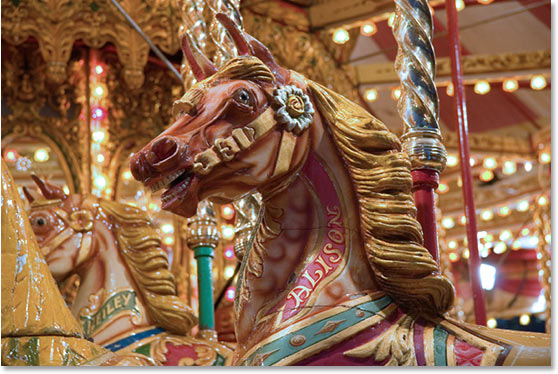
Here's how it will look after removing the color cast with the Photo Filter:
Let's get started!
Step 1: Add A Photo Filter Adjustment Layer
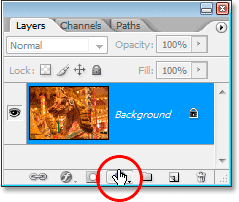
With the image open in Photoshop, the first thing we need to do is add a Photo Filter adjustment layer. To do that, click on the New Adjustment Layer icon at the bottom of the Layers palette:
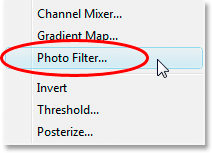
Then select Photo Filter from the list:
This will bring up the Photo Filter dialog box:
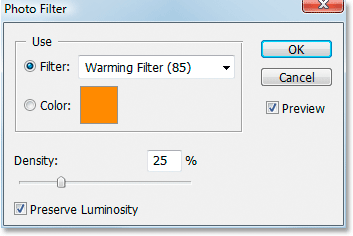
Step 2: Sample The Color You Want To Remove From The Image
Click on the color swatch to the right of the word "Color" in the Photo Filter dialog box:
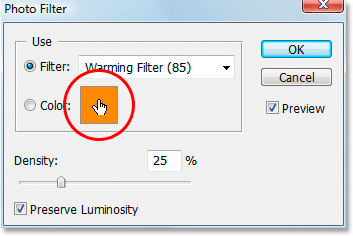
This will bring up Photoshop's Color Picker:
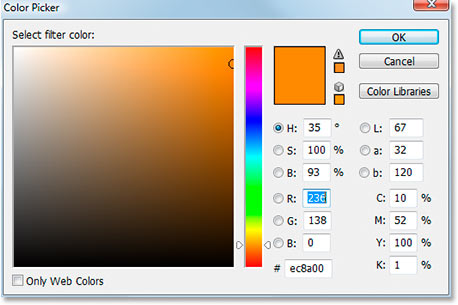
Rather than choosing a color from inside the Color Picker, move your mouse over the image, and you'll see your mouse cursor change into the Eyedropper icon. We're going to sample the color that's giving us our problem. To do that, click on an area inside the image where the problem color is most noticeable. I'm going to click on the horse's mane to sample the orange color:
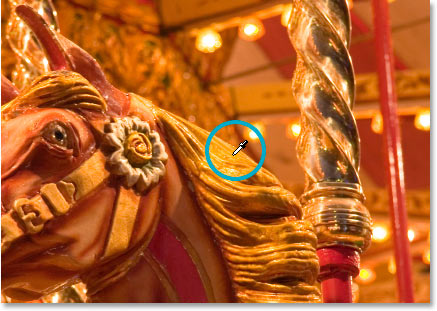
Don't exit out of the Color Picker yet. We're going to use it to invert the sampled color next.
Step 3: Invert The Color In The Color Picker
In order to neutralize the color cast, we're going to invert the problem color that we just sampled, which will give us the exact opposite color. We can then use the Photo Filter to combine the inverted (opposite) color with the problem color, which will effectively cancel out the color cast. In order to do that, we first need to invert the color, and the easiest way to do that inside the Color Picker is with the Lab color options, circled in red below:
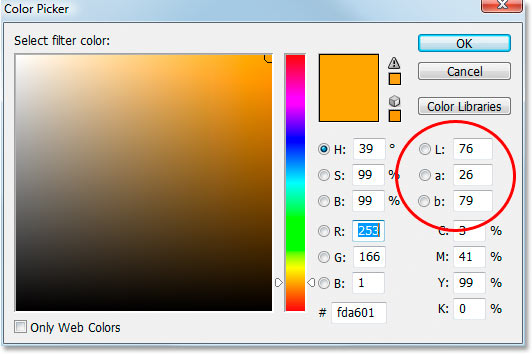
Ignore the "L" option, which stands for "Lightness", since we're not interested in changing any lightness values. All we want to do is change the color, which is controlled by both the a and b options. As we can see in the Color Picker above, the orange color I sampled from my image is made from an "a" value of 26 and a "b" value of 79. Your numbers will most likely be different. To invert the color, all I need to do is add a negative ("-") sign in front of both numbers, like so:
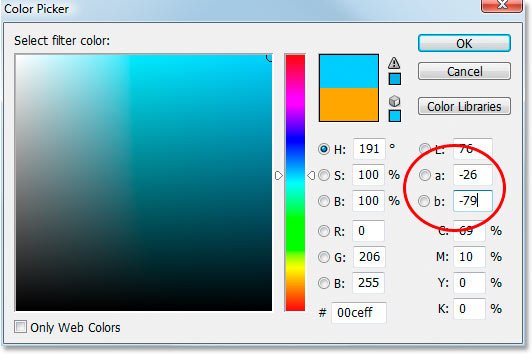
If you already had a negative sign in your "a" or "b" values, simply remove it. So add a negative sign if there isn't one, and remove it if there is one to invert the color. We can see in the Color Picker above that my color has now changed to more of a blue color, and that is the opposite of the orange color I sampled. I can now use this color to neutralize my color cast.
Click OK when you're done to exit out of the Color Picker.
Step 4: Drag The Density Slider To Remove The Color Cast
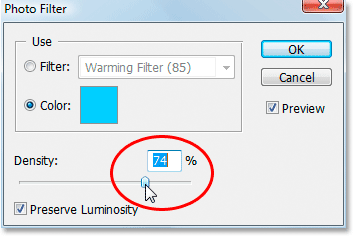
Back in the Photo Filter dialog box, I can see that the color swatch is now showing my inverted color. All I need to do at this point to remove the color cast is drag the Density slider to the right, which will determine how much of my inverted color is being blended into the image, until my image looks better. In my case, I don't want to remove the orange completely because I think it adds a bit of warmth to the image, so I'll leave just a hint of it in. I think a Density value of around 74% works best here:
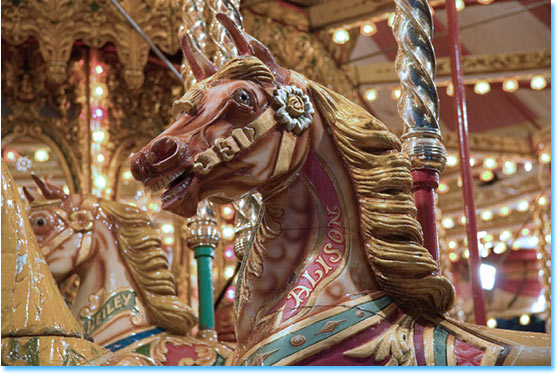
Here's my image at this point:
Step 5: Boost The Colors With A Hue/Saturation Adjustment
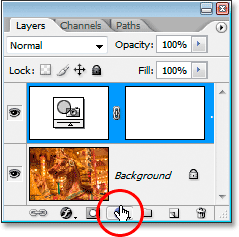
The only problem now is that the colors are looking a little dull, so I'm going to fix that by boosting the color saturation with a Hue/Saturation adjustment layer. To do that, click on the New Adjustment Layer icon once again at the bottom of the Layers palette:
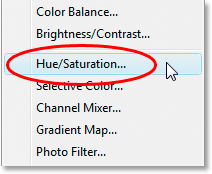
This time, choose Hue/Saturation from the list:
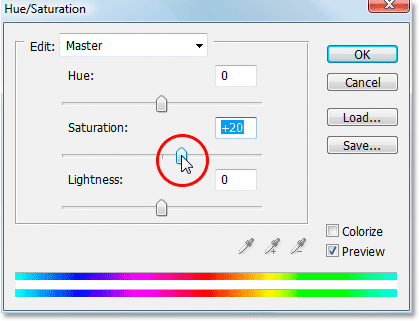
This brings up the Hue/Saturation adjustment dialog box. I'm going to drag the Saturation slider in the middle towards the right to increase the color saturation in the image. Keep an eye on your image to see a preview of what's happening as you drag. I'm going to drag mine to a value of about "+20":
Click OK when you're done to exit out of the Hue/Saturation dialog box, and you're done! Here, once again, is my original image:
And here is the final result after boosting the colors with Hue/Saturation:
And there we have it! That's how easy it is to correct a color cast problem using Photoshop's Photo Filter adjustment. Check out our Photo Retouching section for more Photoshop image editing tutorials!