
Changing Hair Color In An Image With Photoshop
In this photo retouching tutorial, we're going to look at how simple and easy it is to change hair color in Photoshop by tinting and colorizing someone's hair in a photo. The technique we'll be learning here gives us complete control over what we're doing, with several different ways of fine-tuning the results, plus we can also go back any time we want and change the hair color without having to redo all the work! You can use this technique on photos of other people (friends, family, clients), or you can even use it on a photo of yourself to see how different hair colors would look on you!
Here's the image I'll be using for this tutorial:

We're going to be giving her hair a brighter, slightly more reddish color to it in this tutorial, but you have complete control over the color you use with your image, as well as the intensity of the color. Here's how she'll look when we're done:

At the end of the tutorial, we'll see how easy it is to go back and change the color to something completely different.
This tutorial is part of our Portrait Retouching collection. Let's get started!
Step 1: Add A "Hue/Saturation" Adjustment Layer
With our image open in Photoshop, click on the New Adjustment Layer icon at the bottom of the Layers palette (the circle split diagonally between black and white):
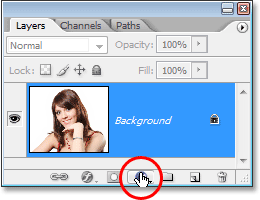
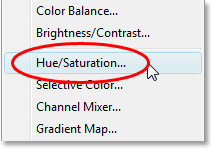
Then select Hue/Saturation from the list of adjustment layers that appears:
Step 2: Select The "Colorize" Option
When the Hue/Saturation dialog box opens, select the Colorize option in the bottom right corner by clicking inside its checkbox:
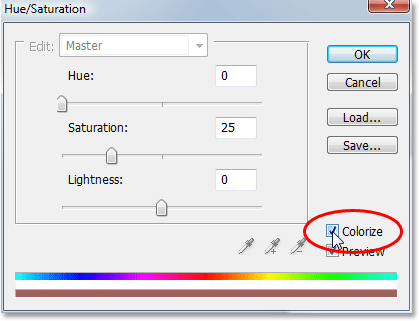
As soon as you select the Colorize option, you'll see your entire image become colorized with a shade of red.
Step 3: Select A New Color For The Hair
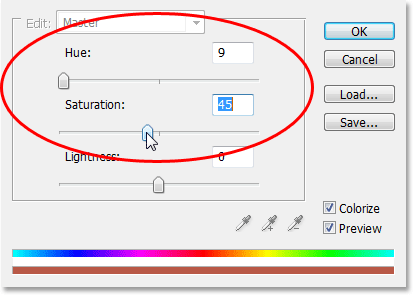
Drag the Hue slider left or right to select the color you want to use for the person's hair. For the moment, you'll be colorizing the entire image, but we'll fix that in the next couple of steps. Just ignore the rest of the image for now and focus only on the hair. Once you've found a color you like, adjust the intensity of the color by dragging the Saturation slider left or right. Dragging it to the right gives you a more saturated color, while dragging it to the left reduces the saturation.
Don't worry about getting the color and saturation perfect because you can always go back and change it quite easily later. I'm going to set my Hue amount to about 9 and increase the Saturation to around 45 for now:
Click OK when you're done to exit out of the dialog box. The woman's hair now appears colorized in red, but so is the rest of her:

Step 4: Fill The Hue/Saturation Layer's Mask With Black
One of the great things about adjustment layers in Photoshop is that each one automatically comes with its own layer mask, and we're going to use it to fix the problem we currently have with our entire image being colorized when all we really want is for the hair to be colorized.
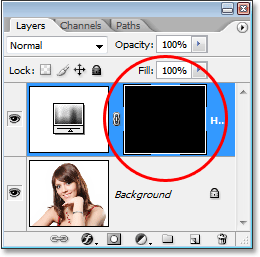
To start with, let's completely hide the effects of the Hue/Saturation adjustment layer by filling its layer mask with black. Since black is our current Background color and the layer mask is already selected (Photoshop automatically selected the layer mask for us when we added the adjustment layer and set our Foreground and Background colors to white and black, respectively), all we need to do is use the keyboard shortcut Ctrl+Backspace (Win) / Command+Delete (Mac) to fill the layer mask with black.
As soon as we do, the colorizing effect disappears from our image and if we look in the Layers palette, we can see that the adjustment layer's thumbnail, which gives us a preview of what the layer mask looks like, is now filled with black:
Step 5: Select The Brush Tool
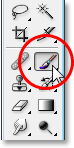
To bring back the colorizing effect and have it applied only to the hair, all we need to do is paint with white on our layer mask over the hair. Anywhere we paint with white on the layer mask will reveal the effects of the Hue/Saturation adjustment layer, and anywhere we leave black will keep the effects hidden. First, we need the Brush Tool, so either select it from the Tools palette or press the letter B on your keyboard to select it with the shortcut:
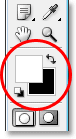
We need to paint with white on the layer mask to reveal the colorizing effect on the hair, and Photoshop has already set our Foreground color to white for us, as we can see in the Foreground and Background color swatches near the bottom of the Tools palette (the swatch on the left is the Foreground color and the swatch on the right is the Background color):
We also already have our layer mask selected, and we can tell that because the layer mask thumbnail in the Layers palette has a white highlight border around it, as shown in the image for Step 4 above, which tells us that the mask is selected.
Step 6: Paint With White Over The Hair
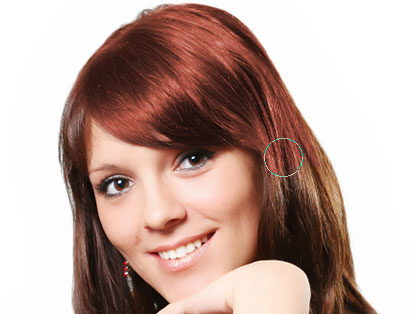
With our Brush Tool selected, the layer mask for the Hue/Saturation adjustment layer selected, and white as our Foreground color, all we need to do now is paint over the hair. To quickly change your brush size as you paint, use the left and right bracket keys on your keyboard. The left bracket key makes the brush smaller and the right one makes it larger. You'll want to use a soft-edged brush, so hold down your Shift key and press the left bracket key a few times to soften its edges (holding Shift and pressing the right bracket key a few times makes the brush edges harder). Then simply paint over the hair to bring back the colorizing effect:
For trickier areas where there's only loose strands of hair, go up to the Options Bar at the top of the screen and lower the Opacity of the brush down to about 25% or so:

Then lower the size of your brush so it's no bigger than the area you're colorizing and paint over it a couple of times. This way, the color won't be so intense in those areas. You may find it helps to zoom in on those areas as well, and the easiest way to do that is to hold down the Ctrl (Win) / Command (Mac) key and the Spacebar and drag a selection around the area. Photoshop will then zoom into the area you selected:
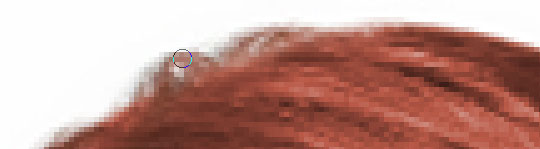
Press Ctrl+Alt+0 (Win) / Command+Option+0 (Mac) when you're done to zoom back out to 100%.
If you make a mistake as you're painting and accidentally paint over an area you didn't mean to (happens all the time), simply press X to swap your Foreground and Background colors, making black your Foreground color, and paint over the mistake to undo it. Then press X again to set your Foreground color back to white and continue painting until you have all the hair colorized:
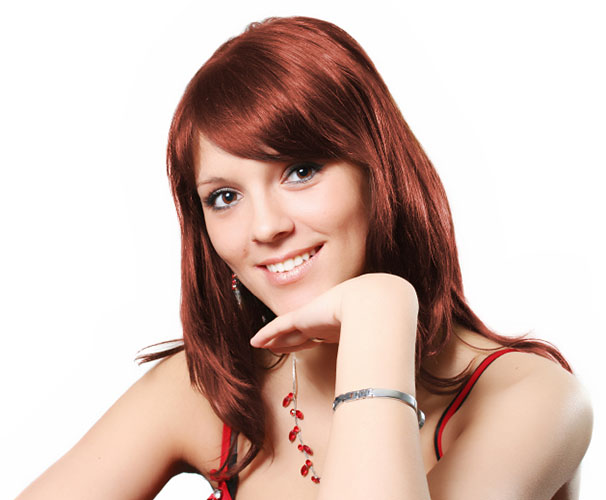
We'll look at how to fine-tune the effect next!
Step 7: Change The Blend Mode To Either "Color" Or "Soft Light"
The hard part is done! We've colorized the hair while leaving the rest of the image untouched thanks to the layer mask that came with the Hue/Saturation adjustment layer. Now we can fine-tune the effect, and the first way to do that is by changing the blend mode of the adjustment layer. By default, the blend mode is set to "Normal", and it works fairly well, but let's change it to something better. Go up to the blend mode options in the top left corner of the Layers palette, click on the down-pointing arrow to the right of the word "Normal", and select either Color or Soft Light from the list:
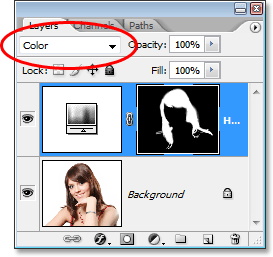
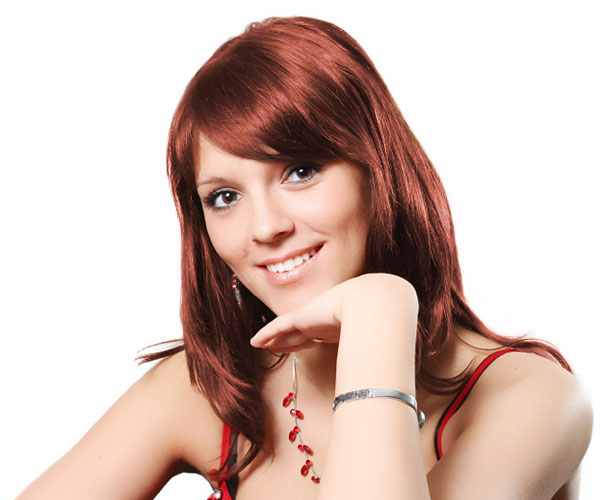
The "Color" blend mode gives us even more of a colorizing effect, since it changes only the color of an image (when we had the blend mode set to "Normal", it was affecting not only the color but also the lightness values of the hair). Here's my image with the blend mode of the adjustment layer set to "Color":
The "Soft Light" blend mode gives us a more dramatic colorizing effect because it not only changes the color of the hair but also boosts the contrast, which I think works even better than the "Color" blend mode in this case. Here's my image with the blend mode set to "Soft Light":

Choose the blend mode that works best with your image.
Step 8: Lower The Opacity Of The Adjustment Layer If Needed
Another way to fine-tune the colorizing effect is by lowering the opacity of the adjustment layer. If you find the color is too intense, simply go up to the Opacity option in the top right corner of the Layers palette (across from the blend mode option) and lower it until you're happy with the results. Here, I've lowered the opacity of the adjustment layer to 50%:
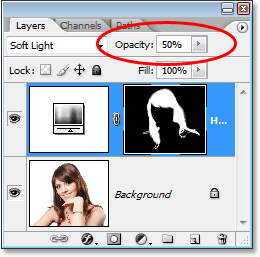
This gives me a more subtle colorizing effect:

Step 9: Edit The Hue/Saturation Settings To Change The Hair Color As Needed
At this point we're done, but if you need to go back and change the hair color to something different, simply double-click on the Hue/Saturation adjustment layer's thumbnail in the Layers palette (the thumbnail on the left, not the layer mask thumbnail on the right):
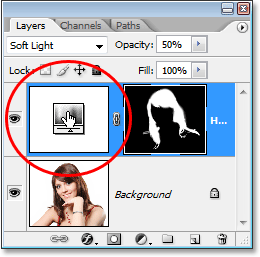
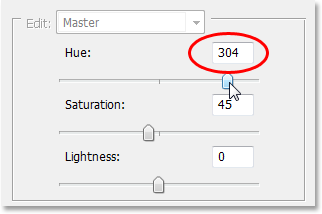
This brings the Hue/Saturation dialog box back up and we can change the hair color simply by dragging the Hue slider to something different. We can also re-adjust the saturation of the color with the Saturation color. Since this is an adjustment layer, we're free to make as many changes as we want without worrying about damaging our image. Just for fun, I'll set my Hue slider to 304 to give her hair more of a pink/purple look:
I'm also going to set the blend mode of the adjustment layer back to "Color" and increase the opacity to around 75%:
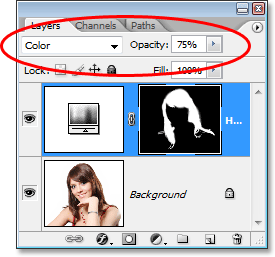
And here's my new result:
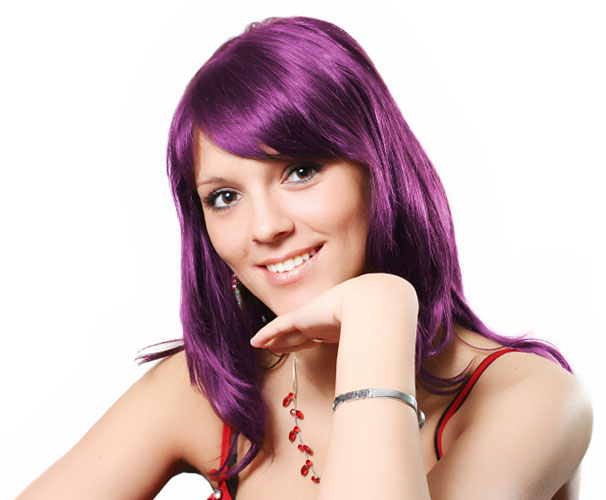
And there we have it! That's how easy it is to change someone's hair color in Photoshop! Check out our Photo Retouching section for more Photoshop image editing tutorials!