
Photoshop Shapes – Add, Subtract, Intersect and Exclude
In this Photoshop Basics tutorial, we'll learn how we can combine two or more shapes in interesting ways using the Add, Subtract, Intersect and Exclude options that are available to us when drawing Shape Layers in Photoshop! We looked at these options briefly in the Vectors, Paths and Pixels tutorial, but we'll cover them in more detail here.
This tutorial assumes you already have a solid understanding of how to draw vector shapes, which you can learn all about in the first tutorial in this series - Photoshop Shapes and Shape Layers Essentials.
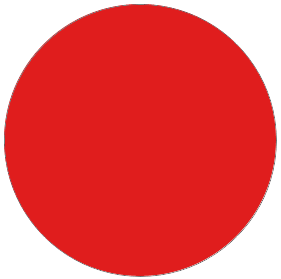
I've gone ahead and created a new Photoshop document, with white as my background color, and I've used the Ellipse Tool to draw a single circular shape (I held down my Alt (Win) / Option (Mac) key as I was dragging out the shape to force it into a perfect circle):
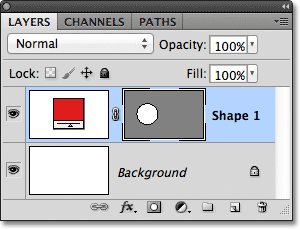
If we look in my Layers panel, we see that my document currently contains two layers - the white-filled Background layer on the bottom and the Shape layer (Shape 1) for my shape directly above it:
With the Ellipse Tool still selected, I'll draw a second similar shape partly overlapping the original:
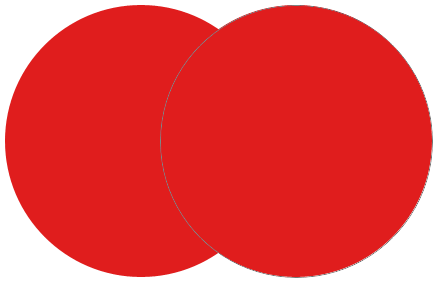
By default, Photoshop assumes that each time we draw a new shape, we want to draw a separate, independent shape, and it places the new shape on its own Shape layer. If we look again in my Layers panel, we see that I now have a second Shape layer (Shape 2) sitting above the original. Both shapes are completely separate from each other:
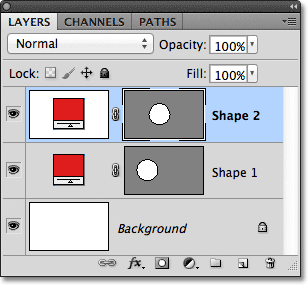
This default behavior of creating a new Shape layer for each shape we draw is often what we want, but there are other, more interesting things we can do with shapes in Photoshop than simply adding new ones all the time. For instance, we can combine two shapes together by adding the new shape to an existing one, or we can use the new shape to remove part of the original shape. We can intersect two shapes so only the areas that overlap remain visible in the document, or we can do the opposite, hiding the overlapping areas from view.
Officially, these options I just described are called Add to Shape Area, Subtract from Shape Area, Intersect Shape Areas, and Exclude Overlapping Shape Areas, and they're represented as a series of icons in the Options Bar when we have one of Photoshop's Shape tools selected. There's also a fifth option, Create New Shape Layer, which is selected for us by default:

If you've selected a Shape tool from the Tools panel but don't see these options in the Options Bar, check to make sure you have Shape Layers, not Paths or Fill Pixels, selected in the far left of the Options Bar:

Add To Shape Area
As I mentioned, the Create New Shape Layer option is selected for us by default, which is why Photoshop always places each new shape we draw on its own independent Shape Layer:

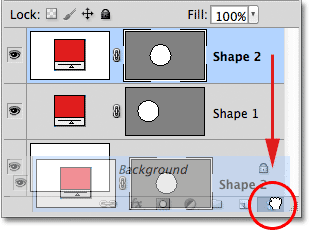
I'll delete the second shape I added a moment ago by dragging its Shape layer (Shape 2) down to the Trash Bin at the bottom of the Layers panel:
And now I'm back to having just my original Shape layer (Shape 1) sitting above the Background layer:
Before I do anything else, notice that a white highlight border is appearing around the vector mask thumbnail on my Shape layer:
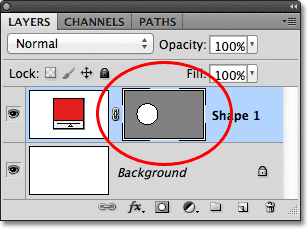
This is important because it means the shape's vector mask is currently selected. The vector mask is what defines the look of the shape (the color swatch to the left of the vector mask thumbnail defines the color of the shape). If the vector mask is not selected, the Add, Subtract, Intersect and Exclude options will be grayed out and unavailable in the Options Bar. If you see them grayed out, check to make sure a white highlight border is appearing around the Shape layer's vector mask thumbnail. If it's not, click on the thumbnail to select it.
Now that I've made sure the vector mask is selected, I'll choose the Add to Shape Area option by clicking on its icon in the Options Bar:

A small plus sign (+) will appear in the lower right of my mouse cursor letting me know that any shape I draw next will be added to my existing shape rather than appearing on its own Shape layer. I've enlarged the mouse cursor here to make it easier to see:

I'll draw another circular shape with the Ellipse Tool, again overlapping the original shape as I did before:
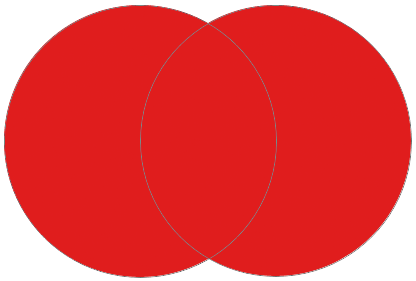
The result doesn't look much different than it did last time, but if we look in the Layers panel, we see that instead of having two separate Shape layers, both shapes now appear on the same vector mask on the same Shape layer, which means that even though they may look like separate shapes in the document, they're actually one single shape:
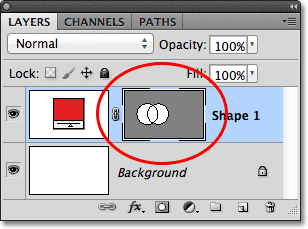
At the moment, we can see the thin path outline around the shapes. The path is visible because the vector mask is selected and active. To hide the path outline, all we need to do is deselect the vector mask by clicking on its thumbnail. The white highlight border around the thumbnail will disappear when you click on it, indicating that the vector mask is no longer active:
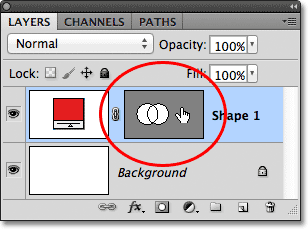
With the vector mask deselected, the path outline is no longer visible around the shape:

Remember, though, that a Shape layer's vector mask must be selected if we want access to the Add, Subtract, Intersect and Exclude options in the Options Bar. Now that I've deselected the vector mask, the options in my Options Bar are grayed out and unavailable to me. Only the default Create New Shape Layer option remains available:

To re-select the vector mask and make it active again, just click on its thumbnail. The white highlight border around it will re-appear, and the options will again become available in the Options Bar:
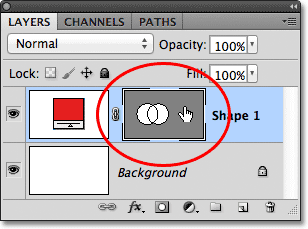
Subtract From Shape Area
I'll undo my last step and remove the second shape I added by pressing Ctrl+Z (Win) / Command+Z (Mac) on my keyboard, and this time, I'll select the Subtract from Shape Area option in the Options Bar:

A small minus sign (-) appears in the lower right of my mouse cursor letting me know I'm in the Subtract from Shape Area mode:

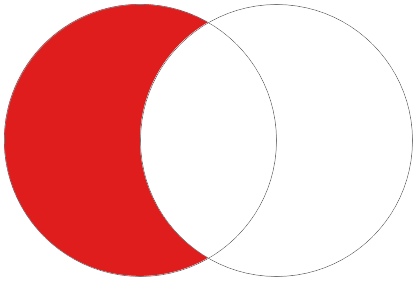
I'll draw another circular shape with the Ellipse Tool, again overlapping the original, and this time we get a different result. Instead of adding the new shape to the existing one, the new shape has been used to remove, or cut away, part of the initial shape where the two shapes overlap. As we can see by the path outlines, both shapes are there in the document, but only the part of the original shape that is not being overlapped by the second shape remains visible:
Just as we saw with the Add to Shape Area option, both shapes have been added to the same vector mask on the same Shape layer in the Layers panel:
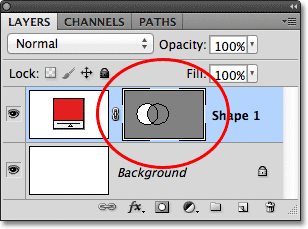
I'll click on the vector mask thumbnail to deselect it, which removes the path outline from around the shape and makes it easier to see the result. With part of it removed, the original circular shape now looks more like a moon:

So far, we've learned how to add and subtract shapes. Up next, we'll learn how the Intersect and Exclude options work, as well as how to easily switch between these four drawing modes after we've already drawn the shape!
Intersect Shape Areas
I'll again press Ctrl+Z (Win) / Command+Z (Mac) to undo my last step and remove the second shape, then I'll select the Intersect Shape Areas option in the Options Bar:

A small x appears in the lower right of my mouse cursor, telling me that I'm now in the Intersect Shape Areas mode:

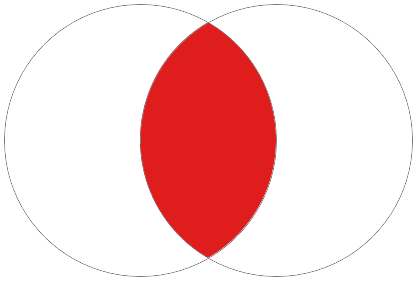
I'll draw my second shape, and this time, only the area where the two shapes intersect remains visible:
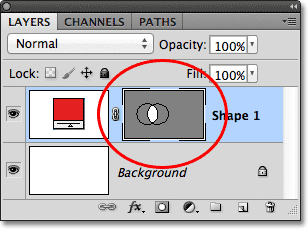
Again we can see in the Layers panel that both shapes were added to the same vector mask. Just like a normal layer mask, the small white area on the vector mask thumbnail represents the part of the shape that's visible in the document:
Exclude Overlapping Shape Areas
I'll remove the second shape by pressing Ctrl+Z (Win) / Command+Z (Mac), and finally, I'll select the Exclude Overlapping Shape Areas option in the Options Bar:

We know we're in the Exclude Overlapping Shape Areas mode because a small circle with an x in the center of it appears in the lower right of the mouse cursor:

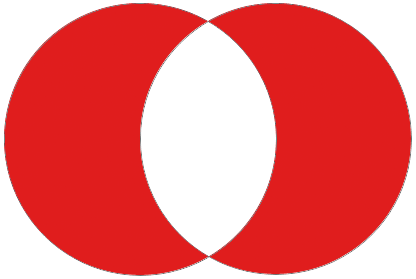
I'll draw my second shape, and this time, we get the exact opposite result from what we saw when the Intersect Shape Areas option was selected. With Exclude Overlapping Shape Areas, the overlapping area of the shapes is hidden, while the rest remains visible:
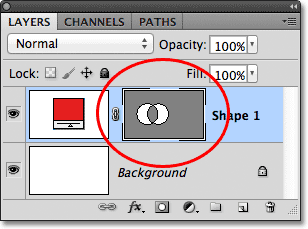
And once again, we see in the Layers panel that both shapes were added to the same vector mask on the same Shape layer:
Switching Between Options After Drawing The Shape
What if, after drawing my second shape in the Exclude Overlapping Shape Areas mode as I just did, I realize I had the wrong option chosen in the Options Bar? What if I meant to draw the second shape in, say, the Subtract from Shape Area mode instead? I could undo my last step to remove the shape, choose the correct option from the Options Bar and then draw the second shape again, or I could simply select the second shape and switch the option for it!
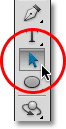
To select the shape, we need the Path Selection Tool (the black arrow) from the Tools panel:
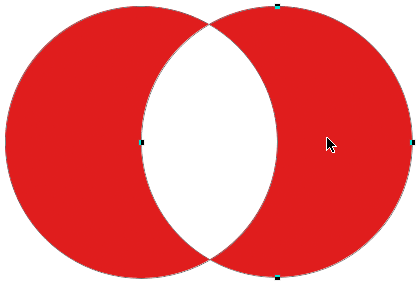
With the Path Selection Tool in hand, I'll simply click inside the shape I need to select. Even though the two shapes are part of the same vector mask on the same Shape layer, we can still select them individually just by clicking on them. Here, I've clicked on the second shape (the one on the right), and we can see the path's anchor points (the small squares) that have appeared around it letting us know the shape is now selected and active:
If we look in the Options Bar, we see that the Path Selection Tool gives us access to the same Add, Subtract, Intersect and Exclude options that we're given when we have any of the Shape tools selected. The only option we don't get with the Path Selection Tool is the Create New Shape Layer option, since we can't actually draw a shape with the Path Selection Tool. We can, however, use the Path Selection Tool to easily switch an existing shape from one mode to another.
With my second shape selected in the document, I'll click on the Subtract from Shape Area option in the Options Bar (second icon from the left):

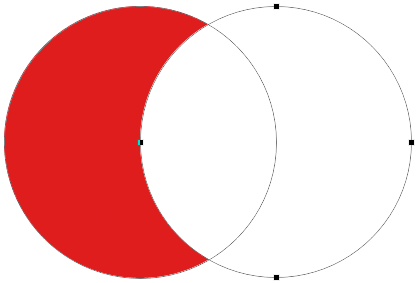
And just like that, the shape switches from its initial Exclude Overlapping Shape Areas mode to the Subtract from Shape Area mode in the document:
Deleting Shapes On The Same Shape Layer
Finally, what if I wanted to delete the second shape entirely and go back to just my initial circular shape? I couldn't simply drag the Shape layer down on to the Trash Bin because that would delete the entire Shape layer. Instead, I'd select the second shape by clicking on it with the Path Selection Tool, just as I did a moment ago, then I'd press Backspace (Win) / Delete (Mac) on my keyboard. This will delete the selected shape without deleting the entire Shape layer.