Photoshop Brush Tutorial: Scattering

For Photoshop 7, Photoshop CS and Photoshop CS2 Brushes

So far, if you're following along in order, we've looked at Photoshop's "Shape Dynamics" brush controls, which enable us (or Photoshop) to dynamically alter the size, angle, and roundness of our brush tip as we paint. Those, however, are just the beginning, the tip of the iceberg, if you will (I was going to say the "brush tip" of the iceberg, but I stopped myself).There's plenty of other fun and interesting ways we can change the look of our Photoshop brush as we move it around the screen, including the topic of this section, "Scattering".

I'm going to use one of Photoshop's standard round brushes for this lesson, a 19 pixel hard-edge brush:

Selecting the 19 pixel hard edge Photoshop brush from the Brush Tip Shape preview area in the Photoshop Brushes palette
Selecting the 19 pixel hard edge Photoshop brush from the Brush Tip Shape preview area in the Brushes palette.

Also, I'm going to set the spacing for the brush to 100% using the Spacing control near the bottom of the Brush Tip Shape control panel in Photoshop's Brushes palette, which will allow us to clearly see the brush tips throughout the stroke so we can see exactly what's happening:

Setting the brush tip spacing to 100% at the bottom of the Brush Tip Shape control panel in the Photoshop Brushes palette
Setting the spacing for the brush tips to 100% to clearly see the brush tips throughout the length of the brush stroke.

What is "Scattering"?

"Scattering" does pretty much what the name implies. Rather than Photoshop "stamping" the canvas with the brush tips in a continuous line as we paint our brush strokes, it, well, scatters the brush tips. Let's look at some examples.

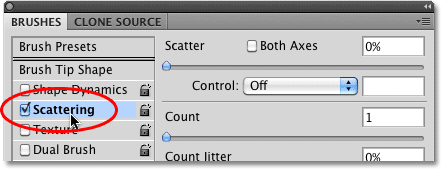
First, we need to access the Scattering controls, and we can do that by clicking directly on the word "Scattering" in the left hand column of the Brushes palette, directly below "Shape Dynamics". Make sure you click directly on the word "Scattering" and don't simply click the checkbox to the left of the word. Clicking in the checkbox will enable Scattering to have an effect on your brush, but it won't give you access to the Scattering control panel. You need to click directly on the names of the brush controls to access their respective control panel:

Selecting 'Scattering' from the list of brush control options in the Photoshop Brushes palette
Click directly on the word "Scattering" on the left of Photoshop's Brushes palette to access the Scattering control panel. Don't simply click in the checkbox.

When you click on the word "Scattering", the Brushes palette changes to the Scattering control panel:

The 'Scattering' control panel in Photoshop's Brushes palette
The Scattering control panel in the Brushes palette.

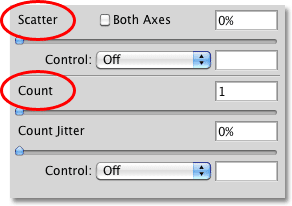
The Scattering control panel gives us three basic controls - Scatter, Count, and Count Jitter. Let's look at each one, starting with Scatter.

Scatter

The 'Scatter' options in the Scattering control panel
The "Scatter" options in the Scattering control panel.

The first option, "Scatter" is where we set the amount of scattering we want for our brush tips. First, let's look at what my brush stroke will look like with Scatter set to a value of 0%, which effectively disables the option:

My brush stroke with a Scatter value of 0%
My brush stroke with a Scatter value of 0%, causing Scatter to have no effect.

As you can see above, when I painted a straight line with my standard Photoshop brush with Scatter set to 0%, nothing unusual happened. My brush tips are lined up perfectly one after the other.

I'm going to increase the Scatter value to 25% and paint the same straight line. Let's see what happens:

Setting the 'Scatter' value to 25% by dragging the Scatter slider bar to the right in the Scattering control panel
My brush stroke with a 'Scatter' value of 25%
My brush stroke with a "Scatter" value of 25%.

With Scatter increased to 25%, we can start to see something happening. The brush tips, which were previously lined up perfectly in a row, are starting to become more random in their placement. Some are higher than where they would normally be, and some are lower.

Let's increase the Scatter value further, this time to 100% and see what happens:

Increasing the Scatter value to 100%
Increasing the Scatter value to 100%.
My brush stroke with a Scatter value of 100%
My brush stroke with the Scatter value increased from 25% to 100%

With the Scatter value set to 100%, we can really start to see Photoshop randomly selecting where to place the brush tips. They're definitely not in a straight line anymore.

I'm going to increase it once again, this time up to 300%:

Increasing the Scatter value to 300%
My brush stroke with Scatter set to 300%
My brush stroke with a Scatter value of 300%

At 300%, we're really seeing some scattering going on. You can increase the Scatter value all the way to 1000%, but I'll leave it at 300% for our examples.

Selecting Both Axis

Let's take another look at the Scatter option again in the control panel:

The Scatter option in the control panel showing the 'Both Axis' checkbox
The Scatter option has a checkbox for "Both Axis".

Notice the "Both Axis" checkbox to the right of the word "Scatter"? By default, it's unchecked, which causes Photoshop to randomly select placements for the brush tips either above or below where the brush tip would normally be, but not left or right of it, as we can see in each of the examples above. The brush tips were always placed either above or below where they would normally have been along the path of the brush stroke. If we click inside the Both Axis checkbox to select it, Photoshop will add left and right into the mix as well.

I'll click inside the Both Axis checkbox to select it:

Clicking inside the Both Axis checkbox to select it
Clicking inside the Both Axis checkbox to select it.

And now I'll paint another brush stroke, this time with Both Axis selected:

Photoshop brush stroke with Scatter set to 300% and 'Both Axis' selected
My brush stroke with Scatter set to 300% and 'Both Axis' selected.

This time, Photoshop has really scattered my brush tips, moving them up, down, left, and right. It's been given free reign on how it mixes them up. Some brush tips are overlapping, while others are spaced far apart from the brush tips around them. It's Photoshop brush tip chaos!

Setting the Photoshop Brush Tip Count

Besides setting the scattering amount for our brush tips, we can also increase the number of brush tips that Photoshop lays down each time it "stamps" the canvas with the brush. The default count, of course, is 1, which is what you'd expect since it essentially means you're holding only one brush in your hand while you paint. But what if you could hold 2 brushes in your hand, or 3, or 10, or even 16 at a time? That's pretty much what the next option, "Count", allows us to do. We can increase the number of brush tips that Photoshop stamps onto the canvas each time it would normally stamp only 1 brush tip. We can even randomize the number of extra brush tips it uses, but we'll just look at how to increase the number of brush tips for now, using "Count".

The Brush Tip Count option under 'Scattering' in the Photoshop Brushes palette
The Photoshop brush tip "Count" option in the Scattering control panel of the Brushes palette.

The Count option is located directly beneath the Scatter options in the Scattering control panel. By default, it's set to 1, which means that Photoshop will stamp only one brush tip at a time:

My Photoshop brush stroke with a brush tip 'Count' value of 1
My brush stroke with a brush tip count at its default value of 1.

My Scatter value is set to 300% which is why my brush tips are being randomly placed along the stroke. "Both Axis" is unchecked.

I'm going to increase the count to 2 by dragging the slider bar to the right:

Increasing the Photoshop brush tip count to 2
Using the slider bar to increase the brush tip count to 2.

And watch what happens when I paint a new brush stroke:

My new Photoshop brush stroke showing two brush tips each time Photoshop stamps the brush onto the canvas.
My brush stroke with a brush tip count value of 2.

With a count value of 2, Photoshop is now stamping two brush tips onto the canvas each time it would normally have only stamped 1. A few sections along the stroke look like Photoshop has stamped only one brush tip, but in those cases, Photoshop has simply stamped both of them on top of each other. Remember that it's randomly scattering the tips since my Scatter value is set to 300%, and that means that both brush tips are being randomly scattered rather than the second one always being stamped directly over top of the first.

Now I'll increase the brush tip count to 5:

The Photoshop brush stroke with a brush tip count of 5
The brush stroke with a brush tip count of 5.

Photoshop is now giving me 5 brush tips for every 1 it would normally give me, resulting in a rather interesting effect. Of course, so far I've been using only one axis to randomize my brush tips. This time I'll paint another stroke, again with my brush tip count set to 5, but I'll check the "Both Axis" checkbox to the right of the word "Scatter".

My Photoshop brush stroke with a brush tip count value of 5 and 'Both Axis' selected.
My brush stroke with a Photoshop brush tip count value of 5 and 'Both Axis' selected.

Now I'm seeing a much more randomized and rather crazy effect with my brush stroke. If I reduce my brush tip spacing back to Photoshop's default value of 25, which I do back in the Brush Tip Shape control panel, and try painting another stroke using the same settings (scatter at 300%, count set to 5, 'Both Axis' selected), I get this brush effect:

Photoshop brush stroke with Spacing set to 25%, Scatter set to 300%, Both Axis selected, and Count set to 5
My brush stroke using a 19 pixel hard-edge brush, with Spacing set to 25%, Scatter set to 300%, Both Axis selected, and a brush tip Count value set to 5.

Now I have what you might call a "clumpy" brush effect. Of course, if I was to choose a different brush tip from the Brush Tip Shape preview area, the effect would look completely different. Just for fun, I'll paint another brush stroke using the exact same settings, but this time I'll use a different brush tip:

Photoshop brush stroke using the same brush control settings as before but with a different brush tip shape.
Same Photoshop brush control settings, different brush tip shape

And here's the same settings again but with a different brush tip:

Same Photoshop brush tip settings used again but with a different brush tip shape
Same settings again, different brush tip shape

And another:

Again, using the same Photoshop brush settings but with another brush tip shape
Once again, a different Photoshop brush tip shape for the brush stroke but using the exact same brush control settings.

As you can see from the few examples above, you can use the exact same brush control settings on any of Photoshop's brush tip shapes for some interesting effects.

Randomizing the Photoshop Brush Tip Count with 'Count Jitter'

After we set a Count value, we can let Photoshop randomly select the number of brush tips it actually uses. We tell Photoshop to do this by setting a value for "Count Jitter", which simply means count randomness. Photoshop will randomly select a number of brush tips to stamp the canvas with each time it would normally lay down one brush tip, up to a maximum of the Count value you specified.

The Count Jitter option is located directly beneath the Count slider bar:

The 'Count Jitter' option in the Photoshop brush Scattering control panel, directly beneath the Count slider bar
The "Count Jitter" controls are located directly beneath the Count slider bar in the Scattering control panel.

I'm going to switch back to my 19 pixel standard Photoshop brush, and I'm going to turn "Both Axis" off by clicking inside its checkbox to uncheck it, and I'm going to leave my brush tip count set to 5. With Count Jitter set to its default value of 0, this is the effect I get when painting a stroke:

The Photoshop brush stroke with a Count of 5 and a Count Jitter of 0
My brush stroke with a brush tip count of 5 and a count jitter of 0.

Nothing unusual is happening here. Again, since my brush tip count value is set to 5, Photoshop is stamping the canvas with 5 brush tips each time it would normally stamp it with 1. The areas along the stroke where you don't actually see 5 brush tips is simply because Photoshop has stamped some of them directly on top of each other. Again, it's randomly placing them based on a Scatter value of 300%.

If I increase the Count Jitter to 50% by dragging the slider bar to the right:

Dragging the slider bar to the right to increase the Photoshop brush tip 'Count Jitter' value to 50%
Dragging the slider bar to the right to increase the brush tip 'Count Jitter' value to 50%

Photoshop gives me a more random number of brush tips along my brush stroke, up to a maximum of 5:

Brush stroke with a brush tip count of 5 and a count jitter value of 50%
My brush stroke after increasing the brush tip count jitter to 50%.

Unfortunately, it's a bit difficult to see the difference between a count jitter value of 0 and a value of 50% due to the fact that Photoshop sometimes stamps two or more brush tips directly on top of each other, which can give the appearance of count randomness even with count jitter set to 0.

If I was to increase the the count jitter value further, I'd get even more randomness happening. And of course if I increased the brush tip count value, I'd see much more randomness, since I would be giving Photoshop a greater range of numbers to choose from.

For fun, I'm going to increase my brush tip count to its maximum value of 16, which will give me 16 brush tips each time Photoshop would normally give me 1. I'm also going to increase my brush tip count jitter to a full 100% to give me the maximum amount of randomness. Let's throw in a Size Jitter value of 100% as well, which is found in the Shape Dynamics control panel which we looked at in the previous section. And, to allow us to really see what's going on, I'm going to throw one more brush control into the mix - one we haven't looked at yet (at least not if you've been following along in order), an "Opacity Jitter", which is found in the "Other Dynamics" control panel. Opacity Jitter will allow Photoshop to randomly change the transparency levels of our brush tips. I'm going to set my Opacity Jitter value to 80%. And now, I'll paint my brush stroke:

My Photoshop brush stroke with a brush tip count of 16, a count jitter value of 100%, a size jitter value of 100%, and a opacity jitter value of 80%
My brush stroke with my Photoshop brush tip count of 16, a count jitter value of 100%, a size jitter value of 100% and a opacity jitter value of 80%.

Thanks to the added Size Jitter and Opacity Jitter, we can easily see what's happening with my brush stroke. Photoshop is giving me a random number of brush tips each time it would normally give me one, up to a maximum of 16 brush tips (I'd have to set the Scatter value much higher to really be able to see all 16 brush tips lined up vertically). It's also randomly changing the size of each brush tip since I set my Size Jitter value to 100%, and it's changing the transparency levels of the brush tips based on my Opacity Jitter setting of 80%.

As with many of the dynamic brush control options, Photoshop gives us the ability to control both the amount of scattering and the number of brush tips ourselves based on things like pen pressure. Of course, you'll need a pen tablet installed on your computer to be able to use these options. You can select from the various control options from the drop-down menus directly to the right of the word "Control" in both the Scatter and Count Jitter sections of the Scattering control panel.

Back To Top