
Photoshop Black and White Conversions – Grayscale Color Mode Tutorial
In this first in a series of tutorials on the many ways of converting a color photo to black and white in Photoshop, we'll look at one of the absolute quickest and easiest ways go about it, which is by converting the image to the Grayscale color mode.
Normally, digital photos are in what's called the RGB color mode. RGB simply stands for Red, Green and Blue, and in this color mode, Photoshop reproduces every color in the image by combining different amounts of red, green and blue, which are the three primary colors of light. Every color our eyes can see is made up of some combination of these three primary colors. Pure white, for example, contains 100% of red, green and blue, while pure black is the complete absence of red, green and blue. All colors in between are made up of some combination of the three.
Photoshop, by default, uses red, green and blue channels to reproduce all the colors we see in our images, but we can change the way Photoshop handles color simply by changing the color mode of the image. There's several different color modes we can choose from, but the one we're interested in here is the most basic of the bunch - the Grayscale color mode.
Here's an image I have open in Photoshop. I'll be using this same image throughout these tutorials so we can more easily compare the results as we try different ways of converting it to black and white:
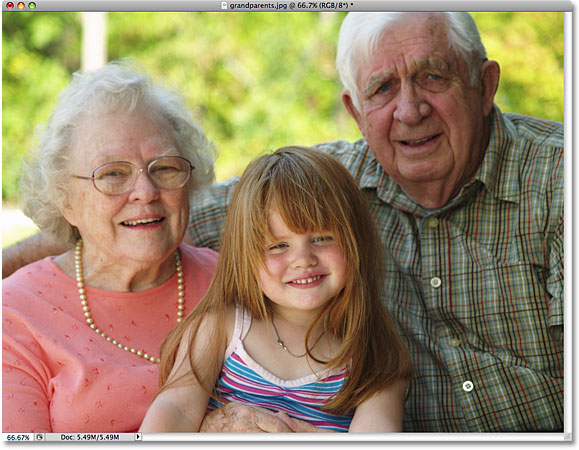
At the moment, this photo is in the default RGB color mode. How do we know that? We know because Photoshop tells us the current color mode of the image at the top of the document window:

We can also tell that the image is in the RGB color mode by going up to the Image menu at the top of the screen and hovering our mouse cursor over the very first option that appears, Mode (short for Color Mode), which brings up another menu showing us all the various color modes that Photoshop can use to reproduce colors. The current color mode of the image will have a checkmark beside its name, which in this case is RGB Color:

To help understand how Photoshop is reproducing the colors in the image, let's switch over to the Channels palette for a moment. You'll find it grouped in between the Layers and Paths palettes. Simply click on the name tab at the top of the Channels palette to switch to it. We don't need to get into a lengthy discussion here about how Channels work, but notice that there's a Red channel, a Green channel and a Blue channel listed. These channels act like filters, mixing different amounts of red, green and blue together to create all the colors we see in the photo. The channel at the very top, RGB, isn't really a channel at all. It's just the result of mixing the three colors together to create the image we see:

So how will changing the color mode from RGB to Grayscale suddenly give us a black and white version of the photo? Unlike the RGB color mode which can reproduce millions (and even billions) of colors, the Grayscale color mode doesn't reproduce color at all. It can reproduce black, white and all the shades of gray in between, and nothing more. When we convert a color photo to Grayscale, Photoshop uses the original color information to essentially "guess" what the black and white version of the image should look like before tossing the color out the window.
To convert the image to Grayscale, simply click on Grayscale in the list of color modes:
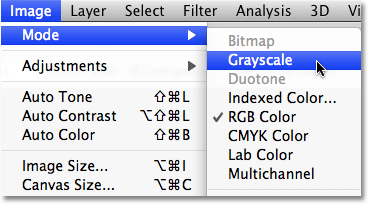
Photoshop will pop open a small dialog box asking us if we really want to discard the color information. If you're using Photoshop CS3 or later (I'm using Photoshop CS4 here), Photoshop will recommend that you use the new Black and White image adjustment instead for more control over the black and white conversion, but since we're interested here in what the Grayscale color mode can do for us, click the Discard button:

Photoshop instantly throws the photo's color information away and leaves us with its best guess on what the black and white version should look like:
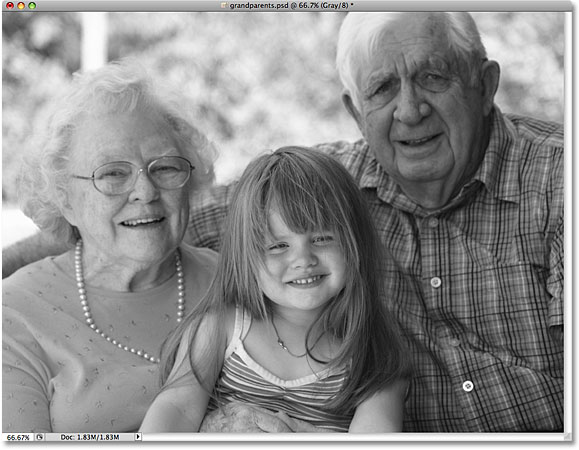
It's definitely a black and white version of the image, but is it any good? Not really. Areas that should be bright are too dark, other areas that should be darker are too bright, and overall, it looks rather uninteresting. Worse still, we had no control over the conversion. Photoshop simply stripped the color from the image and left us with black, white and various shades of gray in its place. However, was it fast? Absolutely! If we hadn't taken some time to understand how the RGB and Grayscale color modes work, we could have converted this photo to Grayscale in a matter of seconds, making it a good choice if we're creating some sort of special effect and need to quickly remove the color from a photo without worrying about image quality.
If we look again at the information along the top of the document window, we can see that the color mode is now listed as "Gray", short for Grayscale:

And if we look in our Channels palette, we can see that the original Red, Green and Blue channels have disappeared, which means that Photoshop no longer has any way of reproducing colors in the image. All we have now is a single Gray channel giving us our black and white version:

Keep in mind that if you save the image at this point and close out of it, the color information will be lost forever. To quickly switch the mode back to RGB color, go up to the Edit menu at the top of the screen and choose Undo Grayscale, or simply press the keyboard shortcut Ctrl+Z (Win) / Command+Z (Mac):

The full color version of the photo will reappear in the document window and the Red, Green and Blue channels will replace the single Gray channel in the Channels palette.
To quickly summarize, most images, by default, are in the RGB color mode. To convert a color photo to black and white using the Grayscale color mode, simply go up to the Image menu, choose Mode, and then choose Grayscale, then click the Discard button when Photoshop asks if you really want to discard the color information. This is a fast and convenient way to remove color from a photo when image quality is not a concern, but definitely not recommended if you're trying to impress anyone with your black and white photography skills or your creative abilities.
Up next, we'll look at another fast and easy way to convert an image to black and white in Photoshop, this time by simply desaturating the color!